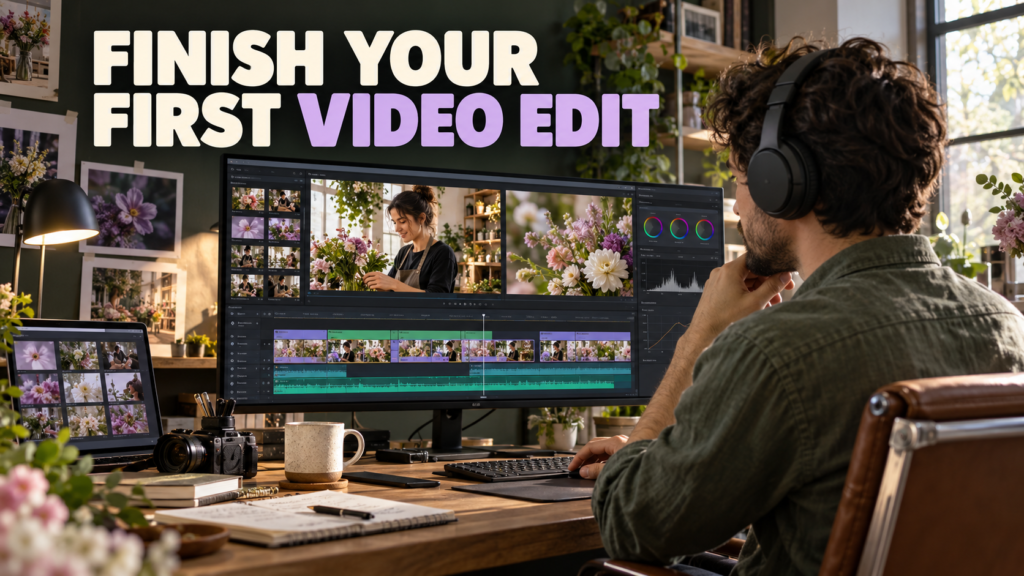
A useful first DaVinci Resolve project ends with a video you can watch outside the editor. Learning every tool is not the first task. Choose a small set of footage, make a clear sequence, check its sound and export a file you can review.
This guide proposes a 60-second practice film using footage you own or have permission to edit. It follows the job from organized source files to final playback. The duration and shot plan are learning choices, not client requirements or promised professional results.
Table of Contents
1. Define a small finishable project
Choose one activity that has a visible beginning, action and result. A florist assembling a bouquet is one example; preparing a meal or wrapping an order can work too. Use a manageable selection of shots rather than importing your entire camera archive.
Write the destination, orientation and intended duration before editing. For the first exercise, choose a normal-speed SDR video with simple natural sound and one short title. Confirm that the footage and computer can handle your chosen recording format.
Use Blackmagic Design’s official training resources for the software workflow and the guide matching your installed version. Interface labels and supported features can change. The workflow here stays focused on finishing the project rather than assuming every reader has the same edition.
2. Organize and preserve the source files
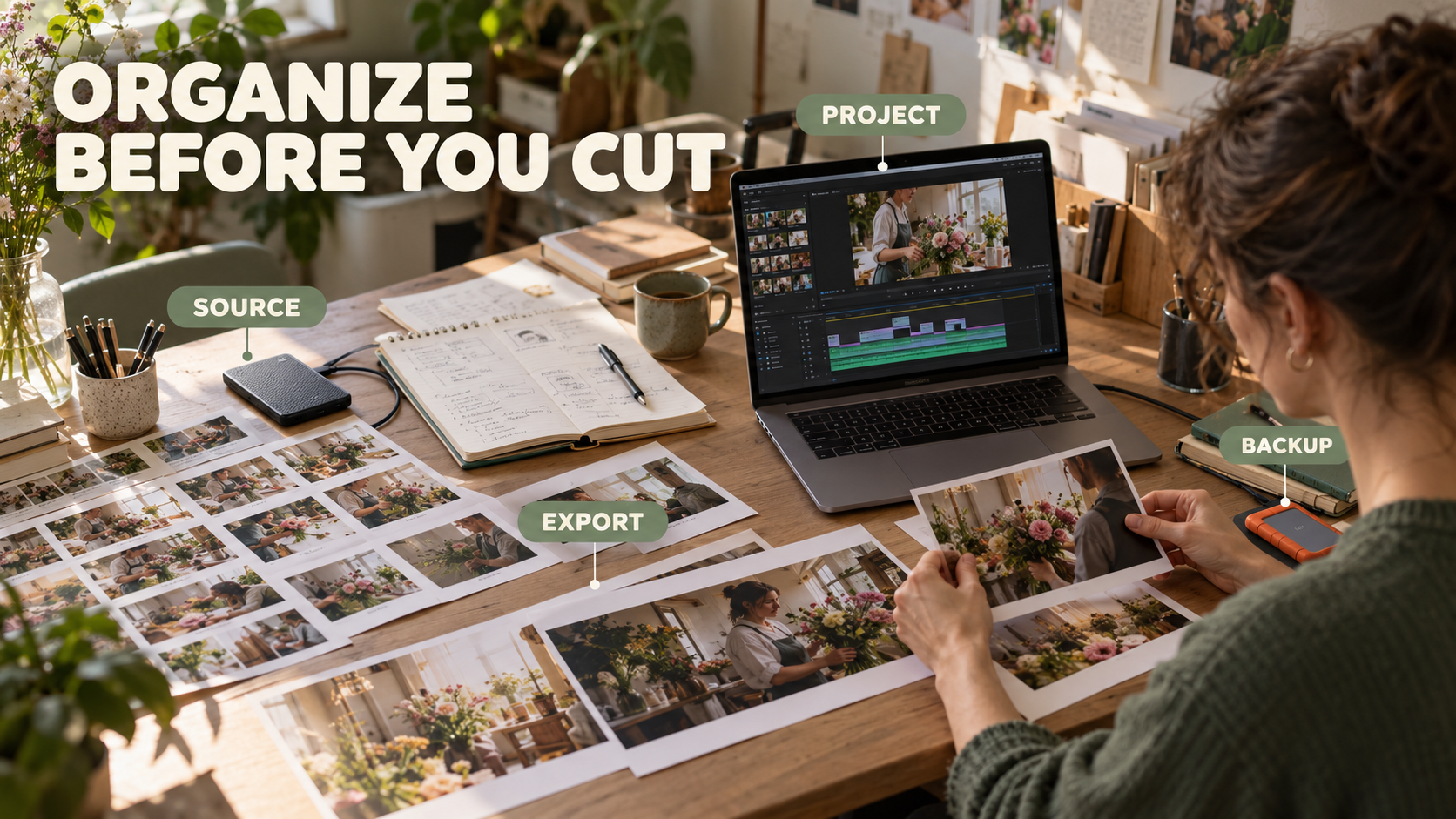
Create a project folder with separate areas for source footage, audio, the editing project and exports. Keep filenames understandable. Copy complete camera-media structures where the format requires them, rather than assuming every camera records independent ordinary video files.
Check that copied footage opens correctly, then make another appropriate copy before depending on it. A project file is not a replacement for the video and audio it references.
Import a small selection and organize it into useful bins. Watch each clip and identify the usable action, a stable section and any sound worth keeping. Leave footage in its organized location so the project can continue to find it.
| Area | What belongs there | What it does not replace |
|---|---|---|
| Source | Original footage and recorded sound | A separate backup |
| Project | Saved editing project and versions | Referenced media files |
| Exports | Rendered review and delivery files | The editable timeline |
| Notes | Brief, decisions and review changes | The actual recordings |
3. Set the timeline deliberately
Choose the timeline dimensions and frame rate for the intended output before building the cut. Confirm how those settings relate to your source clips. If the software asks to change project settings to match imported media, read the choice instead of accepting it without knowing the delivery plan.
For a first project, use footage with a consistent normal-speed recording approach when practical. Mixed frame rates and deliberate slow motion introduce additional decisions; add them once you can explain how the clips should play.
If playback struggles, use the version’s documented proxy or performance workflow where appropriate; see our video proxies vs optimized media guide for a step-by-step comparison. Reduced-resolution preview media helps editing; verify the final render and its source-media behavior before delivery.
Build the first timeline with a simple working specification
For this exercise, one possible specification is a landscape 1920 × 1080 timeline using the normal-speed frame rate of your source footage, with SDR delivery and stereo sound. If the assignment is vertical, choose 1080 × 1920 instead and check every shot’s framing. These are practice specifications; use the recipient’s requirements for real delivery.
Open the project settings before assembling the film and confirm the timeline dimensions and frame rate. Resolve’s available choices and behavior can depend on the project and installed version. If you discover a mismatch after editing, make a project copy before changing settings and inspect the resulting timeline rather than assuming the change is harmless.
Make a small source selection first: one location view, two or three action views, a detail, a person and a result. Watch the clips in the source viewer and mark the portion you want using In and Out points, or trim after placing them on the timeline. Both approaches can work; keep the selected action understandable.
In the Edit workspace, place the chosen picture clips on a video track and keep their relevant linked audio. Move the playhead through the sequence and remove unnecessary gaps. When changing a trim, check the neighboring shot too: an edit can shorten the film or move material depending on the operation you use.
After a few clips, save and close the project, then reopen it. Confirm that it still finds the source media and that the sequence plays. Discovering a missing-media problem now is easier than discovering it after a complete edit.
4. Build a rough cut that explains the activity
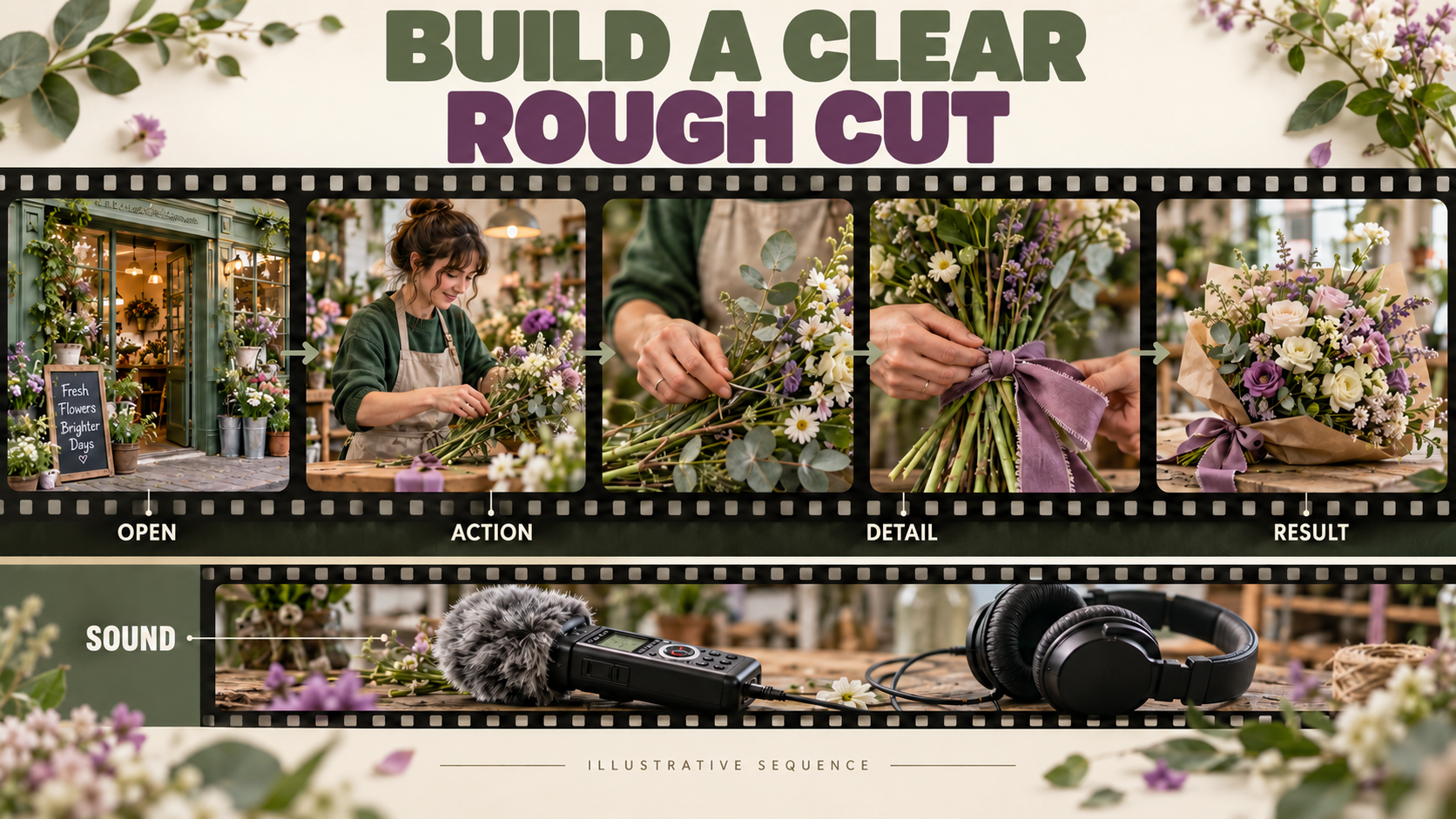
Start with a location shot, a main action, a detail and the finished result. Add the person where it helps the viewer understand who is doing the work. Put the shots in order before adding effects or music.
Trim weak beginnings, repeated information and action that does not contribute to the story. Keep enough of each shot for the activity to be understood. A fast sequence is not automatically a clear one.
Blackmagic’s product overview describes the dedicated editing, color, audio and delivery workspaces. Begin in the editing workspace that suits the exercise; you do not have to use every page to finish a simple film.
| Review pass | Question | Typical change |
|---|---|---|
| Story | Can I follow the activity? | Move or remove a shot |
| Timing | Does this moment need this much time? | Adjust the trim |
| Continuity | Does action jump confusingly? | Choose a better connecting view |
| Ending | Do I see a completed result? | Add or lengthen the final shot |
Save a new project version before a substantial restructuring. Use names that tell you what changed rather than many files called “final.”
Give the sixty seconds a job
A sample structure could devote six seconds to the setting, twenty-four to the main work, twelve to useful details, eight to the person checking the work and ten to the result. That totals sixty seconds, but it is only a planning example. If your story is complete in forty-five seconds, keep the shorter useful film.
Watch the rough cut without titles or music first. Can you identify the action and the completed result? If not, add a missing explanatory view or reorder the material. Effects will not supply an action that was never shown.
For each cut, ask what the incoming shot adds. A closer view can explain a hand movement; a wider view can reestablish the space. Two similarly framed shots with nearly identical information may feel repetitive. Keep both only when their content earns the extra time.
When a jump is distracting, try a relevant detail shot between the action views. Check that the detail belongs to the same stage of the activity. A cutaway should help explain the sequence, not imply that a finished bouquet existed before the work began.
Keep a short edit note beside the project: missing shot, confusing transition, weak sound, text still needed. Finish those jobs before experimenting with looks. This keeps the exercise small enough to complete.
5. Make the sound intelligible
Listen through headphones and through a normal playback device. Check spoken words, useful natural sound and abrupt cuts. If a clip has unwanted noise, determine whether another recorded section gives a better option before heavily processing it.
Balance the soundtrack for the destination and any delivery specification. Watch the meters for clipping, and listen to the exported file. A meter check alone does not establish that speech is understandable.
Keep music optional for this first project. If you include it, confirm the license covers the intended use and keep the source and permission information with the project. Software access does not grant rights to every track you can import.
6. Correct distracting differences before styling
Make neighboring shots reasonably consistent in brightness and color where the scene calls for it. Use one reference shot to guide the comparison, then inspect transitions in motion.
Avoid applying a strong look to hide a capture problem. A clipped highlight or missed focus may need a different shot. Keep important skin, flowers or products understandable.
Use the color-grading workflow when you need a deeper treatment. This first-edit exercise concentrates on selection, sequencing and delivery rather than repeating the full grading guide.
7. Add only useful text and export a review
Use one short opening title that accurately describes the activity. Check spelling, duration, contrast and placement. If captions are needed, verify the words and timing manually.
Select the intended output settings in the delivery workflow and render a review file. Verify dimensions, frame rate, audio inclusion, duration and the chosen render range. A correct timeline can still be exported with an unintended range or setting.
Follow the official guide for your installed version when locating render controls. Keep a note of the settings so an amended version can be exported consistently.
8. Watch the exported file from beginning to end
Open the render in a separate player. Listen to the opening, transitions and ending. Inspect text, picture boundaries and any sections that were difficult to preview in the editor.
Record corrections with approximate times and concrete descriptions. “The bouquet disappears behind the title” is easier to fix than “make it more professional.” Change the project, render again and repeat the review when necessary.
Preserve the project and the media needed to reopen it. Follow our photo and video backup workflow to verify separate copies and a test restore. Use the software’s documented project-export or archive workflow and test that your saved package is usable. Do not delete the sources simply because the finished video plays.
For output comparisons, use the practical bitrate test. The completed exercise should leave you with a watchable file, an organized project and a short decision log.

9. Troubleshoot the first render without rebuilding everything
If you see “Media Offline,” begin with the source files. Check whether their folder or drive has moved and use the documented relinking workflow. Do not delete clips from the timeline simply because their files are temporarily unavailable. A project can contain your edit decisions while still needing the original media to render.
If playback stutters, distinguish editor preview performance from the exported file. Test a short render and watch it in a separate player. Proxy media or reduced preview resolution may improve editing responsiveness, but you still need to verify that the final output uses the intended sources and quality.
If the render contains only a small section, check the selected render range. If it has no sound, check both the timeline audio and the export’s audio inclusion before recording anything again. If text is cut off, inspect the output dimensions and title position, not just the spelling.
For a simple review file, a commonly usable choice is an MP4 containing H.264 video and audio, when those options are available and fit the recipient’s requirements. Verify the dimensions and frame rate instead of relying on a preset name. Add the render to the queue and begin rendering through the Deliver workflow for your version.
Name the review file clearly, such as “bouquet_review_v01.mp4.” Watch the full file before sending it. A second version should carry a new version number and a short correction note so nobody has to guess which file is current.
Finally, test your saved project package. A project export preserves editing information; an archive workflow can include the media selected for that archive. Read the options, preserve the source files and reopen the saved project to confirm what is actually available. Treat successful playback of the rendered MP4 and successful reopening of the editable project as two separate checks.
FAQs
Do I need to learn Fusion for my first edit?
No. Start with the tools needed to assemble, correct and deliver this small project. Add effects when a specific task requires them.
Does saving the project save all my footage inside it?
Do not assume that it does. Preserve the referenced media and use the documented archive or packaging workflow where appropriate.
Should I add a LUT before cutting?
Build an understandable sequence first. Color correction and a chosen look should support the footage and delivery.
Why does the export look different from the editor?
Check the actual output settings, color workflow and playback environment. Compare the exported file rather than assuming the preview proves delivery.
When is the exercise complete?
When you have watched the entire render, corrected important problems and retained a project you can reopen with its media.
Use the documentation for your installed DaVinci Resolve version. This practice sequence is an editorial workflow, not a claim of a Pixanded software benchmark.