
Noisy photos need a diagnosis before a stronger noise-reduction setting. Random speckles, motion blur, missed focus and heavy processing can all make a picture look rough. They need different responses.
Start with the original file and the intended output size. This guide gives you a capture comparison and a three-version editing test so you can choose a useful balance between noise and real detail.
Table of Contents
1. Identify what you are seeing
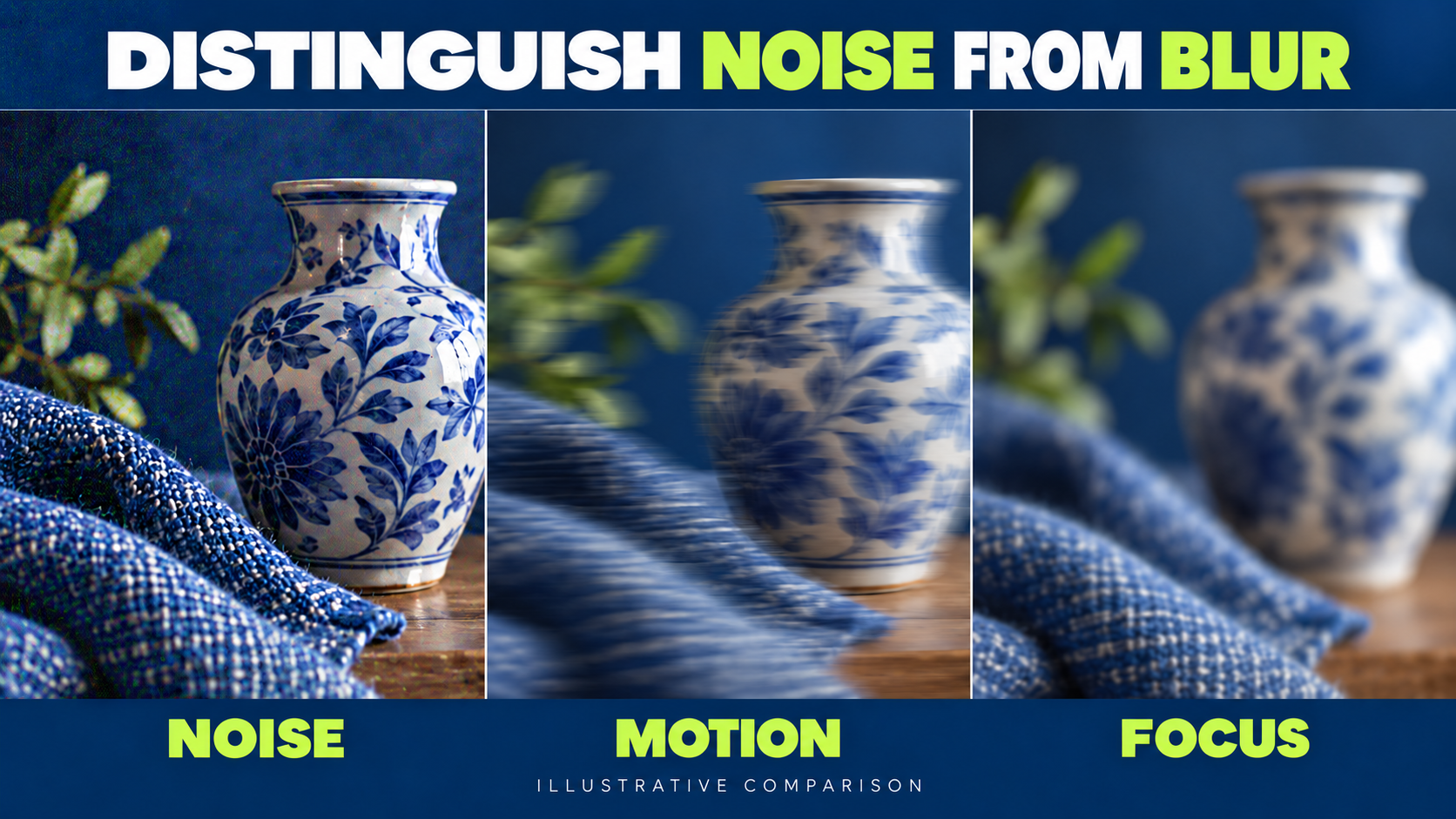
Inspect an important detail at a useful magnification, then return to the full picture. Random brightness variation and unwanted color speckles suggest noise. A directional trail suggests movement. Smoothly soft edges may indicate focus or insufficient depth of field.
Compression and aggressive sharpening can introduce different artifacts. If you only have a small downloaded preview, obtain the original before deciding that the camera was responsible.
| Appearance | First question | Useful check |
|---|---|---|
| Random speckles in a shadow | How much light was recorded there? | Compare the original and brightened edit |
| Directional streaks | Did the subject or camera move? | Inspect another stationary edge |
| A different distance is sharp | Was the focus on the wrong area? | Check the intended subject and focus point |
| Halos or rough outlines | Was sharpening excessive? | Compare with reduced processing |
Do not try to remove a motion trail by smoothing the photograph. For focus diagnosis, use the autofocus modes guide.
2. Separate captured light from ISO
ISO is part of the recording and rendering workflow; changing it does not make more light arrive at the sensor. Aperture, exposure time and scene illumination affect the light captured. Their practical limits depend on the subject and the photograph you need.
Adobe’s imaging-team explanation of noise discusses the statistical variation in recorded light and additional sensor noise. A shadow that receives little light can look rough when made much brighter afterward.
Do not conclude that the lowest ISO always gives the best usable picture. A moving subject may need a short exposure time. Increasing ISO can produce a more useful result than keeping a low setting and accepting severe blur or an unusably dark rendering.
The relevant question is which capture gives the required sharpness, tone and detail. Read the ISO practice test for the underlying controls; this guide adds diagnosis and an output comparison.
3. Improve the capture where the subject permits
For a stationary scene, test a longer exposure with reliable support if highlights and other requirements allow it. For a moving person, that change may introduce blur. Consider an appropriate wider aperture, more usable light or a different position instead.
Check the important bright detail before increasing exposure. More recorded light is not a reason to destroy highlights you need. If the scene exceeds what you can record usefully, adjust the lighting, composition or intended treatment.
A supported stationary photograph and a moving portrait are different problems. Record the reason for your chosen limit so a later comparison does not treat them as interchangeable.
4. Run a stationary-subject comparison
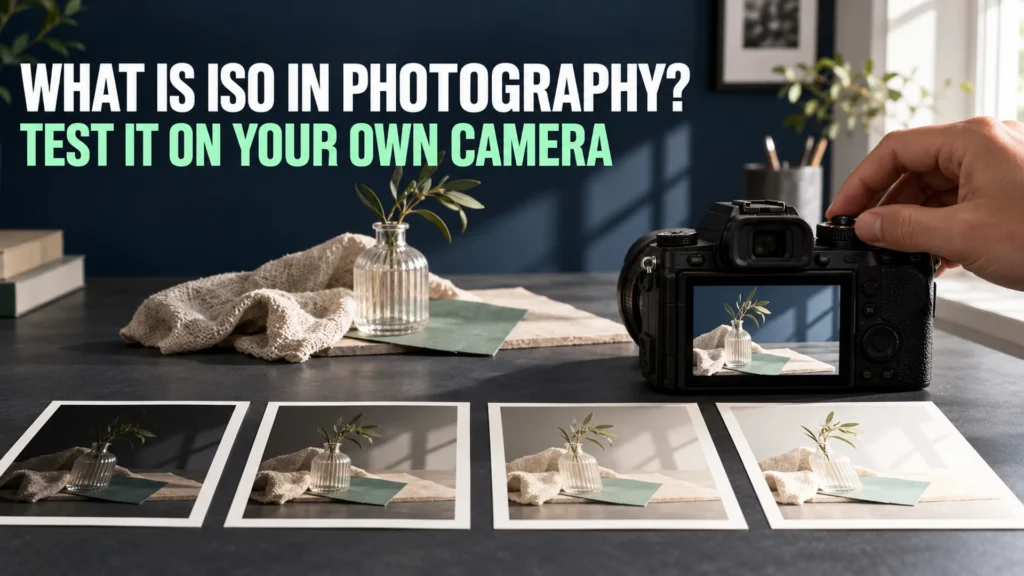
Choose a small still life with a textured cloth, a ceramic object and a darker area. Use a stable camera position, fixed focus, unchanged aperture and a consistent light source. Keep the originals.
Make a baseline capture. Make a second capture with less light recorded by shortening the exposure time, then brighten its rendering in the editor to a similar overall appearance. Make a third with more recorded light, using a longer exposure where important highlights allow it. Record every change.
| Version | Purpose | Keep in the notes |
|---|---|---|
| Baseline | Establish the starting result | Exposure settings and important highlights |
| Less captured light, brightened | Inspect the darker capture after adjustment | What was changed during capture and editing |
| More captured light | Compare useful texture and shadows | Support, exposure change and highlight check |
This exercise is not an isolated scientific measurement of ISO, sensor quality or software performance. Exposure and processing interact. It helps you see the consequences of a particular workflow on your own camera.
Match the final viewing size. If one edit is brighter or more strongly sharpened, acknowledge that difference before attributing every visible change to the capture.
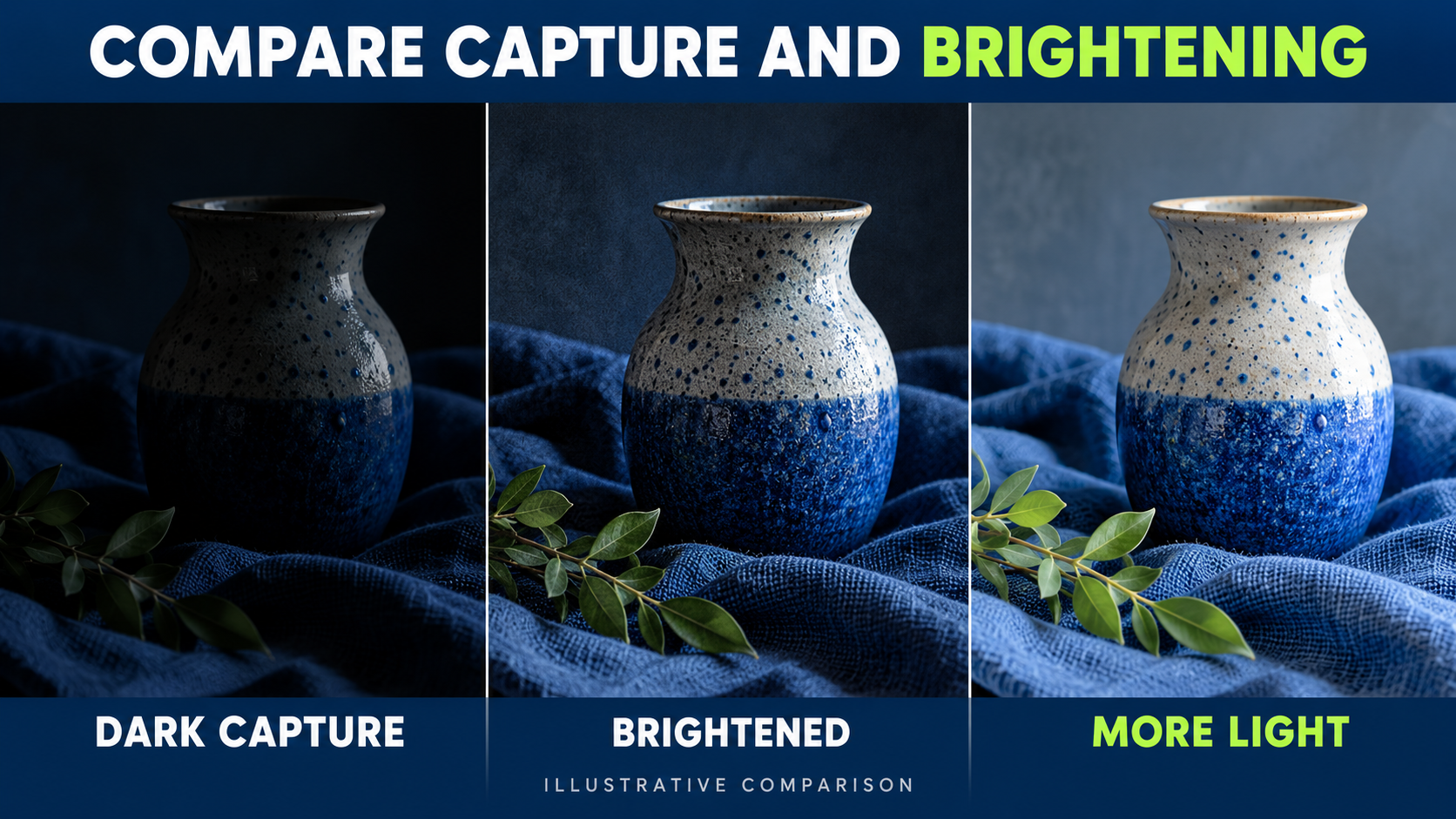
A concrete exposure comparison you can repeat
For a stationary subject, suppose a usable baseline is f/5.6, 1/60 second and ISO 800. Keeping aperture, ISO, framing and light unchanged, a capture at 1/120 second records about half as much light, while 1/30 second records about twice as much. Those are hypothetical settings to explain the comparison; your baseline may be different.
Brighten the darker capture by roughly one stop to bring its overall appearance near the baseline. Reduce the brighter capture by roughly one stop if needed for a fair viewing comparison. Inspect the same shadow and textured area. Do not assume that the editing adjustment produces identical files: tone curves, clipping and processing may still differ.
Check highlights before making the longer exposure. If the ceramic glaze already loses important detail, the brighter version may clip it. Record that limit instead of treating “more light” as a command to increase exposure indefinitely. Keep the scene and focus fixed so a changed object or soft frame does not confuse the noise comparison.
Use the camera’s histogram as a practical warning about bright areas, while remembering that the displayed histogram may reflect the camera’s preview rendering. Inspect the original during editing too. The goal is a useful photograph with preserved important tones, not a histogram pushed as far right as possible.
For a moving subject, stop using this stationary test as a capture recipe. If 1/30 second blurs a face, that result has failed the task even if the shadow looks smoother. Keep the exposure time the action requires and consider light, aperture, position and acceptable noise together.
5. Compare three editing treatments
Work on copies or nondestructive versions of one original. Create a baseline, a moderate noise-reduction version and a stronger version. Keep brightness and output dimensions consistent while comparing them.
Inspect dark areas, edges and real texture. Fabric, hair and fine food detail make excessive smoothing easier to notice. Choose the treatment that improves the intended photograph while retaining the features the viewer needs.
Adobe’s Camera Raw documentation describes sharpening and noise-reduction controls. Tool availability and file support vary by software version; consult the current documentation for the tool you use.
Avoid treating one slider value as a universal recipe. Different files can need different treatment. AI-assisted denoising can also change fine detail or tonal appearance, so review the result rather than accepting it automatically.
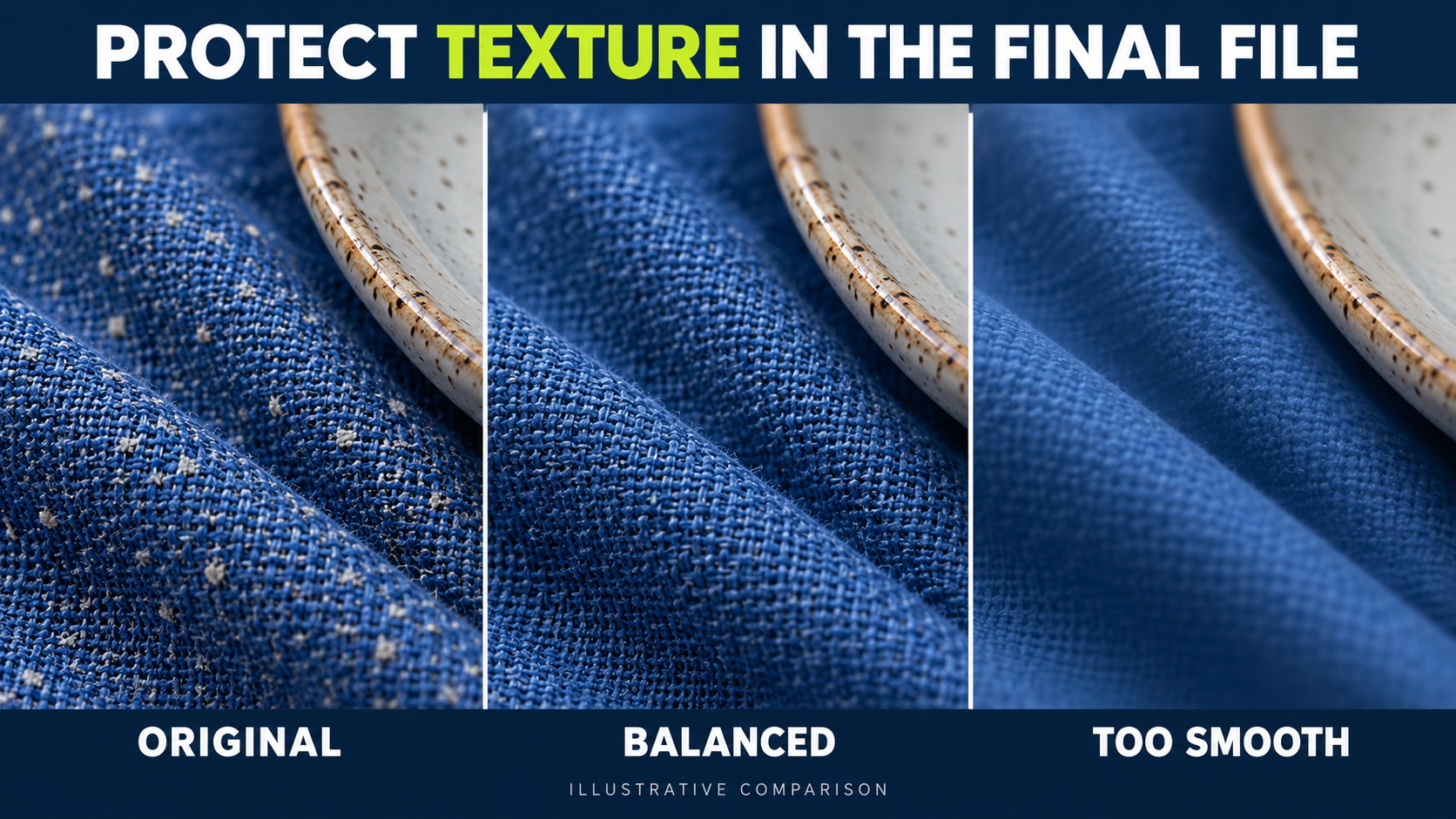
6. Judge the exported photograph
Export the versions at the real destination size. Open them in the intended viewing environment, then compare the same areas. A magnified inspection is useful for finding artifacts; the actual output tells you whether those artifacts matter for this use.
Choose by purpose. A small web image, a large print and a heavily cropped photograph expose different levels of detail. You may keep separate exports while preserving one original.
Use the repeatable editing workflow to organize the files and record the chosen treatment. Name the test versions clearly so you can reproduce the useful result.
7. Write a decision for the next shoot
Finish with a practical note: “For this stationary setup, support the camera and use more exposure time while checking the bright glaze,” or “For this moving subject, keep the required shutter setting and improve the light.”
That decision connects editing to capture. It is more useful than promising that new equipment or stronger denoising will make every low-light photograph clean.
8. Make an editing decision in a consistent order
First settle the basic brightness and color so you are comparing versions that represent the same intended photograph. Next compare noise reduction, then judge sharpening at the output size. Otherwise, strong sharpening can exaggerate the noise you have just tried to reduce and lead you into a cycle of smoothing and sharpening.
Separate colored speckles from uneven brightness. They may respond to different controls in your editor. Change one control at a time and write down which visible problem improved. Keep your original or an untouched editing version so you can return to it without guessing.
Choose two inspection areas: a fairly smooth shadow where noise is easy to see and a textured subject area where real detail matters. An edit that makes a dark wall cleaner but erases the weave of a scarf may be too aggressive. An edit that preserves the scarf but leaves unobtrusive grain at the destination size may serve the photograph better.
Compare exports side by side with the same crop, dimensions and display brightness. If you are judging a print, a physical test is more useful than zooming farther into the screen. For a web image, inspect the actual page presentation and check that compression has not introduced a new problem.
Save a brief decision log: original filename; capture limit; editing version; export size; feature to preserve; chosen compromise. For example: “Keep the fabric weave; moderate smoothing is sufficient at the page size; next time use camera support for this stationary arrangement.” This is a sample decision, not a measured result.
If no treatment gives a useful balance, return to the capture problem. A differently lit frame or a new photograph may be a better solution than processing the same file harder. Keep the noisy original as a learning reference so your next test answers a specific question.
FAQs
Does high ISO always ruin a photograph?
No. Judge the required sharpness, captured light, processing and intended output. A usable noisy frame can be preferable to an unusably blurred one.
Is every soft photograph noisy?
No. Focus, subject movement, depth of field and processing can produce different kinds of softness.
Can noise reduction restore all lost detail?
No. It can change the appearance of noise, but it cannot guarantee recovery of detail that was not recorded usefully.
Should I compare at 100 percent?
Use detail magnification to inspect artifacts and the actual output size to decide whether the photograph serves its purpose.
Is RAW always required?
No. RAW can provide useful processing options, but available controls and supported denoising features depend on the file and software.
The proposed comparisons help you evaluate your own files. They are not camera rankings or claims of measured Pixanded tests.