Video proxies are lighter editing copies of your footage. Optimized media is footage converted into a format intended to work well in the editor. Both can help a struggling timeline, but they solve different problems and neither replaces the need to preserve your camera originals.
If playback stutters, it is tempting to buy a faster computer or transcode an entire project immediately. First identify what is slow. Decoding a demanding camera format, reading files from a slow drive, processing effects and generating the final export are different jobs. A proxy helps most when the lighter representation actually removes the bottleneck.
This guide explains the differences, shows a small-project workflow and gives you a verification routine before final export. Software menus change, so use the linked official documentation for the version installed on your computer.
On this page
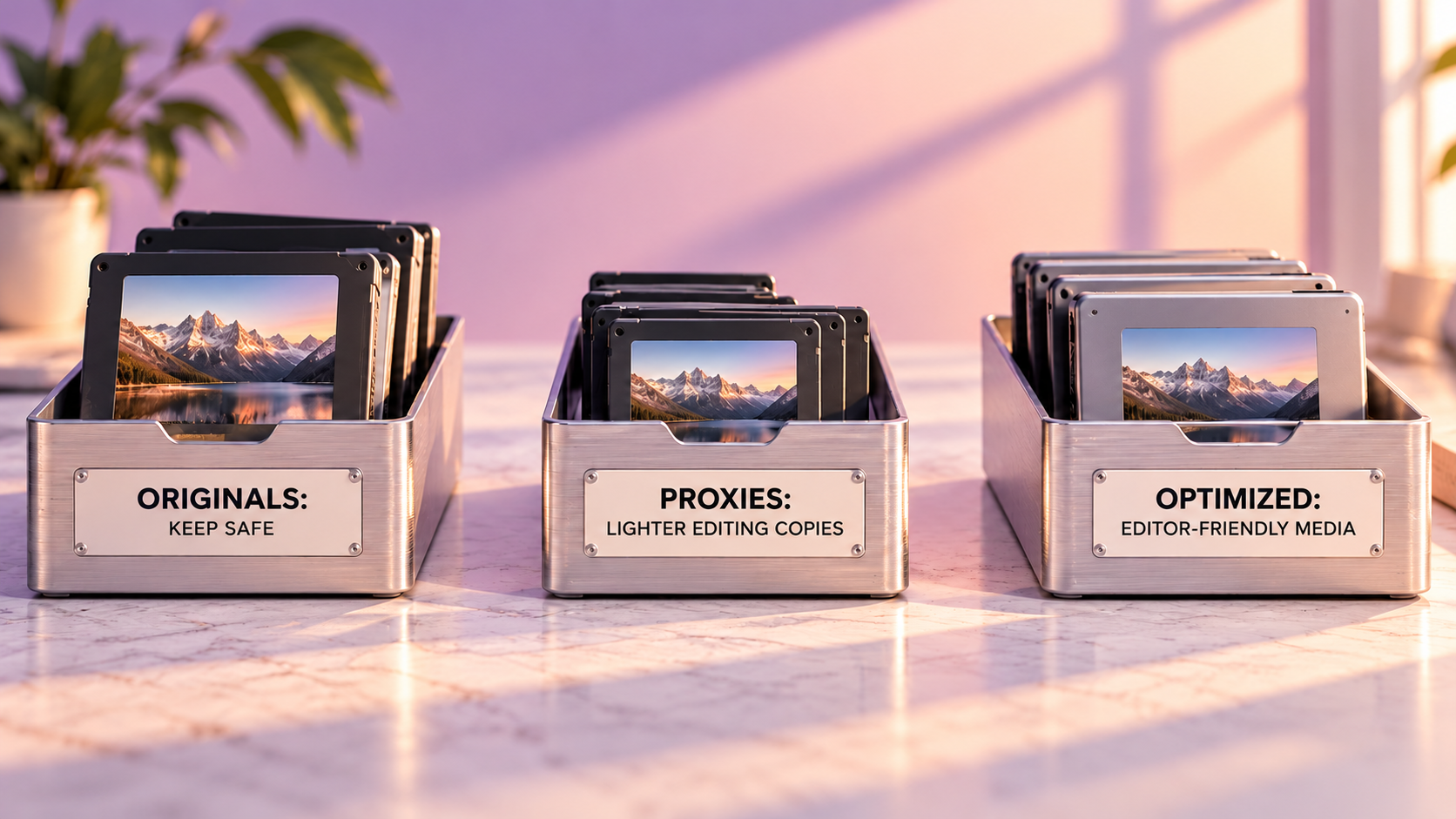
Originals, proxies and optimized media in plain language
The original is the camera file you recorded. Keep its complete folder structure when the recording format requires associated files. It is your source, not a disposable intermediate.
A proxy is an alternate representation linked to that source. It is often lower resolution or otherwise easier to decode. You edit the sequence using the linked copy, then use the appropriate full-quality source representation for final review and delivery.
Optimized media is a conversion intended to improve editing performance. It may preserve full frame dimensions and can occupy more storage than the compressed original. “Optimized” does not mean smaller, sharper or better than what the camera captured. Conversion cannot invent genuine source detail.
| Representation | Main purpose | Main tradeoff |
| Camera original | Preserve recorded source material | Some formats are demanding to decode |
| Proxy | Make the working edit more manageable | Reduced fidelity and a linking workflow |
| Optimized media | Use an editing-friendly representation | Transcoding time and potentially substantial storage |
| Rendered preview or cache | Reuse processed results for playback | Can become outdated after edits |
A rendered preview is a separate concept. It may contain the result of effects, compositing or timeline processing. Generating proxies does not necessarily remove a heavy effect stack, and rendering a section does not create a complete source-media backup.
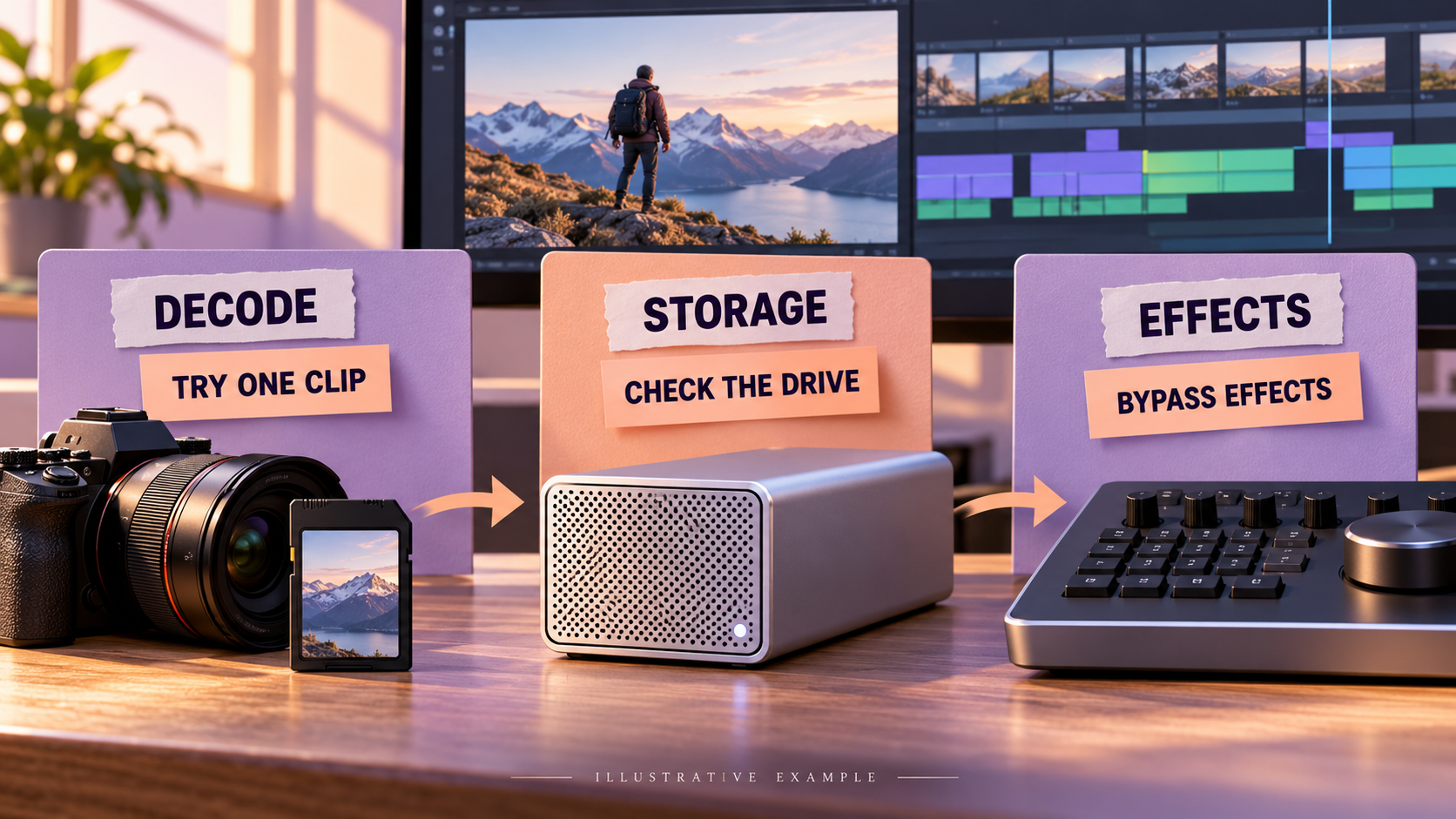
Diagnose the timeline before creating copies
Play one original clip in a simple sequence with no added effects. Then compare that with the section that is stuttering. If the clean clip plays smoothly and the heavily graded section does not, the effect processing deserves attention.
Check where the media is stored. A loose connection, nearly full drive, unreliable hub or shared network bottleneck can affect playback. Moving to a dependable working drive may help more than changing the codec, but do not relocate files without recording the new location and verifying the links.
Check the playback quality setting too. Viewing at reduced quality can be a useful first step, especially for a short project. It is not the same as creating linked proxies; the editor is still reading the underlying source representation.
For a multicamera edit, multiple simultaneous streams increase the workload. A single clip that plays well does not prove that six synchronized angles will play equally well. Test a representative section of the actual sequence rather than an easy sample.
Pixanded’s bitrate guide explains why file size and data rate matter. Remember that two formats at a similar bitrate can still demand different amounts of decoding work.
Choose the smallest intervention that solves the problem
Use originals when they play reliably and there is no other reason to transcode. Generating alternate files consumes time and storage, so a straightforward project may not need them.
Consider proxies when you have high-resolution or difficult camera files, many simultaneous streams, a modest laptop or a need to move a lighter working set. Choose a representation that is light enough to help but clear enough to judge the edit.
Consider optimized media when an editing-friendly conversion solves the problem and storage is available. It can be useful when you need more image fidelity during the working session than your chosen proxies provide.
Do not select a setting only because it sounds professional. Test one minute of representative footage and look at playback, file size and conversion time. A setting that works well for an interview may not be ideal for detailed screen recordings or footage containing important fine texture.
If you need to judge focus, noise, small text or subtle image defects, return to an appropriate full-quality representation. Proxy editing is excellent for rhythm and structure; a simplified image is not always enough for final image decisions.
A reliable workflow for a small project
1. Copy and verify the originals
Put the original media in a clearly named project folder before importing it. Keep a separate verified backup. If the camera format uses a card structure, preserve it rather than selecting only files that look familiar.
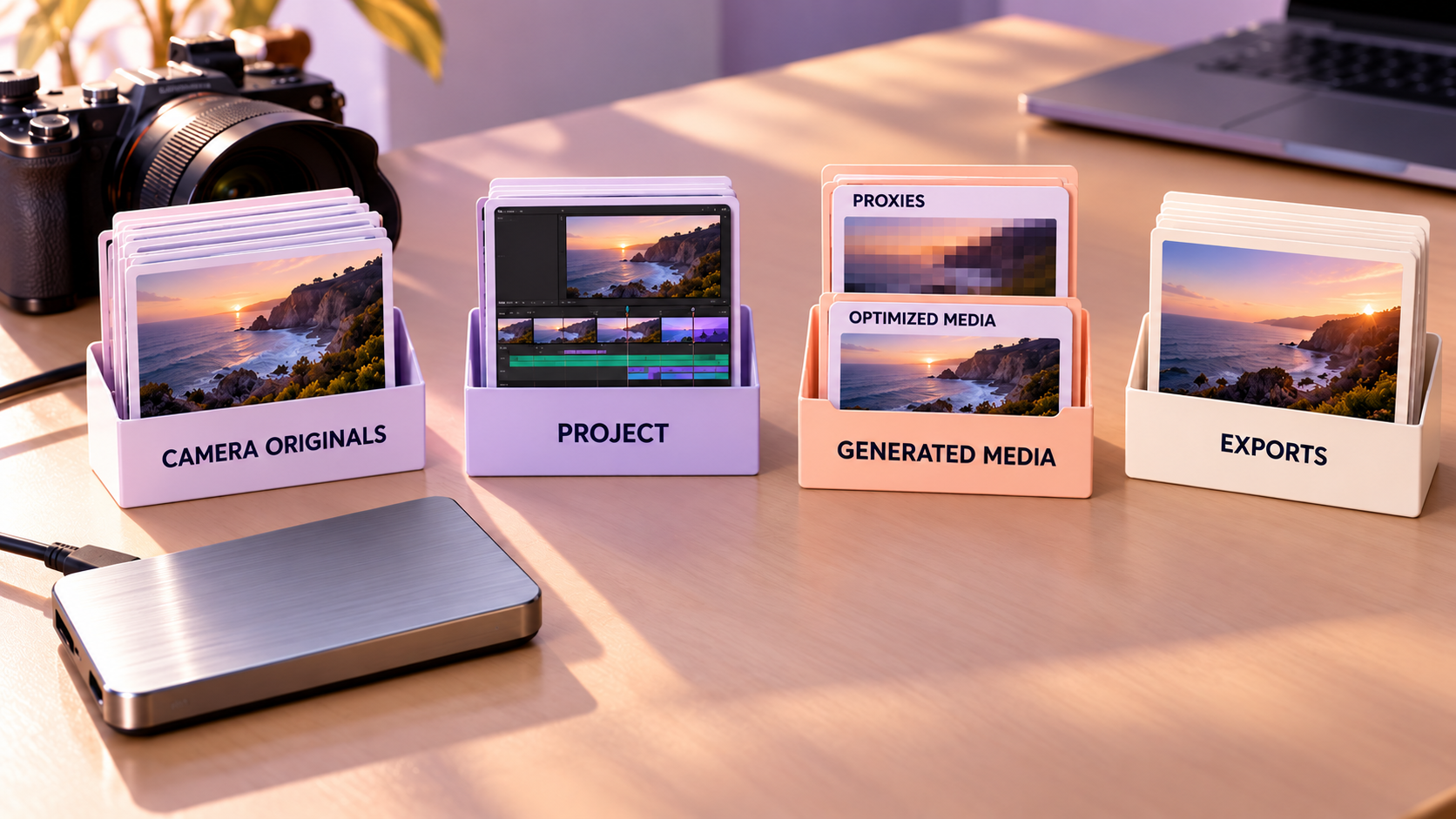
Use a simple structure such as Original Media, Audio, Project Files, Generated Media and Exports. Names can vary; the important part is that originals, generated copies and deliveries do not become indistinguishable.
2. Import into the editor without moving the source accidentally
Decide whether the application will copy media into its managed storage or reference your chosen external location. Record that choice. An editor’s library or project file may contain links without containing all the footage those links require.
3. Generate a test proxy through the editor’s supported workflow
Start with a few clips. Preserve the relationship the application establishes between original and proxy. Creating an unrelated smaller export and importing it as a new source is not the same as attaching a proxy.
4. Confirm that the toggle works
Switch between representations and inspect the same frame. Confirm that framing, duration and audio correspond. Make a short edit and verify that the timeline references the expected source clip rather than a manually substituted copy.
5. Generate only what the project needs
Once the test works, process the remaining clips. Allow time for generation to finish before assuming every clip has an alternate representation. If you edit while conversion runs, know how your application identifies missing or incomplete proxies.
6. Review with full-quality source media before delivery
Check the application’s source-selection and export behavior. Confirm that originals or suitable full-quality optimized media are available. Inspect a short test export for image detail, effects and audio before producing the complete delivery.
What the official application workflows say
In Final Cut Pro, Apple distinguishes optimized and proxy generation in its official media guide. The viewer’s media selection determines the representation used for playback. Apple explicitly tells users to switch back to optimized/original media before sharing a project that has been played using proxies. Follow that check rather than relying on an assumption about automatic switching.
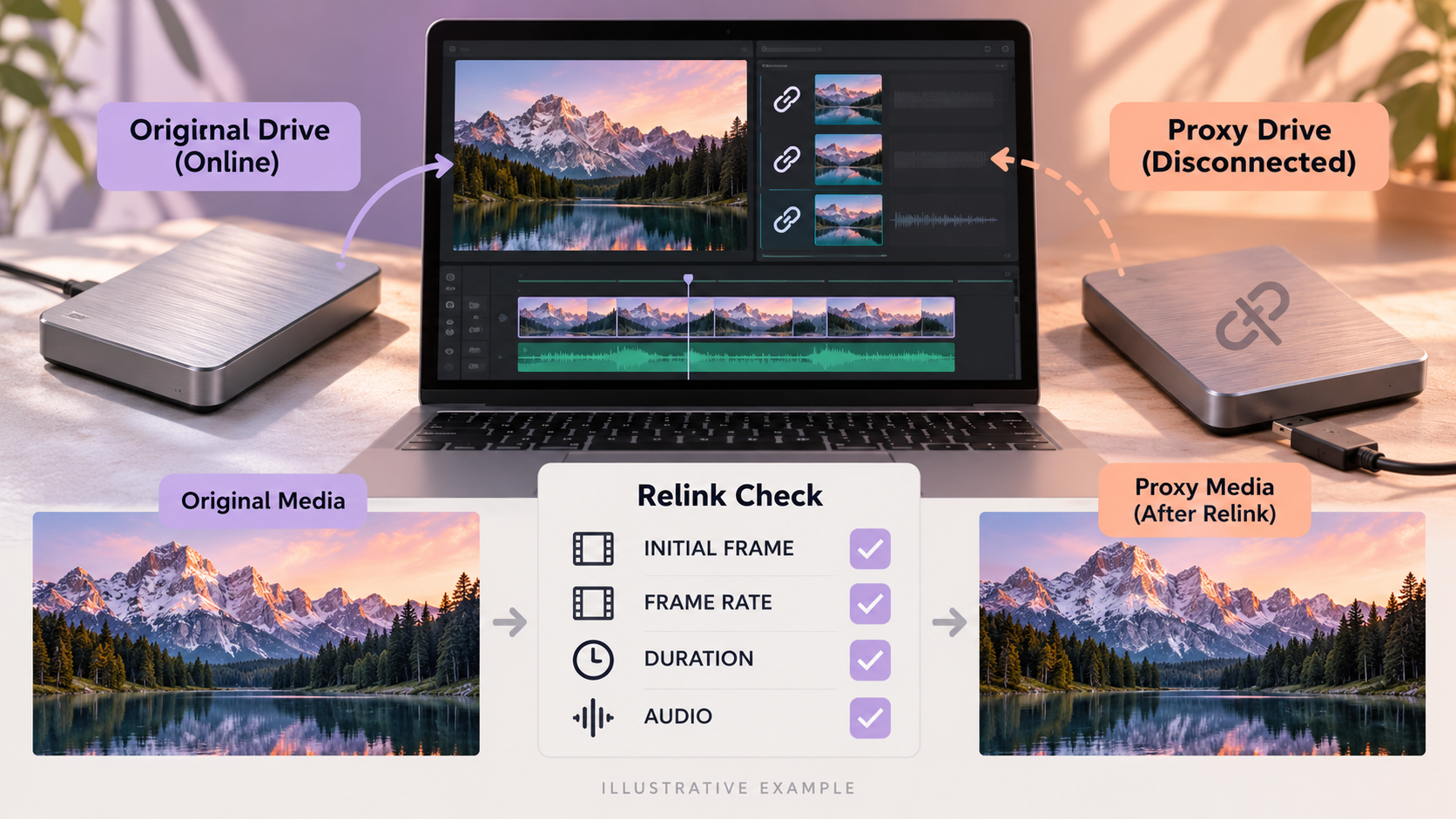
Adobe’s Premiere proxy workflow documentation describes creating or attaching proxies to full-resolution source clips and using the proxy toggle. Adobe documents specific requirements for compatible proxy files, including matching key properties such as frame rate, duration and audio channels. Follow the application’s preset workflow where possible and verify externally created proxies carefully.
Different applications use different names and export options. Do not transfer one program’s menu instructions to another. For a DaVinci Resolve project, begin with Pixanded’s first editing workflow, then consult the documentation bundled with your installed version for proxy generation, optimized media, cache and delivery settings.
The general principle is consistent: know which representation you are seeing, preserve the source relationship, and verify the delivery path. The exact buttons belong to the application and version.
Avoid the five mistakes that cause difficult relinking
First, do not rename or reorganize original files casually after import. If a move is necessary, use a deliberate relinking process and check more than one clip afterwards.
Second, do not give unrelated source files identical ambiguous names in one flattened folder. Two different cards may both contain a clip named 0001. Preserve card or shoot identifiers so you can distinguish them.
Third, do not assume the project file includes external media. Copying a project to a laptop may leave its sources on a desktop drive. Use the application’s supported consolidation or project-transfer tools where appropriate.
Fourth, do not delete camera originals because proxies appear to work. An edit can look complete while its delivery sources are missing. Generated media is not a substitute for preserving recorded material.
Finally, do not disconnect the source drive and then forget that it is required for final review. If you intentionally work with proxies away from the originals, make reconnecting and verifying those originals an explicit delivery step.
Run a ten-clip performance and linking test
Choose ten clips that represent the project: a long interview section, a movement shot, a detailed scene and any multicamera material. Build a short sequence with the effects you actually expect to use.
Compare original playback, a lower viewer-quality setting and proxies. Record your observations in plain language: “plays smoothly,” “drops frames during the multicamera section,” or “fine text is difficult to assess.” Do not invent a percentage improvement or assume your result applies to another computer.
Then move a copy of the test project to the intended secondary workspace using the supported workflow. Verify that the expected files are present and correctly linked. Make one small edit, return to the main workspace and check the source relationships again.
Finish with a short full-quality export. Watch it outside the editor and compare it with the timeline. This exercise tests the complete workflow, rather than merely proving that a proxy file can be generated.
| Symptom | Check first | Next useful action |
| Playback remains slow with proxies | Effects and number of streams | Test without effects; inspect cache options |
| One clip shows missing media | Original and proxy locations | Relink the correct representation |
| Proxy has wrong audio | Channel layout and proxy preset | Regenerate with a compatible workflow |
| Framing changes when toggled | Proxy dimensions and interpretation | Verify creation and attachment settings |
| Final export looks unexpectedly soft | Delivery source selection | Reconnect full-quality sources and test again |
Work through a realistic small-project example
Imagine that you have filmed a short cafe interview with one camera, separate audio and a few detail shots. The camera originals play reasonably well when opened alone, but the editing timeline stutters after you add correction and titles. This is a diagnostic scenario, not a benchmark from a particular computer. The right response depends on what slows down, rather than on the resolution printed on the camera menu.
Start with one original clip in a simple sequence. Play it from the intended working drive, then bypass the effects in your actual edit. If the clean clip plays and the treated timeline struggles, proxies alone may not solve every problem. An effect still has to be processed. If even the clean clip struggles, source decoding, drive performance or another system limitation deserves closer attention.
Generate a supported proxy for a representative clip that includes dialogue. Compare source and proxy playback through the editor’s own toggle, not by dropping both files onto separate tracks. Check the first and last frames, clip duration and audio behavior. Add a short edit and reopen the project. The exercise checks workflow integrity as well as whether playback feels usable.
Only then process the footage you need. You do not have to create alternate media for every archived shoot on your computer. Record the settings used for this project and where the generated files live. A short note now is valuable when you reopen the job months later.
Choose proxy settings by the work you need to do
A useful proxy is easy enough for your system to play and detailed enough for the decisions you are making. During a rough assembly, you need to recognize subjects, gestures and usable takes. For checking small text, precise focus or subtle artifacts, switch back to suitable full-quality media. Making a very small proxy and then enlarging it in the viewer does not recover detail that the proxy lacks.
Resolution and codec are separate choices. A smaller frame can reduce the amount of picture data, while an editing-friendly codec may reduce decoding difficulty. Actual performance depends on the source format, hardware, storage and software workflow. Avoid a universal instruction such as “all beginners should use this one proxy preset.” Test a preset supported by your editor on your own representative footage.
Check whether your project includes unusual frame rates, separate audio channels or material recorded in a format requiring special handling. Use the application documentation when selecting supported settings. Do not assume a manually converted file will attach correctly because its name resembles the original. Adobe’s ingest and proxy documentation is the appropriate reference for its attachment workflow.
Allow storage room for both originals and generated media. An optimized representation can take more space than the camera file; it is not automatically a compression tool. Apple’s optimized and proxy guidance distinguishes the representations and their workflow. Protect the originals before trying to free space.
Name and store alternate media so another editor can follow it
Use a project folder that clearly separates camera originals, sound, project files, generated media and deliveries. Preserve the camera’s original folder structure when it contains supporting metadata. Put custom descriptive names in bins or organizational notes when that is safer than renaming files after import.
If the editor allows you to choose the proxy destination, make that choice deliberately. A temporary folder hidden on the system drive can fill unexpectedly or be cleared later. A dedicated generated-media folder makes it easier to inspect what occupies space. Keep it distinct from the originals so a cleanup decision cannot accidentally remove the only camera copy.
For a handoff, write a short readme. Include the project version, working-media locations, proxy settings, separate-audio arrangements and any assets requiring installation or permission. A readme is a description of your actual project, not a promise that every application can open it. If the receiving editor uses another program, discuss a supported exchange format and test a small transfer before sending the entire job.
Do not send only the proxies when the recipient needs finishing-quality media. Conversely, avoid copying unnecessary caches simply because they are present. Agree what the handoff must support: rough editing, color finishing, sound work or a final revision. That purpose determines what files and source quality the recipient needs.
Rehearse an offline-media problem safely
Make a duplicate of the project for this exercise and leave the original working project intact. Close the editor before changing a drive connection. Disconnect the drive containing the generated proxies, reopen the duplicate, and observe how the application reports unavailable media. Reconnect it and use the supported relink or attachment controls if needed.
Now test the original-media connection separately. The purpose is to learn the difference between missing source footage and missing alternate media. Do not rename random folders until the warnings disappear. Record which file the editor requests, where it expects that file and which representation is active.
Confirm several clips after relinking. A filename match is not enough when different camera cards contain similar names. Compare the subject, starting frame, duration and sound. If the wrong shot appears, stop and correct the association rather than trusting the rest of the timeline. Duplicate filenames are a practical reason to preserve shoot and card identities.
Keep your test findings beside the project. State what you disconnected and how recovery worked. This small rehearsal makes an actual missing-media problem less mysterious and helps you distinguish a routine relink from lost originals.
Deliver from a verified media state
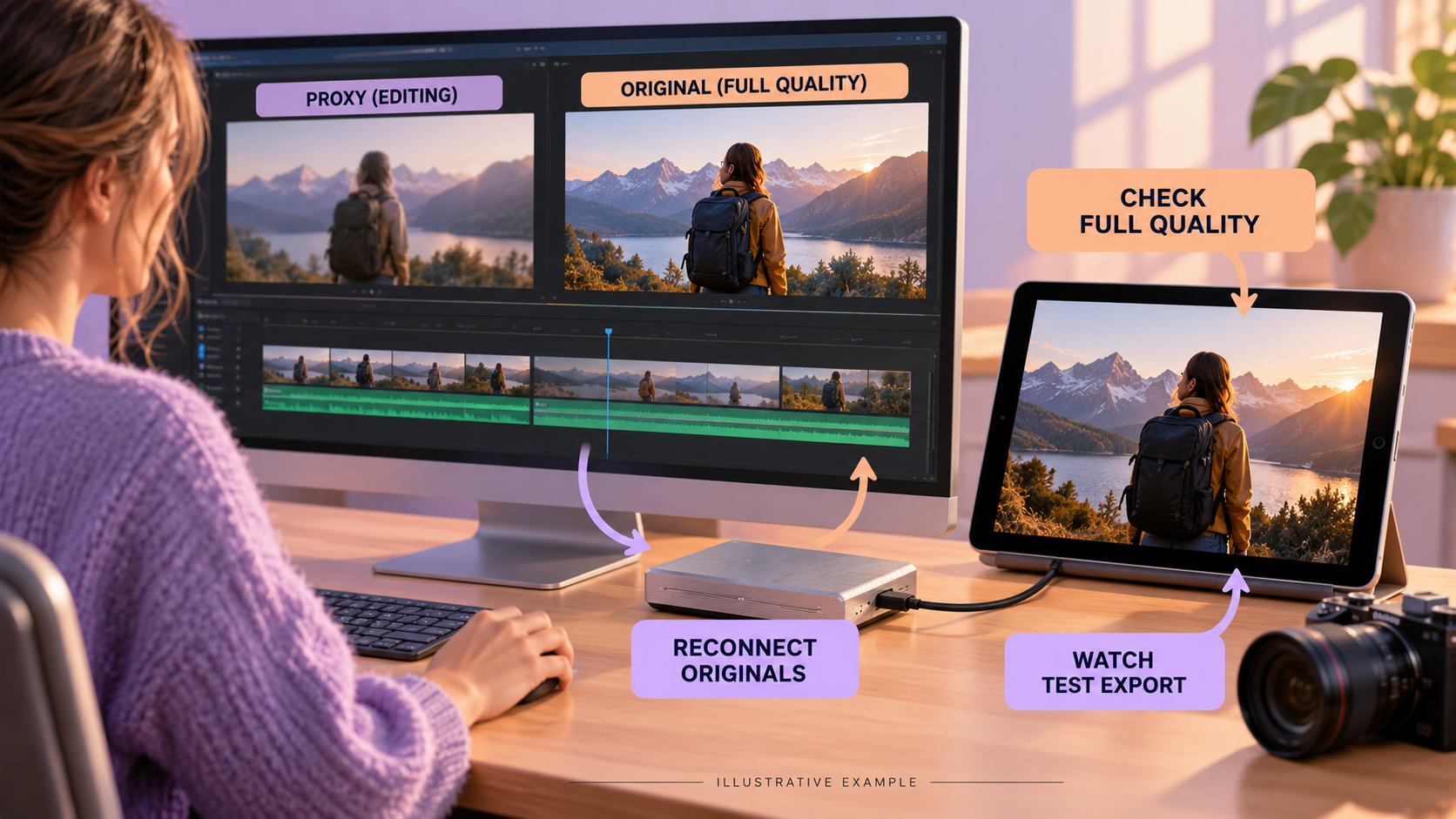
Before the final export, deliberately choose the appropriate full-quality media state according to your application’s workflow. Inspect important frames at a useful viewing size, check separate audio and review titles. Export a short representative section containing movement, a transition, sound and any heavy effect.
Watch that file outside the editor. Look for a wrong clip, missing graphic, changed crop, unexpected audio or visible proxy-quality limitation. A successful export notification confirms that a file was written; it does not confirm that you delivered the intended content. If the sample is correct, export the full program and watch it from beginning to end.
Archive the project and source dependencies according to the agreed retention plan. Generated proxies may be reproducible, but document their settings before deletion. Keep alternate media when rebuilding it would be costly or when a future workflow depends on it. Cleanup should follow a verified archive, not replace one.
Frequently asked questions
Do proxies lower the quality of my original footage?
No. Creating a separate linked copy does not change the original source. The quality of the final export depends on the source representation and delivery settings actually used.
Are optimized files always smaller?
No. Editing-friendly formats can be substantially larger than compressed camera files. Estimate storage with a representative test before processing everything.
Can I edit while proxies are generating?
Many applications allow it, but check their progress and missing-proxy behavior. Do not assume every clip has completed simply because the first few play smoothly.
Can I judge color entirely from proxies?
Use full-quality source media for final image decisions. The suitability of a proxy for interim grading depends on its format, resolution and how the application handles it.
Can I delete generated media after delivery?
Often it can be recreated, but verify the application’s cleanup options and your archive requirements first. Preserve originals, project files and necessary dependencies before removing anything.
Make one working edit easier
Choose a difficult one-minute section and test a supported proxy workflow. Keep the original files protected, record which playback representation you used, and complete a full-quality test export. Adopt proxies for the rest of the project only when that small end-to-end test works reliably.