
Learning how to color grade video for a cinematic look starts with a more practical question: does the footage have the correct color interpretation, and do the shots belong together? A strong look applied to mismatched or incorrectly converted clips usually makes the problem more visible.
This guide follows a hypothetical three-shot sequence: a presenter in a reading room, a closer view of their hands with a plant, and a room detail. The goal is a coherent SDR sequence with restrained warmth and readable skin, fabric and leaves. The process works with ordinary SDR footage as well as correctly interpreted Log footage; Log is not a prerequisite.
Table of Contents
1. Choose a delivery and define the look in words
Decide whether you are making an SDR or HDR deliverable before adjusting color. This exercise uses an SDR Rec.709 output. An HDR timeline and an SDR export require a deliberate conversion, not simply a new filename or a saturation adjustment.
Describe the creative aim in terms you can check: gentle contrast, warm practical lamps, a neutral-enough face and readable navy clothing. Choose references with comparable lighting, subjects and intended delivery. A film still from a different environment may suggest a mood, but matching its pixel values is not a useful universal recipe.
Watch references in context rather than treating one still as the whole look. Pay attention to how the grade supports attention and continuity between shots. Keep the important parts of your own image readable.
Prepare an organized sequence with clear shot names and original media backed up. If you already have an edited program, duplicate the timeline before making a major color-management change. Existing effects may react differently when the working space changes.
2. Identify the input before applying a LUT
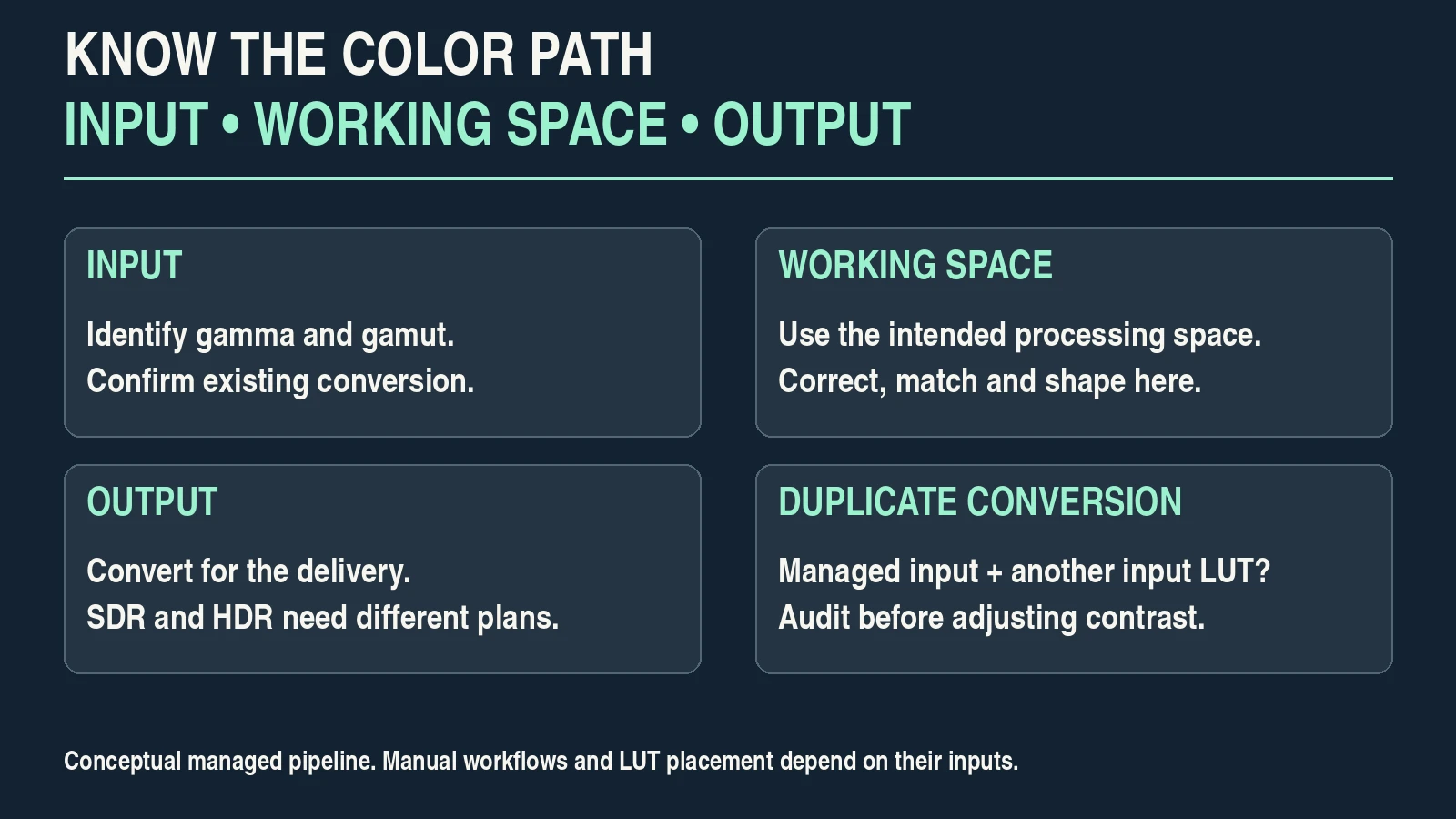
Find the actual recording profile: gamma, color gamut, camera mode and any baked-in look. Use capture notes or reliable metadata. Log is not one universal format, and a low-contrast picture is not enough to identify it.
Check whether the editor has already interpreted or converted the clip. A technical LUT, a color-space transform and automatic color management can overlap. Applying a Log-to-Rec.709 conversion on top of an automatic conversion can create a harsh or distorted result.
Choose an intentional path: a supported managed workflow with correct input assignments, or a manual workflow with the required transforms. Avoid casually mixing the two. A creative LUT can still be useful, but it must receive the kind of image it expects.
Adobe’s color-management documentation distinguishes source interpretation, working space and output monitoring. That distinction matters more than memorizing one menu layout.
| Source | Identify | Common mistake to avoid |
|---|---|---|
| Standard SDR clip | Its actual color space and any baked look. | Applying a Log conversion to footage that is not Log. |
| Log clip | Exact gamma and gamut, plus existing interpretation. | Using a conversion for another camera profile. |
| Phone HDR clip | Actual HDR format and the editor’s interpretation. | Treating an HDR source as ordinary SDR without a planned conversion. |
| Already graded export | Delivered color space and baked-in adjustments. | Expecting access to the original camera latitude. |
3. Set up monitoring and inspect the ungraded sequence
Use a stable viewing environment. Avoid a bright colored light reflecting onto the display. Disable display modes that unpredictably alter appearance during the evaluation, and use appropriate calibration or profiling where available. A phone comparison is useful for spotting a problem, but agreement between two screens is not a calibration certificate.
Set the intended output and make sure the editor’s preview is interpreted accordingly. In Premiere, input, working and output spaces are separate controls. Adobe’s sequence color settings explain conversion and tone-mapping options. Menu names and presets can change with the application version.
Use scopes to support visual judgment. A waveform shows the distribution of signal levels; an RGB parade helps compare channels; a vectorscope helps inspect hue and saturation. Select scales and modes appropriate to the output. Do not read an HDR scope as if it were an SDR scale.
Adobe’s Lumetri Scopes instructions describe the available displays and their modes. Scopes measure the interpreted signal; they do not decide whether the scene should be bright, dark or warm.
Watch the whole sequence without a creative look. Note exposure changes, different color casts, distracting saturation and footage limitations. If a source highlight is clipped or a subject is out of focus, grading cannot reliably recover detail that was never recorded.
4. Correct each shot before designing the look
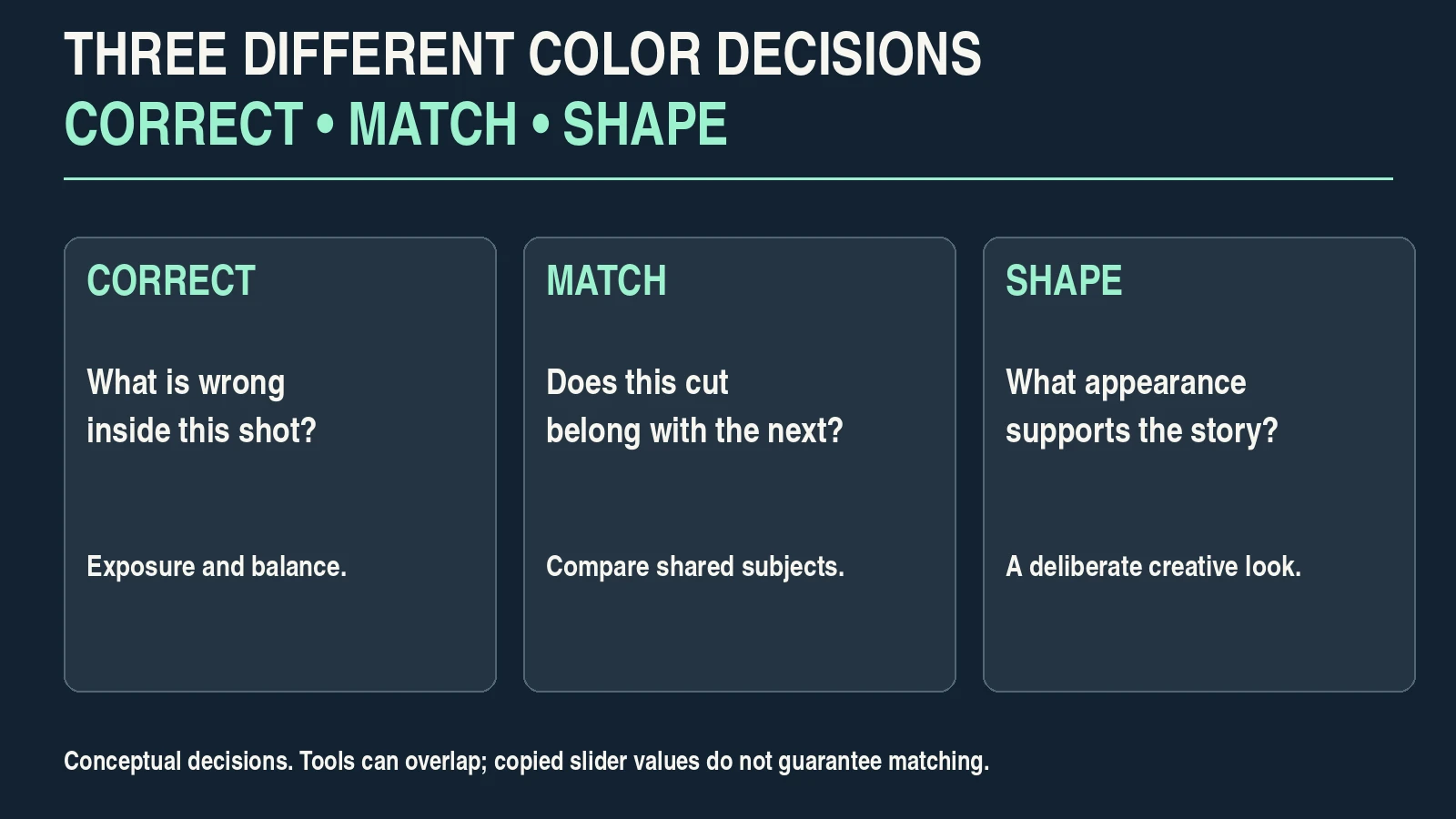
Make the input interpretation consistent first. Then use primary adjustments to establish a useful baseline. Correction addresses a problem in the shot; grading shapes a creative intention. Their controls can overlap, but separating the decisions makes troubleshooting easier.
For the hypothetical presenter, inspect the face and navy sleeve while correcting exposure. Do not lift every dark area until it looks gray. Keep meaningful shadow separation without assuming that all images should occupy the same brightness range.
Correct an unwanted cast using a suitable reference and visual evidence from the shot. A neutral reference should have been filmed under the relevant light; a white wall may be colored or illuminated differently. Do not remove intentional warm practical light simply because it is not neutral.
Adjust contrast and saturation conservatively. Toggle the correction off and on, then play through movement. A mask or qualifier that works on one frame can drift, chatter or reveal an edge later.
If you use Log, place corrections appropriately for the managed or manual pipeline you chose. There is no universal rule that every adjustment belongs before or after every LUT. The working space and the LUT’s expected input determine what is sensible.
5. Match adjacent shots using one reference
Choose a representative reference shot with the desired baseline and manageable lighting. Compare each other shot against it, preferably using the editor’s still/reference or comparison tools. Match the perceived exposure and color relationships, not just slider numbers.
Start with the wide and medium views of the same presenter. Compare skin, the navy shirt and shared background objects. Different framing changes how much bright window or dark furniture is in the picture, so identical histograms are not the goal.
Then compare the hand detail. A close-up can reasonably differ in brightness if the subject is nearer the window, but the sequence should not appear to jump unintentionally from one time of day or color cast to another.
| Comparison | Look at | Useful adjustment |
|---|---|---|
| Wide versus medium | Face, navy fabric and shared background. | Exposure, balance and contrast relationships. |
| Medium versus hand detail | Skin and the same plant under its actual light. | Local lighting difference without forcing identical framing statistics. |
| Presenter versus room detail | Warm lamp and neutral objects. | Continuity while preserving the shot’s intended emphasis. |
| Beginning versus end of a clip | Moving faces, masks and changing daylight. | Tracked adjustments or a better take when necessary. |
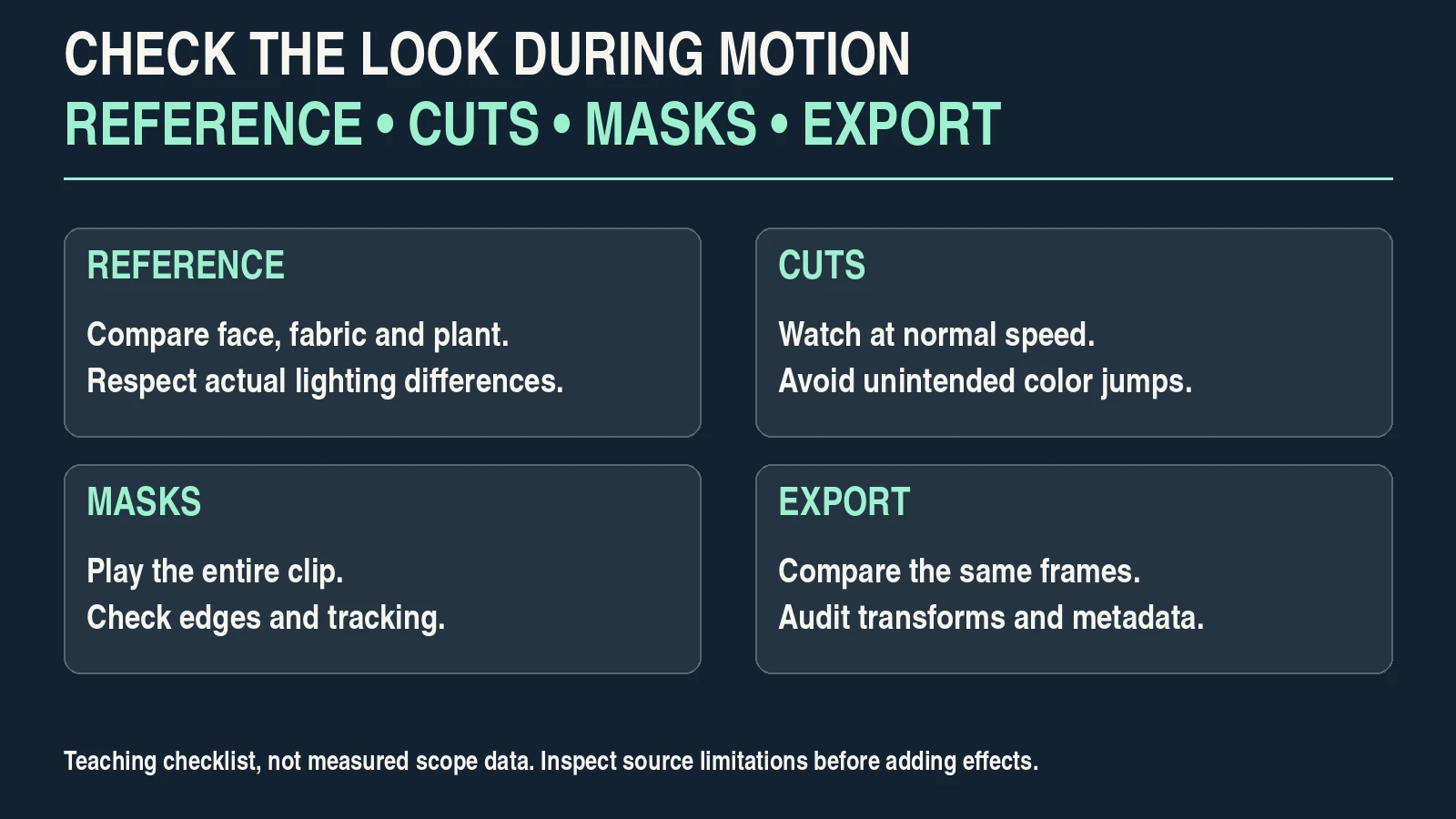
Watch the sequence at normal speed after matching. A still comparison can miss a distracting transition or a correction that changes during motion.
6. Build a restrained look and test its limits
Apply the broad creative look once the shots are reasonably matched. For this exercise, aim for modest warmth, readable shadows and restrained saturation. Save the balanced version first so you can compare the look with a dependable baseline.
Try one deliberate change at a time. For example, adjust the contrast curve, then inspect the face and sleeve. Next change a color relationship, then check the plant and lamp. If several controls change together, you cannot easily identify which one produced banding, an unnatural hue or lost shadow detail.
Use LUTs as tools with stated input assumptions. Determine whether a LUT is a technical conversion, a creative look or combines both. Test it at the appropriate point in the pipeline. Reducing its amount may soften an effect, but it does not make the wrong input conversion correct.
Avoid treating teal shadows, orange skin, crushed blacks or letterbox bars as mandatory ingredients. A look should suit the subject and story. Skin tones vary, and a vectorscope’s skin-tone direction is a diagnostic reference, not a requirement to force every face to an identical hue.
For selective work, keep masks and qualifiers purposeful. Play the full clip to check tracking and edges. If the correction calls attention to itself, simplify it or improve the underlying shot.
7. Diagnose artifacts before increasing the grade
Inspect the picture at useful size and during normal playback. A strong adjustment can reveal noise, posterization or compression damage. Some source limitations need a lighter grade or a different capture, not another effect.
| Symptom | Check first | Practical response |
|---|---|---|
| Image suddenly harsh | Duplicate conversion or incorrect input assignment. | Audit the transform path before adjusting contrast. |
| Sky or wall shows bands | Source precision, compression and aggressive changes. | Reduce the adjustment and compare a better source where available. |
| Face changes hue unnaturally | Balance, saturation and selective adjustments. | Return to the reference and simplify the correction. |
| Dark sleeve loses texture | Crushed shadows, clipping or source noise. | Preserve useful separation without pretending missing detail is recoverable. |
| Mask edge flickers | Tracking and qualifier stability during motion. | Refine, soften or remove the selective correction. |
| Export looks washed out | Output conversion, metadata and player/display interpretation. | Identify where the change begins before compensating with the grade. |
The dynamic-range guide explains capture limitations. The camera-settings workflow helps you prepare footage that is easier to match.
8. Export, re-import and check the delivered sequence
Export a short representative section first. Include a face, dark fabric, the lamp highlight and a smooth wall or gradient. Set the intended SDR output conversion and supported format. Do not merely label an HDR signal as Rec.709.
Re-import the export into an appropriately configured project and compare the same frames. Check that an unexpected second conversion is not affecting the comparison. If the local export differs, inspect the export path before blaming the platform.
Then play the file outside the editor and inspect a privately uploaded or unlisted processed sample where appropriate. Playback applications and displays can interpret files differently. Keep the master and the project settings; do not distort the grade to compensate blindly for one player’s behavior.
For an SDR YouTube delivery, use the platform’s current encoding and BT.709 guidance. Its recommended upload bitrate is separate from the camera’s recording bitrate. Our bitrate test helps compare exported compression.
Finish by watching the complete sequence at normal speed. Look for inconsistent cuts, clipping, unstable masks, unintended color casts and visible artifacts. Record input assignments, working/output spaces, LUT names and the accepted export settings with the project.
Affiliate disclosure: The following book links are affiliate links. Pixanded may earn a commission if you buy through them, at no additional cost to you.
Optional further reading: The Beginner’s Guide to Digital Photography and Cinematic Lighting for Beginners.
Frequently asked questions
Do I need Log footage for cinematic color grading?
No. Well-exposed SDR footage can support a coherent look. Log can be useful when the camera and workflow suit it, but it requires correct interpretation and does not repair poor lighting or missing detail.
What is the difference between correction and grading?
Correction establishes a useful baseline and addresses shot problems. Grading shapes the creative appearance. The tools can overlap, but separating those decisions makes the sequence easier to match and troubleshoot.
Should I apply a LUT before or after correction?
Check the LUT’s purpose, expected input and your working space. A technical conversion and a creative look can require different placement. Do not duplicate an automatic conversion with a manual LUT.
Can scopes replace a calibrated display?
No. Scopes help evaluate the interpreted signal, but they do not show you a dependable visual appearance by themselves. Use them alongside suitable monitoring and a stable viewing environment.
Why do copied settings fail to match two shots?
The shots may have different light, exposure, framing or input interpretation. Use a representative reference and match visible relationships rather than copying slider values blindly.
Why does my export look different?
Check the input assignments, output conversion, file metadata and playback interpretation. Compare a local export with the timeline first, then examine the processed upload so you can locate the change.
This workflow is a teaching exercise, not a measured grading test or a promise that one preset will make every scene cinematic. Use current application documentation and inspect the actual delivered file.