

On this page
A photo and video backup workflow should answer one practical question: if the working drive disappeared today, could you recover the right files and continue the project? A folder called Backup is not enough. The copies must be complete, separate enough to survive the same problem, and usable when you restore them.
For a beginner creator, the most useful system is usually a small routine you can repeat after every shoot. Protect the original capture, preserve the editing project and its dependencies, and check recovery before formatting cards or cleaning up storage.
This guide takes you from a memory card to a verified recovery exercise. The examples are planning scenarios, not promises that a particular drive, cloud service or application can never fail.
Separate capture, working storage and backup
The memory card is the capture location. It may temporarily provide another copy after a shoot, but it is not a permanent archive if you will reuse it tomorrow.
Working storage holds the files you edit. It may be an internal drive, external SSD or a managed application library. Fast working storage makes editing more convenient, but speed does not tell you whether a separate recoverable copy exists.
A backup is a copy you can use to recover from a problem affecting the working files. A second folder on the same physical drive does not protect you if that drive fails. Two drives in the same bag do not protect you if the bag is stolen.
Cloud synchronization and backup also need to be distinguished. A sync service may propagate a deletion or unwanted change. Some services provide version history and recovery; others have different retention limits. Check the actual service behavior rather than treating the word “cloud” as a guarantee.
| Location | Its job | What it does not guarantee |
| Memory card | Hold the camera’s capture | Long-term protection once reused |
| Working drive | Support editing and access | Survival of drive failure or accidental deletion |
| Local backup | Provide a separate recoverable copy | Protection from a disaster affecting the whole location |
| Offsite backup | Separate a copy geographically | Unlimited version history or instant recovery |
| Project file | Preserve editing decisions | Inclusion of every linked source and dependency |
Use 3-2-1 as a starting framework
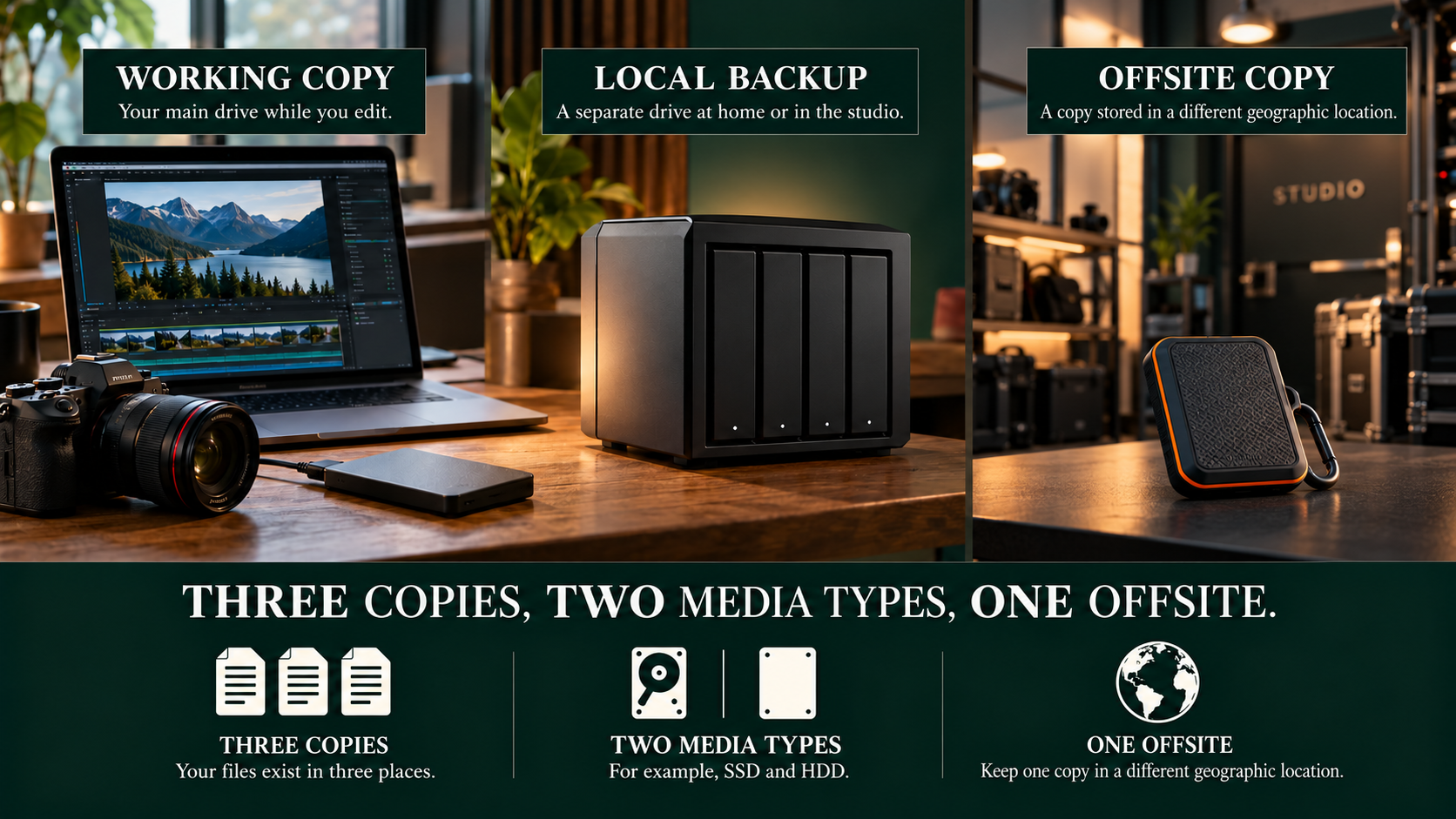
CISA’s Data Backup Options guidance describes the 3-2-1 rule: three copies of important data, on two different media types, with one copy offsite. Count the working original as one of the three copies; the other two are backups.
Use that as a planning framework, then consider how independent the copies actually are. A working SSD, a separate local backup and an offsite backup can form a useful small-project arrangement. The precise storage technologies and service protections still need checking.
CISA’s ransomware guidance also recommends offline, encrypted backups and regular recovery testing. For a creator, an offline copy can help protect against problems that affect connected storage. Keep any necessary recovery information available separately and securely; an encrypted backup you cannot unlock is not a successful recovery plan.
No shorthand protects against every failure. The purpose is to avoid depending on a single device, location or untested assumption.
What belongs in a recoverable project?
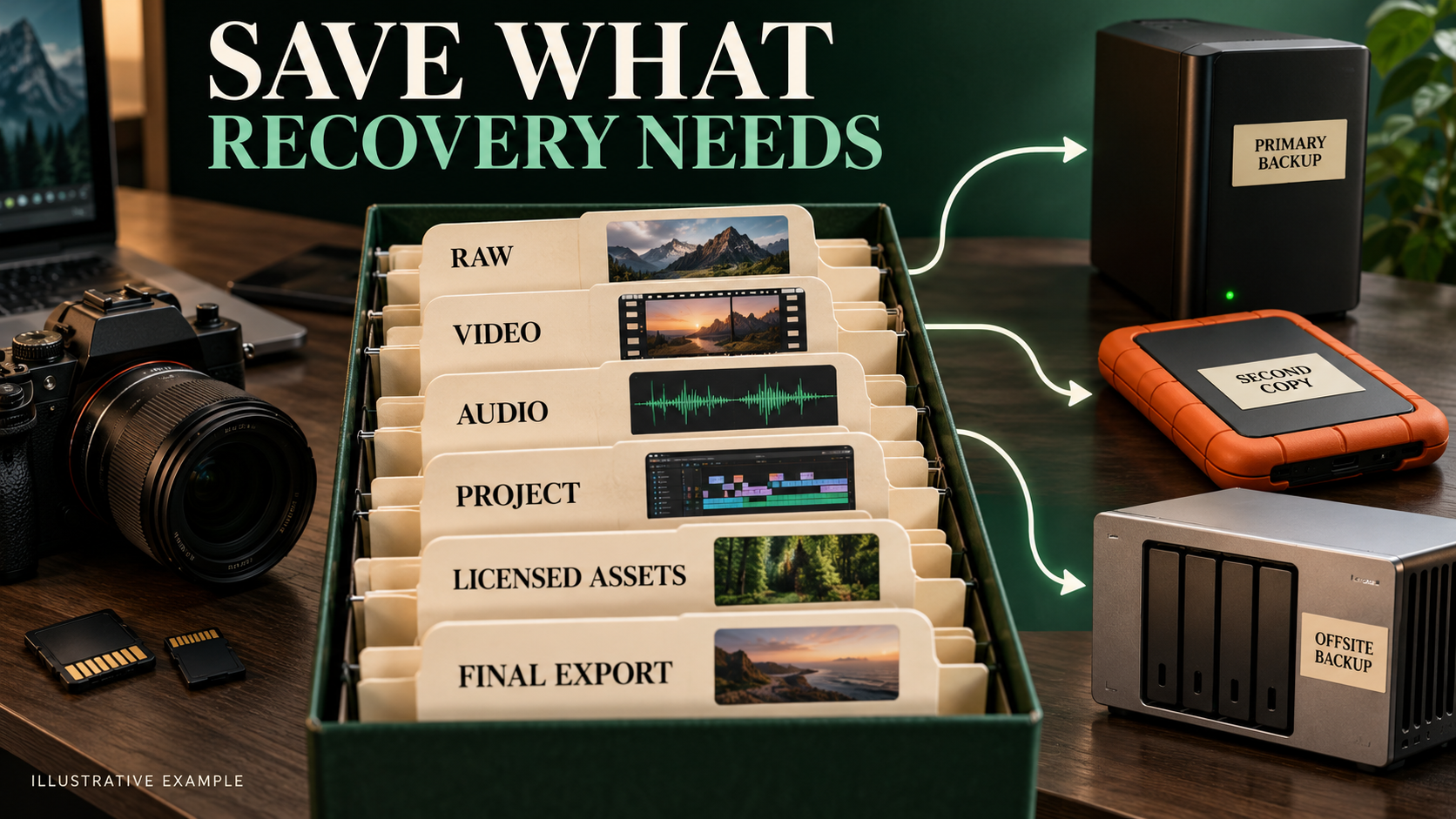
Start with the original photographs, video and separately recorded audio. Preserve camera card structures when the recording format needs them. Include the editing project, catalog or library and the files it references.
Photographic edits may depend on a catalog, sidecar files or both. Video edits may depend on external audio, graphics, stills and source clips stored outside the main project folder. Applications differ, so use their supported backup, consolidation or collection tools where appropriate.
Keep a short dependency note: which application and version were used, where external media is stored, and which important fonts, plugins or licensed assets the project needs. This does not authorize copying software or assets beyond their licenses; it helps you know what must be available to reopen the project.
Preserve final approved exports too. A client may need the finished deliverable quickly even when reopening the editing project would take longer. Keep draft exports separate so an old revision is not mistaken for the final file.
Generated proxies and caches are a different category. They can often be recreated, but confirm how your application works before excluding them. Pixanded’s DaVinci Resolve workflow provides a useful starting point for thinking about source media, project work and delivery as separate stages.
A repeatable ingest routine after each shoot
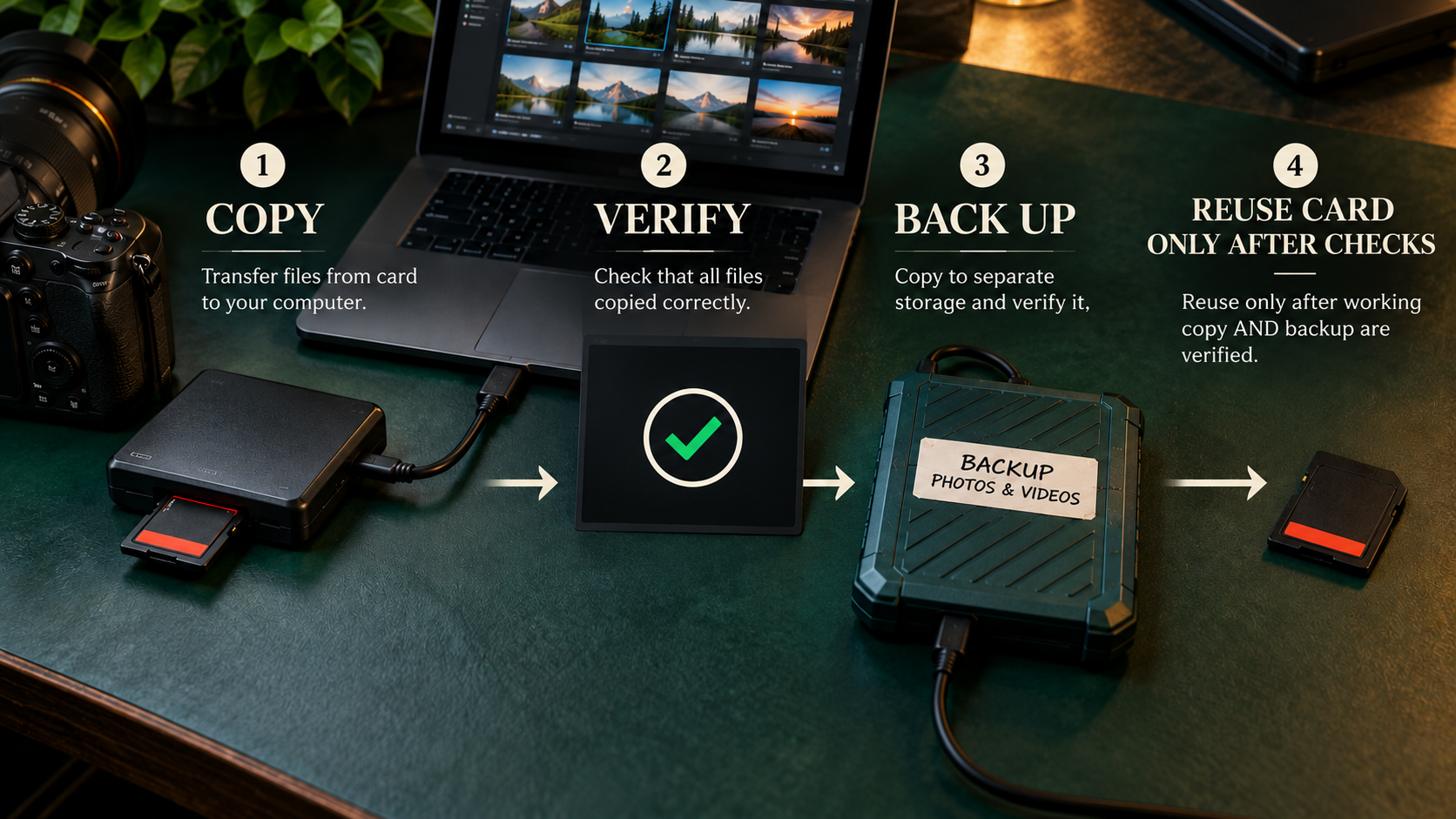
1. Give the shoot a clear identity
Create a project name that includes a date and descriptive identifier, such as 2026-10-06_CafePortraits. A name does not need to be elaborate; it needs to distinguish the shoot from other jobs and survive transfer between computers.
If several cards are involved, give their copied contents distinct card folders. Avoid flattening everything into one folder where repeated camera filenames become ambiguous.
2. Copy before reorganizing
Copy the complete required contents to the working location. Keep the card untouched while the transfer and initial verification are in progress. Do not begin by deleting clips from the card because they look unimportant on the camera screen.
3. Verify the transfer
Check that the expected folders and files exist. Compare counts and total size as a useful first check, but understand their limits: matching counts do not prove that every byte is correct.
A checksum comparison can provide stronger evidence that a copied file matches its source. Use a reputable ingest or verification tool and retain its report when the project warrants it. A matching checksum confirms that the compared bytes match; it does not prove that the recording was already complete or uncorrupted on the card.
Open representative files as another check. Include a long clip, a clip near the end of the card and separately recorded audio. Listen as well as look. This sampling does not inspect everything, but it can expose problems a simple file count misses.
4. Create the separate backup
Make the second copy on a different storage device or backup destination. Verify that it completed. If the offsite copy takes longer, record that it is still pending rather than marking the project fully protected because an upload has started.
5. Decide when the card can be reused
Do not format solely because the working copy opens once. Set a written gate: the required transfers are complete, verification has passed, and the separate backup is usable. For valuable work, wait for the agreed offsite protection as well.
The right threshold depends on the project’s risk and practical constraints. Make it a conscious policy before the shoot rather than a rushed decision when you need the card again.
Keep changes protected during editing
Protecting the original capture is only the first stage. Editing creates new work: a revised timeline, a catalog adjustment, a graphic, a mix or a delivery export. A backup made before editing does not contain those later decisions.
Use the application’s project backup or autosave options where available, and include those files in the broader backup routine. Autosave can help recover from an application interruption; it is not a replacement for another storage location.
Use a predictable revision naming convention for major milestones. For example, preserve an approved rough cut and the final delivery project without creating dozens of indistinguishable “final-final” files. A short change log can identify which version corresponds to the client’s approval.
Avoid reorganizing source folders while the editor depends on them. If a move is necessary, use the supported relinking process and verify the result. A backup is much easier to restore when its folder structure matches what the project expects.
Pixanded’s client-brief guide can help define delivery and retention expectations. Agree on what you will keep and for how long; do not assume clients understand the difference between final exports and an editable archive.
Test recovery without endangering the working project
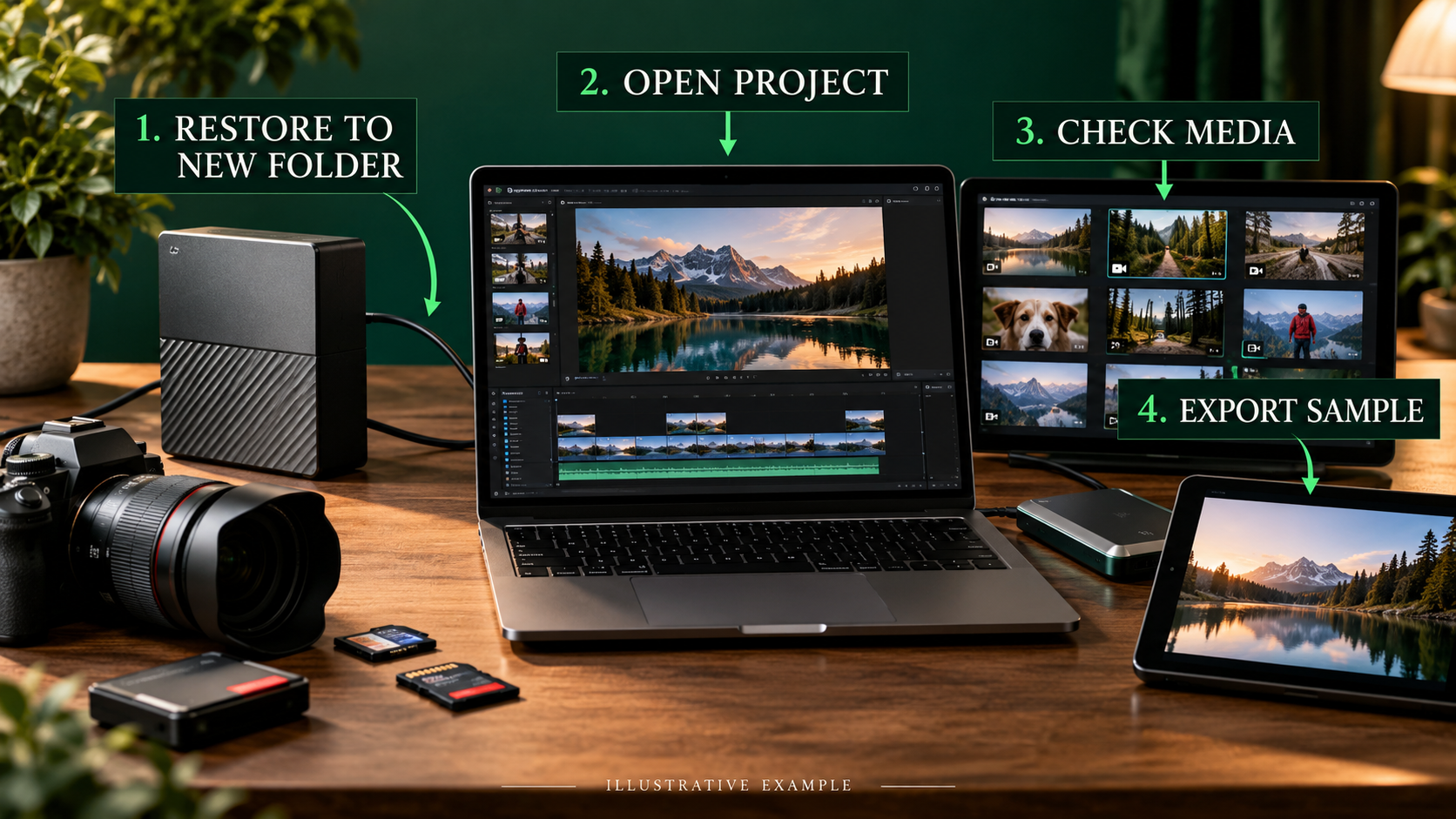
Create a separate folder for a recovery test. Restore a small completed project from the backup into that folder rather than overwriting your live work. The test should use the backup, not simply reopen the original working directory.
Open the restored project and verify source links. Play several clips with audio, inspect a few photographs or edits, and export a short sample. Open that export in a separate player or viewer. Check that you can identify the intended final revision.
Record what was restored, from where, when, and what passed or failed. A simple note such as “Project opens; interview audio missing because it was stored outside the project folder” is useful evidence and a clear instruction for improving the system.
Repeat the test after important changes: moving to another computer, changing backup software or revising your folder structure. For active work, choose a regular interval that matches how much new work you could afford to lose.
A successful small test does not prove that every archived project is perfect. It does prove that the tested recovery path works, and it can reveal gaps while the source files are still available.
Estimate storage before a project fills every drive
Suppose a shoot creates 200 GB of original media. One working copy plus two complete backup copies requires approximately 600 GB for those source files alone. Editing media, graphics, project backups and exports add to that figure. This is arithmetic for a planning example, not a recommendation for a specific drive capacity.
Leave practical room for ongoing work and backup operation. Do not plan to fill each destination to its exact advertised capacity. Different file systems, software requirements and drive behavior can affect usable space and performance.
For video, consider the capture data rate and recording duration. Pixanded’s bitrate explanation helps estimate why a change in recording format can substantially change storage needs. Test a real representative recording instead of relying only on a product’s maximum specification.
| Checkpoint | Evidence to keep | Action if it fails |
| Original ingest | File list and verification result | Repeat or investigate the transfer before reusing the card |
| Local backup | Completed job and checked files | Repair the destination or backup job |
| Offsite protection | Completed transfer and accessible recovery path | Keep it marked pending until verified |
| Project recovery | Opened project, linked media and test export | Add missing dependencies and repeat the test |
| Archive identification | Clear final revision and delivery record | Resolve ambiguity before cleanup |
Make the backup plan specific to one real shoot
Consider a fictional half-day product shoot containing camera photographs, a few video clips, separate sound and an editing project. The files are spread across a camera card, an audio recorder and the laptop. Copying only the photographs would leave an incomplete job. Start by listing the sources before you decide which drive or cloud service to use.
Give the shoot one identity that appears in the folder name and your notes. Include a date, client or practice-project name and a short shoot description. Preserve individual card or recorder identities inside that project. A folder called “new files” is difficult to distinguish from yesterday’s “new files,” especially when camera filenames repeat.
Define the recovery outcome in plain language. You might need to reopen the photo edit, recreate the final video, supply the original images or prove which version was delivered. Each outcome requires different dependencies. If you promise an editable archive, make sure the archive includes the project and referenced media, not merely a finished export.
Write the locations of the working copy, local backup and offsite copy. Check that these are genuinely separate failure locations. Two folders on one SSD are useful for organization but do not protect against losing that SSD. Two drives left together in the same bag may both disappear in one incident. A diagram helps reveal shared risks that a list of filenames does not.
Use an ingest checklist with a release decision
Treat memory-card reuse as a deliberate release decision. Before formatting a card, check that the destination copy is complete, the verification step succeeded and the separate backup contains the required material. The exact verification method depends on the tools you use, but “the folder appeared” is too weak a checkpoint for important work.
Where your transfer software offers verification, read what it verifies and keep its report. Comparing file counts and total sizes is a useful additional sanity check, but it cannot establish that every byte is correct. Checksums can detect differences between source and destination contents; they do not determine whether the camera recorded a sharp image or clear sound.
Open representative files from different parts of the shoot. Include an early image, a late image, a longer video clip and separate sound if present. This is a usability check alongside transfer verification. It can reveal an unreadable format or a missing application dependency before you erase the source card.
Record who performed the checks and when. For your own practice, a short dated note is enough. For shared work, agree who has authority to release the cards. Otherwise one person may format a card because they believe someone else completed the backup. A written checkpoint is simpler than reconstructing that assumption after a problem.
Protect revisions as well as the first transfer
The first camera copy is only the beginning of the project. Your edit decisions, retouching, captions and delivery files change over time. A backup made on the evening of the shoot may protect the originals but contain none of the work completed later. Plan when changed project data will be copied again.
Use recognizable versions for meaningful milestones. “Rough edit,” “client review” and “approved delivery” describe different states. Include a date or revision identifier so one version does not silently overwrite another. Keep the recipient’s feedback with the version it refers to; otherwise a restored archive can contain files without the context needed to finish the assignment.
Understand the difference between a synchronization service and a backup with recoverable history. Synchronization may propagate deletion or replacement. Check the service’s version-history and retention behavior instead of assuming the word “cloud” means permanent protection. Review those settings periodically because your workflow and storage plan can change.
For protection against ransomware and other incidents, CISA’s ransomware guidance discusses protecting and testing backups, including copies kept offline. A constantly connected drive can share some of the working system’s exposure. Choose a sensible connection and rotation routine for your work, then test the recovery rather than relying on the label on the drive.
Perform a restore test that answers a useful question
Pick a small completed project and restore it into a clearly named new location. Do not overwrite your current working copy to prove the backup works. Start from the actual backup destination, not from a second folder that accidentally points to the same source. Note the time and the files you selected.
Open the restored project with the application that should use it. Check whether referenced media links correctly, whether fonts or licensed assets are available, and whether separate audio is present. Inspect a few key edits, then export a short sample. Watch the exported sample outside the application to check that the restored dependencies produce usable output.
If the application asks to relink, record the expected and restored paths. A path adjustment is different from a missing source file. If a required asset is absent, identify which part of the backup selection excluded it. Correct the plan and repeat the test with the corrected archive before describing recovery as successful.
Record the result in plain language: what was recovered, what needed attention and what remains untested. A partial restore can still teach you something valuable. Do not turn it into a claim that every project and every disaster scenario is covered. Test another representative project when your media types or software workflow change.
Estimate capacity without confusing units
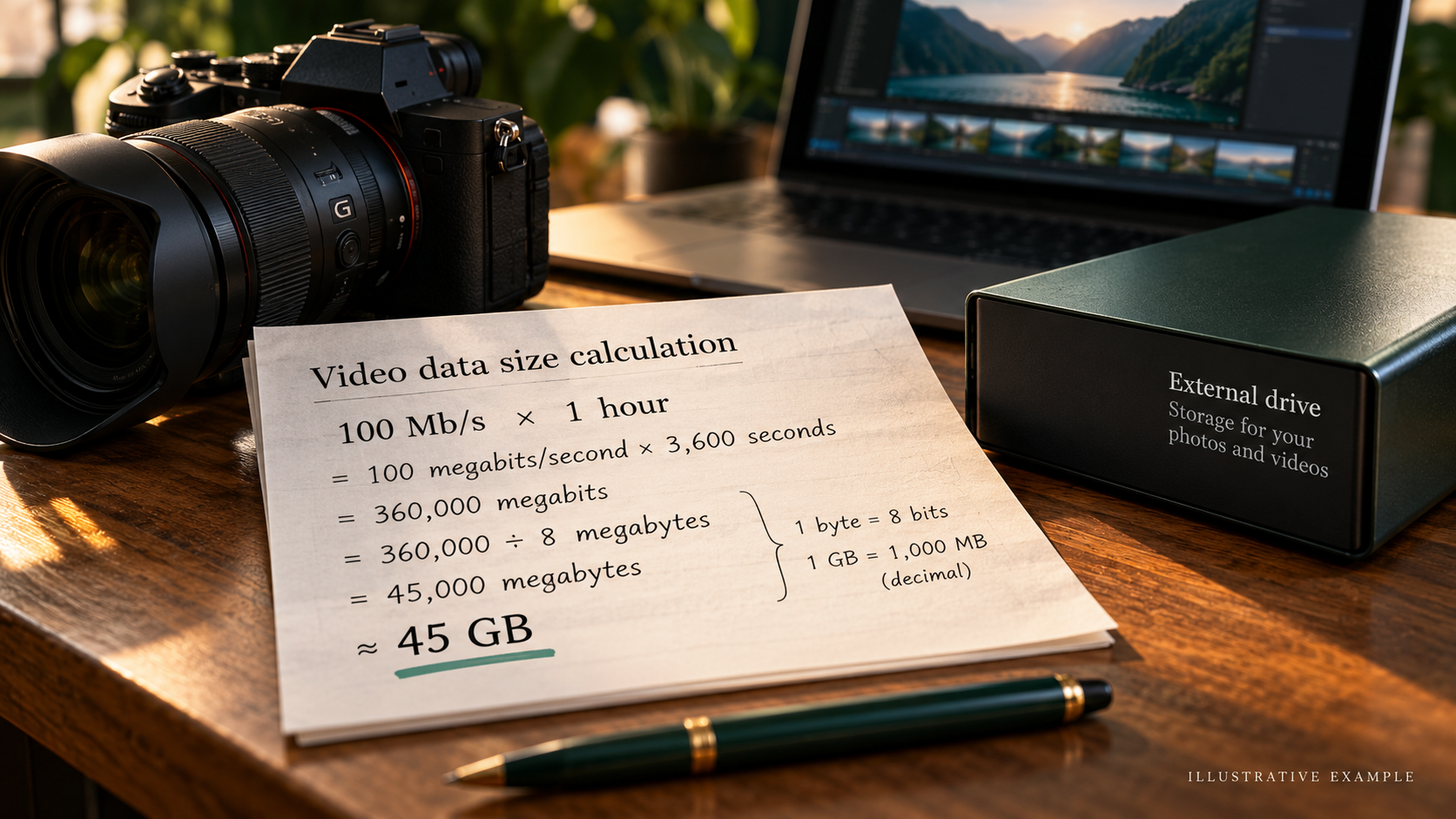
A decimal gigabyte contains one billion bytes. A bit rate is measured in bits, and eight bits make one byte. For a constant-rate planning example, 100 megabits per second divided by eight is 12.5 megabytes per second; over 3,600 seconds that is about 45 decimal gigabytes. Variable-rate recordings and additional files can make actual totals different.
Use the camera’s supported format information and your observed project sizes when planning. Add room for sound, photographs, generated media, project versions and final exports. Then account for how many backup copies you intend to hold. The space needed for one working project is not the whole storage requirement of its protection plan.
Keep spare capacity for incoming work and restore tests. A backup destination that is completely full can stop accepting changes at precisely the wrong time. Review the oldest projects according to your retention agreement before deleting anything. Confirm what the client expects and what you need for your own records; do not invent a universal retention period.
Finally, label the drives and store the inventory somewhere you can reach when the main computer is unavailable. A recoverable archive needs identifiable files, accessible storage and a tested process. The useful question is not simply “Did I make a copy?” but “Can I recover the work I actually need?”
Frequently asked questions
Is a RAID system a backup?
Do not treat it as your only backup. Some RAID configurations can tolerate a drive failure, but they do not necessarily protect against deletion, corruption, theft or problems affecting the whole system. Keep a separate recovery copy.
Is a second folder on the same SSD enough?
It can help with organization or a limited version mistake, but it does not protect against failure of that SSD. A separate storage destination is necessary for that failure scenario.
Can I delete the originals after exporting a finished video?
An export is not equivalent to editable source material. Decide based on your agreed retention policy and future revision needs, then verify the required archive before cleanup. Do not delete merely because an export exists.
Should I back up proxies and cache files?
They may be reproducible, but check the application and workflow first. Protect irreplaceable sources and editing decisions as the priority. Keep generated files when their regeneration cost or the archive’s needs justify it.
How do I know that cloud backup finished?
Check the provider’s completed-job status and perform a recovery test. A sync icon or an upload queue by itself is not proof that the correct complete version can be restored.
Your next recovery check
Pick one small completed shoot. List its originals, editing files, dependencies and final exports. Confirm that the required separate copies exist, then restore the project into a new test folder and make a short export. Fix the first missing piece before buying more storage: the useful result is a working recovery path.