
Camera settings for YouTube videos should solve the problems in your scene: soft focus, distracting flicker, unstable brightness, drifting color or unclear speech. Copying a preset can leave all of those problems untouched.
This guide builds a repeatable setup for a hypothetical seated presenter demonstrating a houseplant. The destination is a normal-speed SDR YouTube video. You will choose a recording mode, test motion and lighting, check focus and sound, then inspect a short processed upload.
Table of Contents
1. Define the recording and delivery before opening the menus
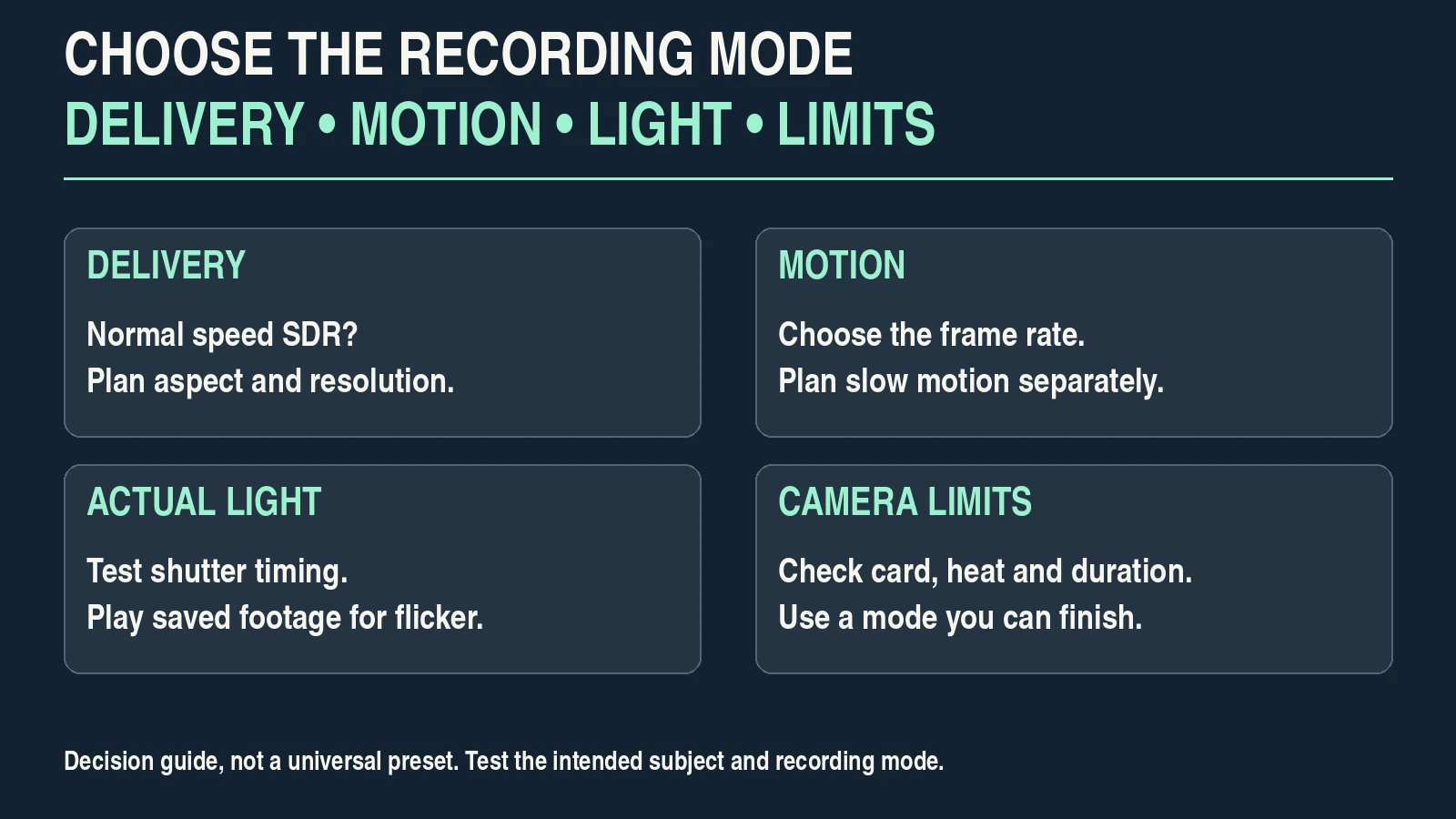
Write down the intended format: horizontal or vertical, normal speed or slow motion, final resolution and SDR or HDR. For this exercise, choose a horizontal normal-speed SDR program. Keep HDR as a separate workflow until you can correctly monitor, edit and export it.
1080p can be sufficient for a straightforward presenter video if the picture is focused, well lit and framed for delivery. 4K can provide extra pixels for a planned crop into a 1080p edit, but it also creates larger files and may change the camera’s crop, heat behavior or recording options. Test the actual mode rather than treating its resolution label as proof of quality.
Choose a frame rate deliberately. A 25 fps project can be a practical starting point under some 50 Hz lighting; 30 fps may suit an existing 30 fps channel workflow. Neither guarantees flicker-free footage. For ordinary normal-speed edits, keep capture, project and delivery rates consistent where practical. Slow-motion shots require a deliberate playback decision.
YouTube’s upload guidance recommends preserving the recorded frame rate for uploads. It also describes how its player adapts to different aspect ratios. Our frame-rate test explains motion and slow-motion choices in more detail.
2. Choose a recording mode your equipment can finish
Before deciding on the highest-quality option, confirm that the memory card supports it, the battery will cover the session and the editor can play the files. Record a representative take long enough to reveal the likely heat, duration or storage limit. Follow the camera’s operating instructions; do not cover it or ignore a temperature warning.
A standard SDR picture profile can be easier to finish than Log when you are still learning. Log is not RAW, and a flat-looking preview is not evidence of extra usable detail. Its exposure guidance and input conversion depend on the particular recording profile and camera.
Use a mode that gives you an image you understand and can deliver reliably. If you choose Log, record the exact gamma and color gamut, and plan the edit before filming. A 10-bit option can offer more tonal precision than an 8-bit option, but bit depth alone does not establish the camera’s dynamic range or solve poor exposure.
The budget-camera guide can help when a specific hardware limitation remains after testing. Identify that limitation first; a new camera cannot fix a microphone placed too far away or light that changes during the take.
3. Set motion timing and test the actual lights
A shutter time near half the frame interval is a useful motion-blur starting point. In a 25 fps example, that is about 1/50 second; at 30 fps, about 1/60 second. This is a stylistic starting point, not a rule that overrides flicker, brightness or the desired appearance of motion.
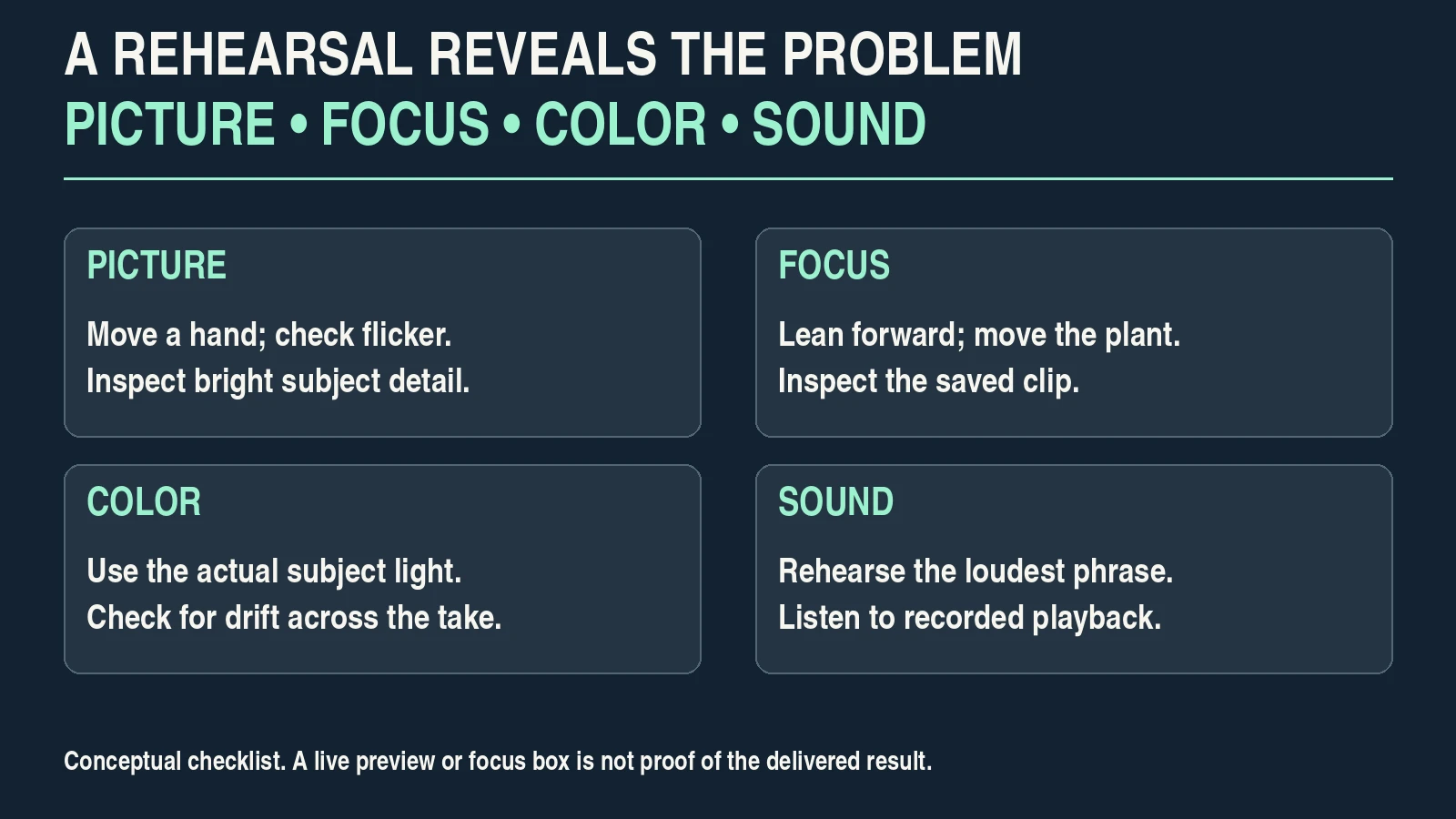
Record the presenter moving a hand and turning the plant. Play the saved clip at normal speed. Check whether motion is comfortable and whether the image contains moving bands or pulsing brightness. Test the actual practical lamps and their dimmer settings, not a substitute light.
If you see flicker, change one control and record again. You might test a different shutter time, the camera’s dedicated variable-shutter function if supported, another frame rate or a different light. A still-photo anti-flicker option may not solve video flicker. LED drivers and dimmers can behave differently even on the same electrical supply.
| Teaching scenario | Starting test | Accept only after checking |
|---|---|---|
| Seated presenter, 25 fps | Approximately 1/50 s shutter time. | Recorded hand motion, actual lamp flicker and exposure. |
| Seated presenter, 30 fps | Approximately 1/60 s shutter time. | Same checks; do not assume a local lighting match. |
| Fast demonstration | Compare your normal setting with a shorter exposure. | Readable action without an unwanted staccato appearance. |
| Slow-motion insert | Choose a supported high-rate mode and planned playback speed. | Its lighting, focus, crop, sound availability and final playback. |
4. Balance depth of field, exposure and light
Place the presenter at the intended distance and frame the demonstration. Choose an aperture that keeps the important parts sharp. An extremely shallow depth of field can make the eyes look sharp while the plant or a forward lean falls out of focus.
Keep the chosen shutter time stable if it provides the motion you want. Adjust the light, aperture or ISO as appropriate, checking both the subject and important highlights. The lowest ISO is not automatically the right answer: a dim underexposed face can be less useful than a properly exposed image at a higher ISO.
For the hypothetical plant demonstration, focus on the near eye, then ask the presenter to bring the plant forward. Inspect both positions. If the plant becomes unreadable, increase depth of field, change the blocking or capture a separate detail shot.
Use the camera’s exposure tools with the correct interpretation for the recording profile. Zebra thresholds are not universal skin targets; different skin tones, illumination, profiles and monitoring transforms change what the reading means. Watch for clipped detail in the subject rather than forcing every face to an identical numerical level.
If daylight changes during the take, manual settings may reveal that change while automatic settings may compensate visibly. Stabilize the lighting where practical. For an uncontrolled moving scene, a bounded automatic exposure mode may be useful, but test its transitions and record those limits in your setup notes.
5. Stabilize white balance and verify focus behavior
Make a reference capture under the light that reaches the presenter. Use an appropriate neutral reference if available. Ordinary paper can have a color cast. A fixed white-balance setting can prevent some automatic drift during a controlled take, but it cannot neutralize strongly mixed light falling on different parts of the scene.
Move the plant through the planned positions. Check whether autofocus follows the intended subject or jumps to leaves, hands or the background. Adjust subject detection, focus area or transition behavior only if your camera provides those controls. Menu labels and useful settings are model-specific.
Manual focus can be dependable for a fixed position, but the presenter must remain within the sharp range. Autofocus can handle movement, but it needs a realistic rehearsal. Neither mode is universally more professional.
Record a short lean forward, a return to the seat and the closest planned product position. Inspect the saved clip at useful zoom. A focus box on the capture display is not proof that the exported image is sharp.
6. Check speech, room sound and synchronization
Bring the microphone close enough to capture clear speech without obstructing the demonstration. Check cable connections, the selected input and the recording channel. Listen for room echo, fabric rubbing, hum, wind and the microphone cable being touched.
Rehearse the loudest expected phrase. Watch the meter while listening with headphones, leave headroom below digital clipping and play the recorded file back. A practical starting aim for ordinary speech peaks is around -12 dBFS, but the right gain depends on the voice, equipment and unexpected peaks. This is a recording starting point, not a final platform loudness target.
Do not assume a limiter fixes every overload. For example, Sony’s α7 IV audio instructions describe its recording-level control and limiter behavior; that does not establish the behavior of another camera or an overloaded microphone.
If you record sound separately, keep a clear synchronization reference and check alignment at both the beginning and end of a representative take. Some high-frame-rate or slow-motion modes do not record normal sound; consult the actual mode’s manual.
| Sound check | Listen or inspect | Correct before the full take |
|---|---|---|
| Quiet phrase | Speech clarity and room noise. | Microphone distance, placement and room reflections. |
| Loud phrase | Meter headroom and audible distortion. | Input gain or overloaded microphone/source stage. |
| Movement | Rubbing, cable contact and changing level. | Mounting, cable routing and presenter blocking. |
| Separate recorder | Start/end synchronization. | Sync method, recording continuity and drift handling. |
7. Run one rehearsal and fix the observed failure
Record a short complete rehearsal: an introduction, hand movement, plant close-up and the loudest phrase. Include enough time to reveal automatic changes. Keep the lighting and camera mode identical to the intended shoot.
Review the original clip, not just the live preview. Note the file name, settings and observed issue. Change one variable, repeat the same action and compare. If you adjust focus, exposure and the lamp simultaneously, you lose a useful record of what solved the problem.
For example, if the eyes stay sharp but the plant is soft, test more depth of field or a different demonstration position. If the whole frame pulses, investigate lighting and timing. If sound breaks up while the picture is fine, work on the audio chain rather than the video codec.
Save a setup sheet after the rehearsal passes. Record frame rate, shutter time, aperture, ISO behavior, white balance, focus mode, picture profile, resolution, audio input and microphone placement. Include a photograph of the arrangement and its limitations.
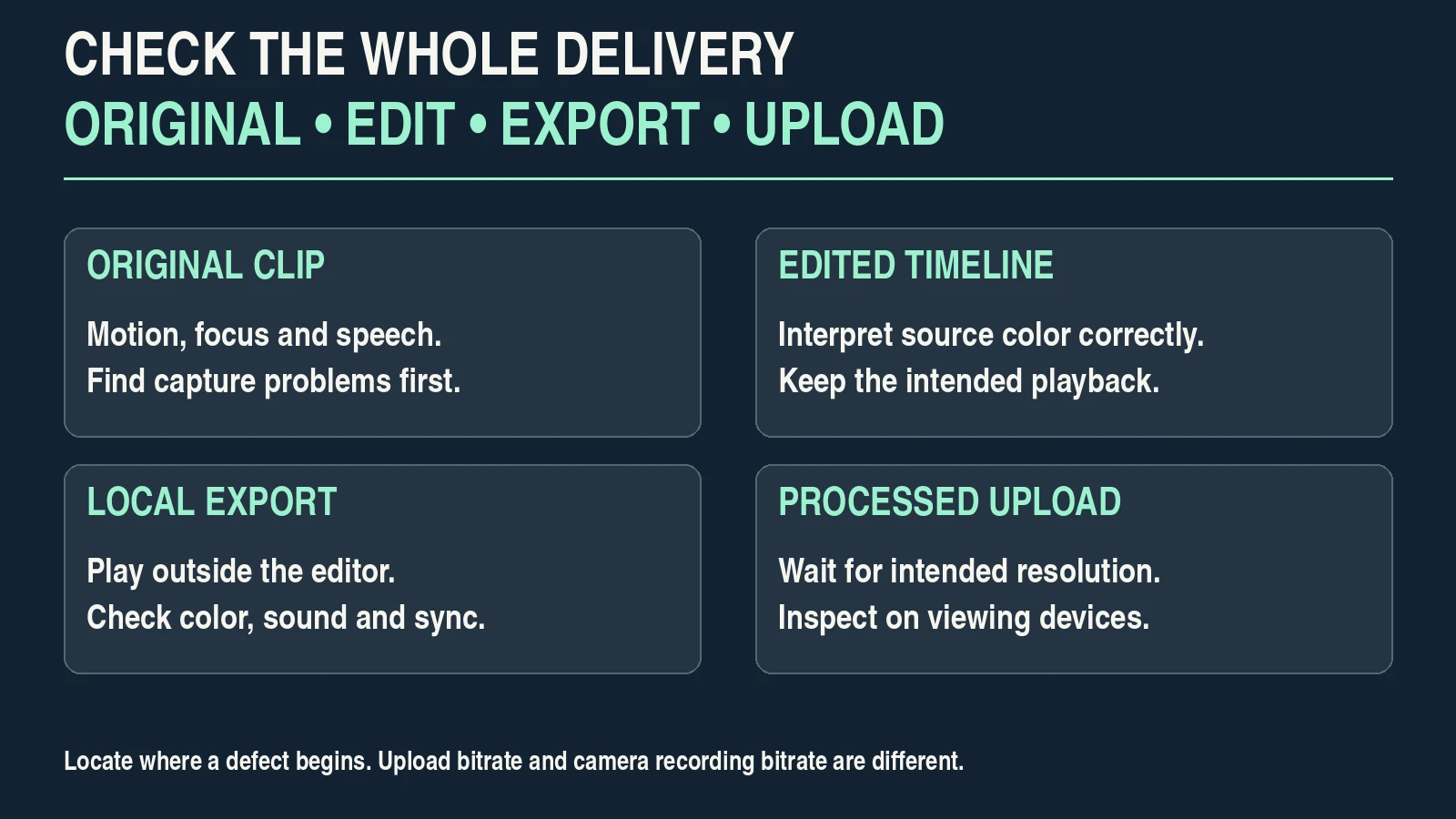
8. Check the export and a processed upload
Edit the rehearsal with the intended project settings. Export a short sample and play it outside the editor. Confirm duration, frame rate, color, focus, speech and synchronization before exporting the entire program.
For a conventional SDR workflow, YouTube recommends BT.709 color and provides H.264/MP4 upload guidance. Its current reference bitrate for a 1080p standard-rate SDR upload is 8 Mbps; this is an upload recommendation, not a camera recording setting or quality guarantee. Check the current official table, and use our bitrate export test when comparing compression.
Upload the sample privately or unlisted as appropriate, wait for the required resolution to finish processing and inspect the processed version on the devices your viewers use. Keep your local master. A lower-resolution preview shown while processing is incomplete does not establish the final quality.
| Final check | Pass condition | If it fails |
|---|---|---|
| Motion and lighting | Comfortable movement; no distracting flicker. | Return to the actual-light rehearsal. |
| Focus and exposure | Important features remain sharp and readable. | Adjust capture or choose a better take. |
| Color | Export and processed upload retain the intended SDR appearance. | Check input interpretation, output conversion and tags. |
| Audio | Clear, undistorted speech with correct synchronization. | Check recording, edit gain and sync separately. |
| Delivery | Correct aspect, duration and completed processing. | Correct the export or wait for processing. |
Affiliate disclosure: The following book links are affiliate links. Pixanded may earn a commission if you buy through them, at no additional cost to you.
Optional further reading: The Beginner’s Guide to Digital Photography and Cinematic Lighting for Beginners.
Frequently asked questions
What are the best camera settings for YouTube videos?
The useful settings are those that pass a rehearsal of your actual subject, light and delivery. Choose the mode and frame rate first, then test motion, exposure, focus, white balance and sound. Treat presets as starting points.
Should I record every YouTube video in 4K?
No. Choose resolution for the delivery, planned crops and equipment limits. A clean 1080p image may serve your video well; 4K can be useful when extra pixels solve an identified need.
Must I always use the 180-degree shutter rule?
No. A shutter time near half the frame interval is a motion-blur starting point. Flicker, exposure, fast action or a deliberate visual style may justify another choice. Inspect recorded playback.
Is Log required for professional-looking YouTube videos?
No. A standard SDR profile can be easier to expose and finish. Log requires profile-specific exposure and correct color interpretation; it does not fix poor light or focus.
Should I always use manual focus?
No. Manual focus suits some fixed setups; autofocus can suit movement. Rehearse the planned action and judge the saved footage rather than the label of the mode.
Why does the uploaded video look different from the editor?
Check completed platform processing, input color interpretation, the output transform, export tags and the playback display. Compare the local export first so you can identify where the difference begins.
This is a practical teaching workflow, not a tested camera comparison or a guarantee of channel growth. Check your camera’s manual and the destination’s current requirements.