
Dynamic range in cameras describes the span between the brightest signal and the darkest detail a camera can record usefully under stated conditions. In practice, you notice the limit when a bright window loses its view while a darker subject still needs more exposure, or when lifting a shadow produces noise instead of usable texture.
Start by deciding which details matter. Inspect a test frame, change the light or exposure where possible, and consider multiple exposures only when the subject and workflow allow them. More advertised stops do not automatically produce a better photograph.
This guide gives you a window-light exercise, a decision table and a way to review the actual file you will deliver. How this guide was prepared: technical examples use manufacturer and software documentation checked on 30 September 2026. The exercises are for you to perform; Pixanded does not claim measured sensor tests. Illustrations are not evidence of a particular camera’s performance.
Table of Contents
1. Separate scene contrast, capture and display
Three different limits are often called “dynamic range.”
Scene contrast is the difference between important bright and dark parts of the subject. A shaded plant beside a bright window presents a harder exposure problem than the same plant under even light.
Capture dynamic range concerns what the camera records. The bright limit includes clipping; the dark limit depends on how much noise and loss of detail you accept. ISO, recording mode, processing and the definition used by a test affect the result.
Display dynamic range concerns what a screen or print can show. An editor may compress captured tones into a smaller output range. That is why a file can contain detail that your current preview does not make obvious.
| Question | What to examine | What it does not establish |
|---|---|---|
| Is the scene too contrasty? | Important bright and dark areas under the actual light | A measured sensor score |
| Did the camera record useful detail? | The original file, exposure and acceptable shadow quality | That every dark preview is unrecoverable |
| Does the exported image show the detail? | The final file on its intended display or print | That the source capture contained everything |
Do not confuse dynamic range with resolution or bit depth. Megapixels describe image dimensions; bit depth describes available numerical levels in a recording representation. Neither number alone establishes how much usable scene contrast was captured.
2. Understand stops without turning them into a quality ranking
One stop represents a factor of two. If two measured light levels have a ratio of 256:1, that span is eight stops because doubling eight times gives 256.
That arithmetic is an illustration, not a measurement from the exercise below. Changing shutter time by three stops demonstrates exposure changes; it does not measure the sensor’s full dynamic range.
A specification or review may quote a number of stops using a particular noise threshold, mode and processing method. Compare figures only when the conditions and method are comparable. There is no universal boundary at which a camera becomes “professional.”
For a beginner, a more useful question is: can your chosen exposure preserve the important highlight and produce an acceptable shadow at the final viewing size?
3. Run a three-frame window-light exercise
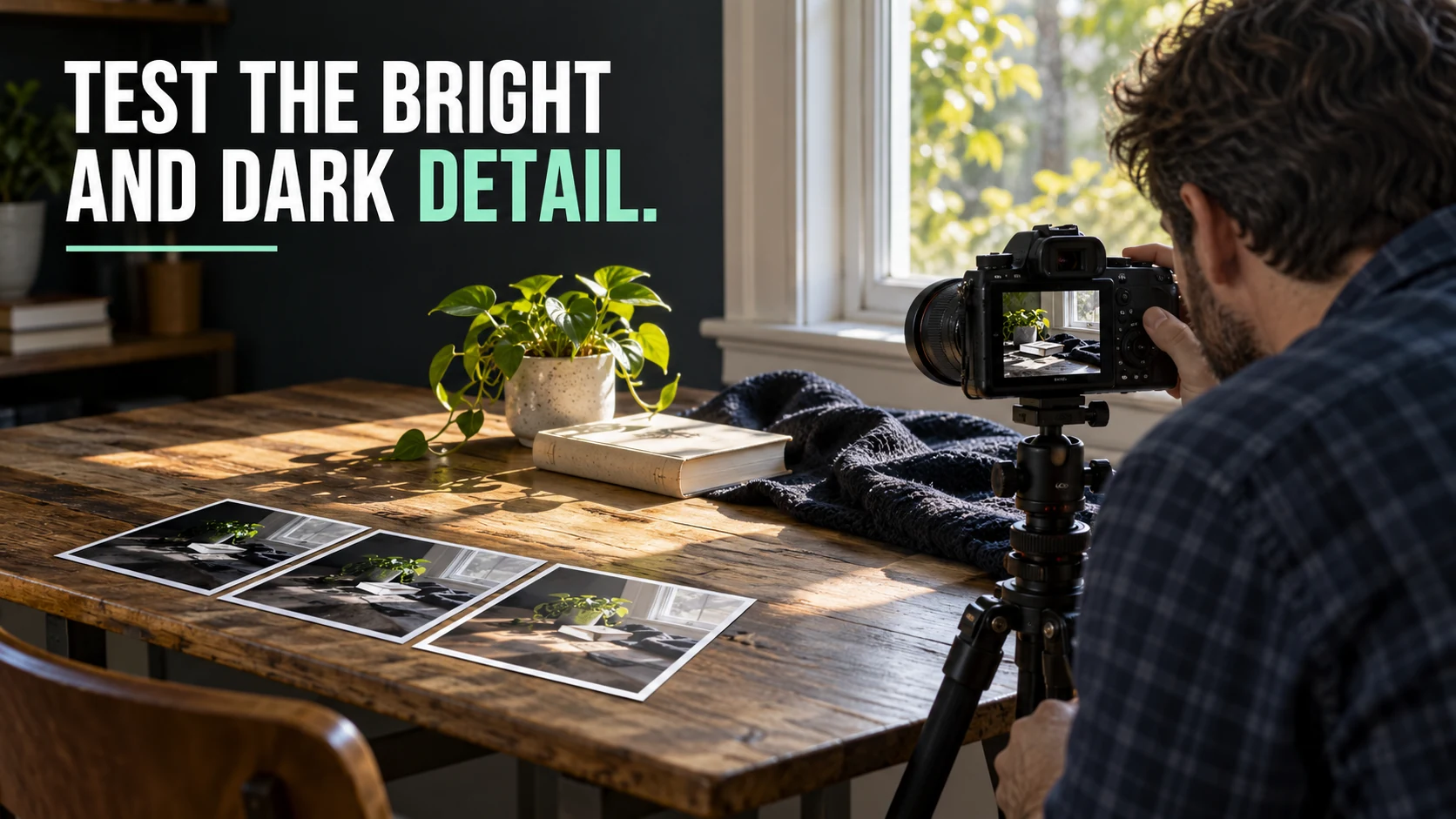
Choose a still arrangement near a window: a green plant, dark textured fabric and a light-colored book. Include some outdoor detail through the window if possible. Avoid pointing directly at the sun. Keep people and identifying information outside the frame.
Support the camera, keep the framing and light steady, and focus once. Use manual exposure, fixed ISO and a fixed aperture. RAW+JPEG is useful if available, but you can learn from JPEG. Phones may combine exposures automatically; note whether you can disable that processing before treating the exercise as a single-capture comparison.
- Make a baseline frame that looks reasonable for the main subject. Record shutter, aperture and ISO.
- Shorten shutter time by two stops. Keep aperture and ISO unchanged.
- Lengthen shutter time by two stops relative to the baseline. Keep the arrangement still.
- Compare the important window detail, plant texture and dark fabric in all three files.
Hypothetical settings: at a baseline of f/5.6, ISO 100 and 1/125 second, the shorter exposure is approximately 1/500 second and the longer exposure is approximately 1/30 second. These are teaching values, not prescriptions for every window.
| Frame | Illustrative shutter time | Question to answer |
|---|---|---|
| Shorter exposure | 1/500 second | Does the important bright area keep detail? What happens to the dark subject? |
| Baseline | 1/125 second | Can one file meet both requirements after a modest edit? |
| Longer exposure | Approximately 1/30 second | Does the shadow improve? Which bright details disappear? |
Use a timer if pressing the shutter shakes the camera. A slower exposure may blur moving foliage even on a tripod. If light changes during the sequence, repeat it or record that limitation.
Keep the original files. The outcome is a usable decision about this scene and workflow, not a claim that your camera has a particular stop rating.
4. Read the histogram as a warning, not a verdict
A brightness histogram groups pixels from dark tones on the left to bright tones on the right. It does not show where those pixels are in the photograph. A graph pressed against an edge can be a warning, but a dark background or a small bright reflection may be intentional.
Inspect the picture as well as the graph. Where available, use RGB histograms to notice individual-channel clipping and highlight alerts to locate potentially overexposed areas. Canon’s EOS R8 playback documentation explains these display options, while its highlight-alert instructions show the separate warning control. Menu names differ across models.
The camera’s JPEG preview and picture style can influence what its warnings show. A RAW converter may render the file differently. Treat the camera display as practical guidance and verify the original file when the detail matters.
Do not darken the whole subject merely to eliminate every flashing pixel. Decide whether the warning covers an essential detail, a lamp, a specular reflection or an intentionally white background.
5. Test recovery and stop when the file stops being useful
Open the three frames in the same editor. Begin with a consistent rendering and white balance. Compare at the same intended output size.
For each file, make a restrained adjustment that serves the photograph: lower bright tones to inspect the window and lift dark tones enough to judge the plant or fabric. You do not need to force every frame to look identical.
Check for:
- Highlight texture returning, rather than a white area simply becoming gray.
- Shadow detail remaining distinct from noise and color blotches.
- Natural transitions without obvious halos.
- Movement, focus or camera shake that exposure sliders cannot repair.
- An exported result that remains useful at its intended size.
A dark-looking preview may still contain useful data. Conversely, genuinely clipped information cannot be recovered simply by moving a slider. Software-generated replacement detail is different from recovering recorded scene information.
RAW often offers more rendering flexibility than a camera JPEG, but it does not guarantee unlimited recovery. See RAW vs JPEG for the paired-file exercise.
If your best single exposure still fails, change the capture conditions rather than repeatedly pushing the edit.

6. Change the light before adding complexity
A bright window and a dark foreground do not always require another camera or an HDR merge.
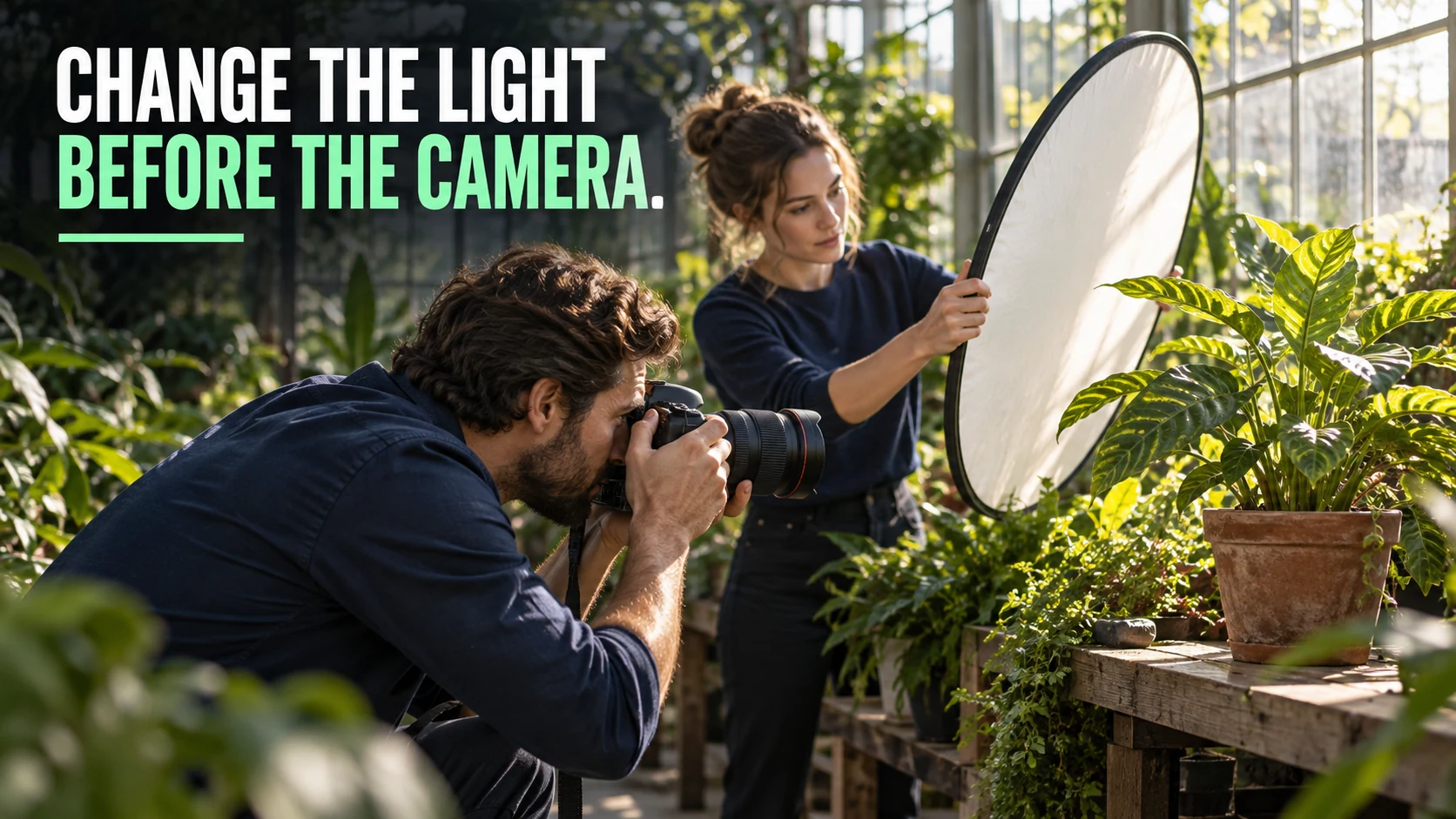
Move the subject toward suitable light, change the camera angle, use a reflector, or wait for different conditions. A sheer curtain may reduce window light, but it may also reduce light on the subject; test its actual effect. Any permitted additional lighting must suit the location and subject.
| What you see | First action to test | Important limitation |
|---|---|---|
| Important bright detail clips | Reduce exposure and inspect the subject | A darker capture may leave unacceptable shadow noise |
| Subject stays too dark | Move it toward light or add suitable fill | A reflector must actually receive useful light |
| Static scene exceeds one useful exposure | Try a bracketed capture | Movement and alignment can create artifacts |
| Moving subject in a contrasty scene | Improve lighting, angle or timing | A multi-frame merge may not preserve the action |
| Bright lamps clip but the subject looks right | Assess whether lamp detail matters | Not every clipped highlight needs correction |
Sometimes a silhouette is the intended result. Keeping detail everywhere is not a universal goal. Choose which information supports the photograph.
For changes in shutter, aperture and ISO, use the aperture and shutter-speed guide and the ISO exercise.
7. Use HDR merging when the frames can combine cleanly
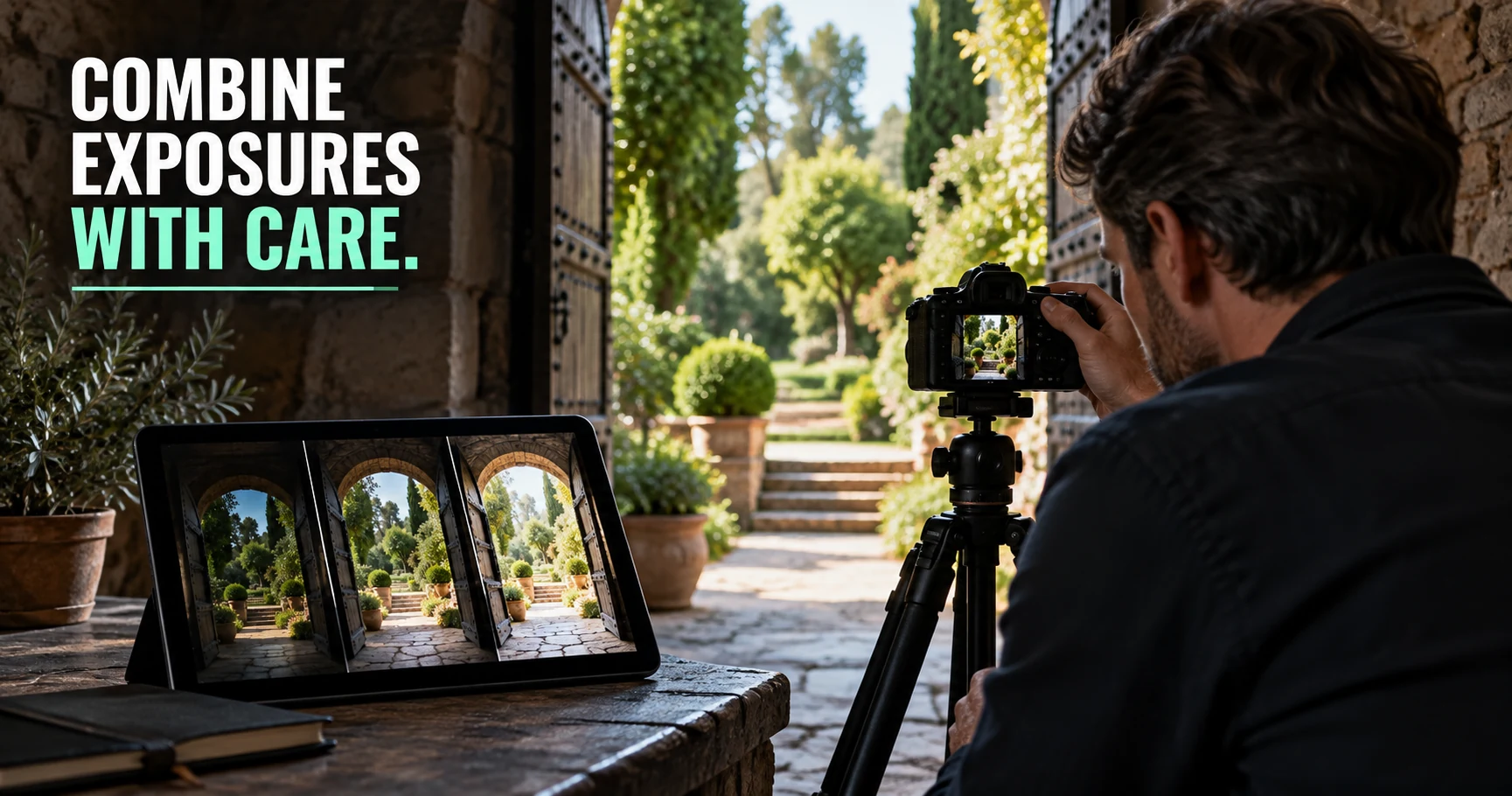
Exposure blending combines information from differently exposed photographs of the same composition. It can help a static interior or landscape when no single file meets the required highlight and shadow quality.
For a first attempt, use the same supported camera position and fixed aperture, ISO, focus and white balance. Change shutter time between frames. Capture enough variation that the important bright and dark areas are useful in at least one source, rather than treating three frames as a guaranteed solution.
In Lightroom Classic, select the bracketed files and choose Photo → Photo Merge → HDR. Inspect alignment and any moving objects in the preview. Adobe’s HDR merge documentation describes alignment and deghosting controls. Use deghosting only as needed and inspect its effect; it is not a guarantee that moving subjects will combine correctly.
Look closely at leaves, people, window edges and reflections. Reject a merge with doubled outlines or unnatural transitions. Preserve source captures and compare the merge with your best single frame.
HDR merging and HDR display are different. A merged image can be rendered for an ordinary SDR output. HDR display and export require a compatible viewing workflow; Adobe’s HDR output guidance distinguishes those features. Check the intended destination rather than assuming an HDR file will look the same everywhere.
8. Treat video recording modes as separate decisions
A still-photo result does not establish the camera’s usable dynamic range in every video mode. Resolution, frame rate, recording format, profile and processing can change the available workflow.
Log is a recording curve designed for an appropriate post-production process. It can help retain a wider tonal range in a supported camera workflow, but selecting it does not create unlimited highlight or shadow information. Sony’s S-Log explanation describes its grading purpose.
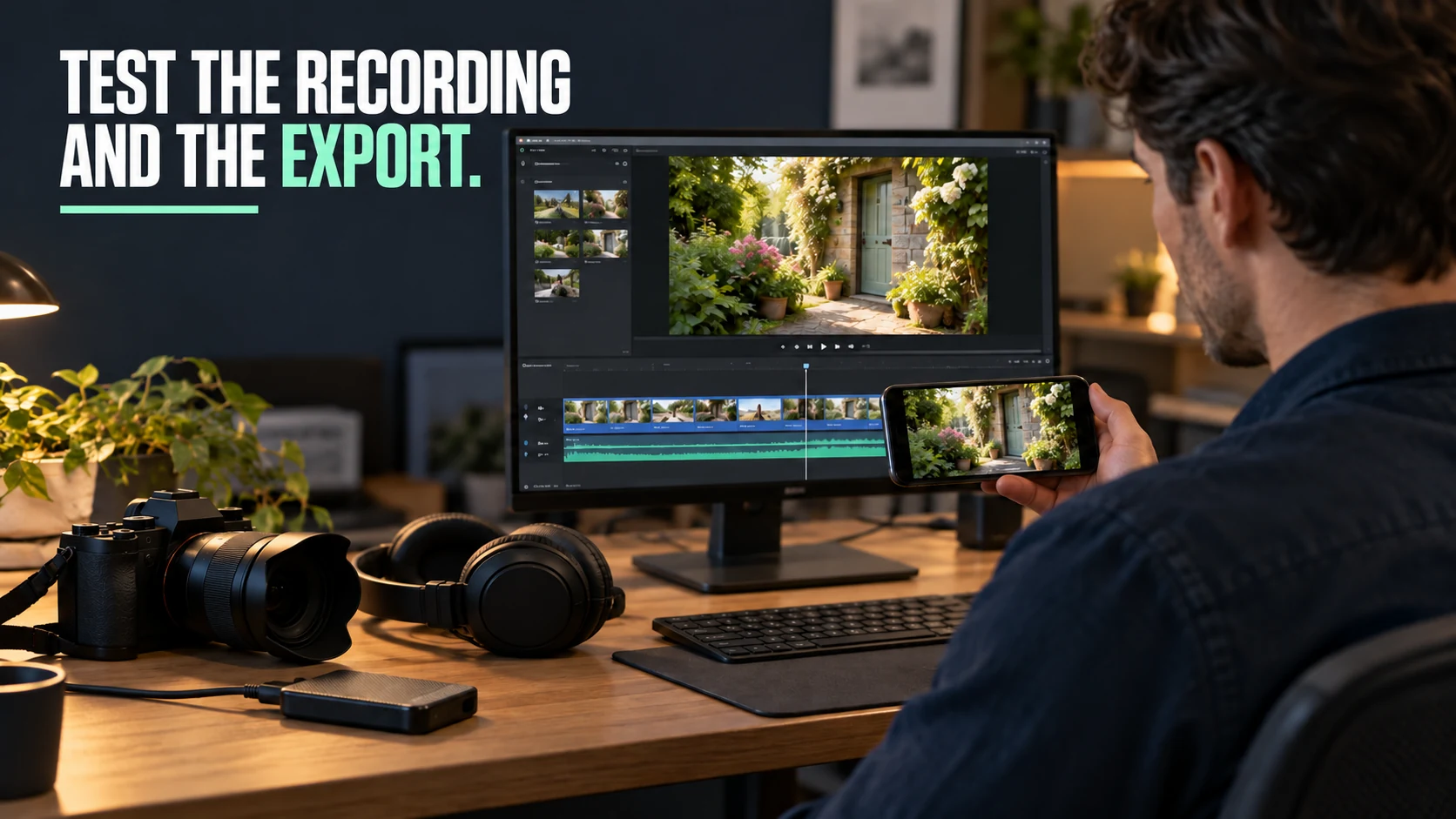
For a beginner, compare a short standard-profile clip with a properly exposed and correctly transformed Log clip only if your camera supports the mode and you understand its instructions. Keep the scene and movement similar, inspect the subject and bright area, then check the actual export. Do not apply an unrelated LUT and judge the camera from the resulting contrast.
Avoid treating a still HDR bracket as the normal solution for continuous video. Improve the scene’s light or contrast when a moving subject cannot fit the chosen recording workflow.
9. Keep a result record you can use next time
After the exercise, write four short notes:
- The bright detail you wanted to preserve.
- The shadow detail you needed to show.
- Which capture or lighting change worked.
- Why you chose the final exported file.
For example: “The window view mattered, but the small lamp reflection did not. Moving the plant toward window light gave a usable subject without the strongest shadow adjustment.” This is a possible observation, not a measured result from Pixanded.
Repeat the test when you change camera, recording mode or lighting conditions. You will build a practical understanding of your own files instead of depending on a universal stop number.
Frequently asked questions
What is dynamic range in cameras in simple terms?
It is the span between bright signals and dark detail a camera can record usefully under stated conditions. In a difficult scene, the practical question is whether important highlights and shadows can both meet the photograph’s quality needs.
Does more dynamic range always mean a better photograph?
No. It can help with contrasty scenes, but light, exposure, motion, focus and composition still matter. A stop figure also needs a stated measurement method.
Can RAW recover every blown highlight?
No. A RAW file may contain information that a JPEG preview does not show, but genuinely clipped detail is not restored by an exposure slider. Inspect the source file instead of relying on a recovery promise.
Is a black shadow always lost detail?
No. It may be dark because of the current rendering. Test an appropriate adjustment and inspect the resulting detail and noise. Sometimes a dark area is also an intentional part of the image.
Does HDR merging increase my sensor’s dynamic range?
It combines information from multiple captures; it does not change the sensor’s single-capture capability. Movement, alignment and processing can limit the result.
Is Log necessary for beginner video?
No. A suitable standard profile can be easier to expose and deliver. Use Log when your camera supports it and you can follow the required exposure, transform and delivery workflow.
Editorial note: This exercise evaluates your own usable result. It is not a laboratory dynamic-range test, a claim of universal recovery, or proof of performance from the accompanying illustrations.
Pixanded books: Complete Photography Fundamentals Guide for Beginners
Affiliate disclosure: These book links are affiliate links. Pixanded may earn a commission if you buy through them, at no additional cost to you.