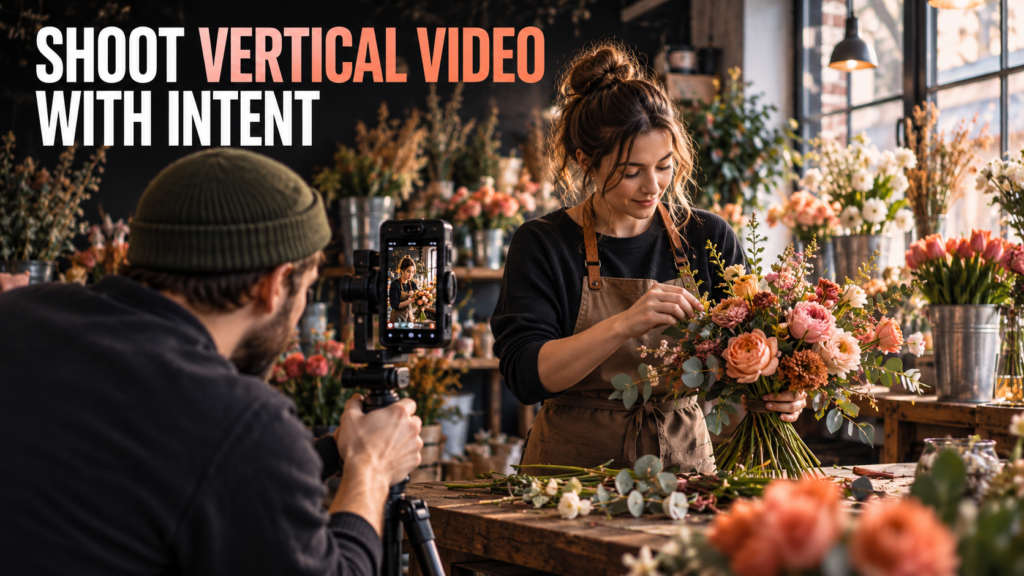
Before knowing how to shoot vertical video. A vertical video works when the important action fits the tall frame from the moment you record it. A wide shot cropped afterward can lose hands, products and context. Plan the final shape, then make a short sequence that explains one activity.
This guide uses a hypothetical florist arranging a bouquet. You can repeat the exercise with another ordinary activity that you have permission to film. The goal is a usable five-shot sequence and a checked upload, not a promised number of views.
Table of Contents
1. Define the destination before filming
Ask where the video will appear, how long the finished piece should be and what viewers need to understand. For this exercise, plan a 20–30-second vertical sequence with natural sound and a short opening title.
A 9:16 frame is a common full-height vertical choice; 1080 × 1920 is one practical project size. These are working choices for this exercise, not a claim that every platform requires the same file.
YouTube’s current Shorts guidance explains that eligible square or vertical uploads up to three minutes are categorized as Shorts, with date rules for standard and artist channels. Check the destination’s current guidance before delivery rather than relying on an old universal 60-second limit.
2. Frame the whole useful action
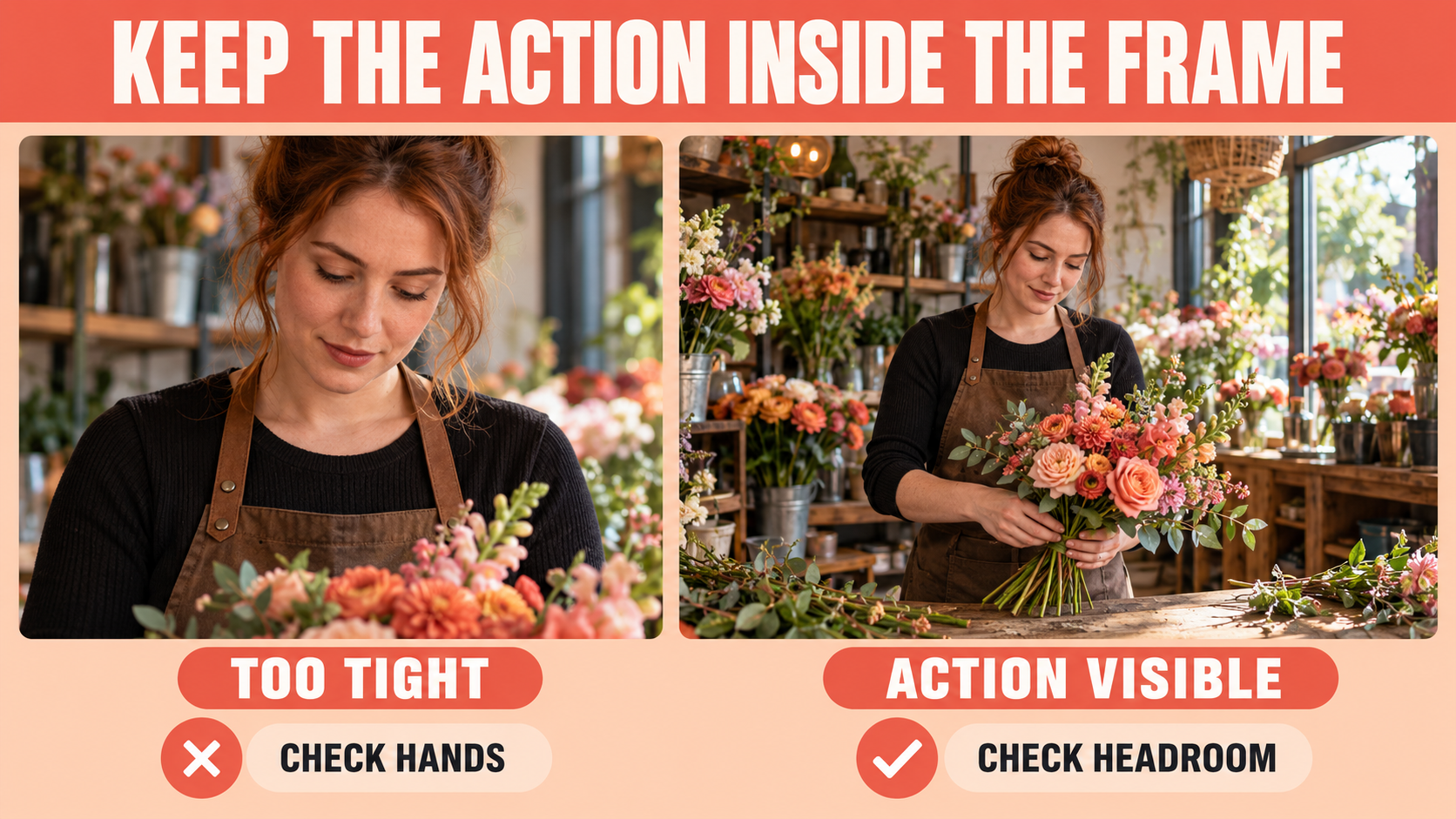
Look at the subject’s actual movement. In the florist example, the frame needs room for the hands, stems and finished bouquet. A face-only composition cannot explain an action happening below it.
Record a rehearsal and review the file. Check the highest and lowest points of movement, not just the opening pose. If important action touches the edge, change the camera position or framing before the real take.
Keep essential details away from the extreme edges where interface controls or captions may appear. Their positions depend on the service and viewing mode. A platform’s advertising safe-zone template is not automatically a universal rule for every organic upload.
| Subject requirement | Framing check | Possible adjustment |
|---|---|---|
| Hands arranging stems | Are both hands visible throughout? | Widen or lower the frame |
| Person and action together | Can viewers read the relationship? | Move farther back |
| Small product detail | Is the important feature understandable? | Record a separate close view |
| Opening title | Does it cover the work? | Move or shorten the title |
3. Record vertically or test the intended crop
If the camera can be mounted vertically with suitable support, compose in the final orientation. Check that the mount is secure and that cables and controls still work.
If you must record horizontally, display a reliable vertical framing guide where supported or test the crop in the editor before the shoot. Keep enough recorded resolution for your intended export; cropping removes image area and does not create new detail.
Avoid relying on stabilization or automatic reframing to rescue every shot. Those processes can change the visible boundaries. Inspect a short recorded clip using the exact modes you intend to keep.
For movement, practice a controlled handheld sequence rather than moving the camera simply to make the shot seem energetic.
What a horizontal to vertical crop actually keeps
Consider a landscape 3840 × 2160 recording. A full-height 9:16 crop is approximately 1215 × 2160 pixels before any additional stabilization crop. That can be resized to 1080 × 1920, but it retains only about a third of the original width. The calculation explains why a person centered in the landscape frame can remain visible while their hands disappear.
A 1920 × 1080 landscape source leaves approximately 608 × 1080 pixels in the same crop. Enlarging that to a 1080 × 1920 file changes the output dimensions without recovering the discarded detail. Judge whether the result is acceptable for the intended use rather than assuming that a tall export is equivalent to a vertically recorded frame.
For the florist exercise, rehearse the widest hand movement inside the intended crop. If both hands cannot remain visible, move back, choose a wider view or record vertically. A close-up of the ribbon can be a separate shot; the main action shot still needs to explain how the bouquet is being assembled.
Before recording a long take, compare a five-second clip with stabilization enabled and disabled where your device allows it. Look at the recorded boundaries and movement. Choose the mode that gives you useful framing and steady motion; a live display may not show every change applied to the final file.
4. Build a five-shot sequence
Show the location, the action, a useful detail, the person and the result. Each shot should add information. Five near-identical close-ups may look attractive while leaving the process unclear.
Record a little settled footage before and after the usable action. Those handles give you choices when trimming. Ask the participant to repeat a simple movement if continuity needs it; do not reconstruct an event in a way that misrepresents what happened.
| Shot | Florist example | Purpose |
|---|---|---|
| Place | Vertical view of the flower table | Orient the viewer |
| Action | Hands arranging the main stems | Show what happens |
| Detail | Ribbon or flower texture | Add useful specificity |
| Person | Florist checking the bouquet | Connect the work to a person |
| Result | Finished bouquet held clearly | Complete the sequence |
This is a proposed shot plan. Record your own footage and decide which views genuinely help the story. The same structure can explain cooking, packing an order or making a small object without repeating this flower-shop setting.

5. Make the sound and text usable
Listen to a test recording. Nearby traffic, refrigeration or a distant microphone may compete with a short spoken explanation. If speech matters, place the microphone appropriately and follow the ordinary-room audio checks.
Natural sound can explain the activity without continuous music. Keep enough clean sound to bridge edits when appropriate. If you add music, confirm the permission for this destination and use; a track available inside one app is not a blanket license for client delivery everywhere.
Keep titles short enough to read on a phone. Check their contrast against the changing picture and make sure they do not hide the action. Review captions for accuracy and placement rather than trusting an automatic transcript unchanged.
6. Edit for understanding
Start with the five shots in a clear order. Trim repetitions and moments that add no information. Choose the opening that explains what viewers will see rather than making a claim the footage cannot support.
Cut according to the action and sound. Do not impose fast cuts on a process that needs a moment to be understood. A viewer should be able to identify the finished result even when watching without audio.
Review the entire sequence once without sound, then once while listening carefully. The first pass reveals whether framing and text carry the meaning; the second catches distracting edits, clipping or abrupt changes.
7. Check the actual upload
Export a version using the dimensions, frame rate and format agreed for the destination. Watch the exported file from beginning to end before uploading it.
Then test the platform’s preview or an available private review mode. Check picture boundaries, interface overlap, caption placement, sound, cover selection and the ending. A correct-looking editor preview does not prove that the uploaded version presents identically.
For this exercise, write a three-line delivery note: what you exported, what you checked and what you changed after the upload review. Keep your source footage and project so a correction is practical.
Use the bitrate export comparison if the final file loses important detail. Avoid increasing numbers without comparing actual playback.

8. Use a short review sheet for your first vertical edit
Write a simple plan before shooting: “Twenty-five-second bouquet sequence; tall frame; one title; natural sound; final bouquet held still.” This gives you a specific finish line. It does not require every future film to use the same duration or shot order.
A possible edit might use three seconds to establish the table, eight seconds for the main action, four seconds for the ribbon detail, four seconds for the florist checking the arrangement and six seconds for the finished result. Those timings are an illustrative allocation. Adjust them when the action needs more or less time; do not stretch a weak shot just to fill the plan.
During your first review, pause at the moment of widest movement in each shot. During the second, watch continuously at normal speed. Pausing finds clipped hands and covered details; continuous playback reveals whether the sequence feels confusing or the title disappears before you can read it.
Record each correction as a problem and a next action: “Right hand leaves frame at the ribbon tie: use the wider take”; “Title covers the flower head: move it above the work”; “Abrupt sound change at the detail shot: use a clean recorded sound section across the cut.” This keeps the revision focused on visible or audible evidence.
Check the ending too. If the last frame cuts away before the viewer can understand the completed object, hold the result longer. For a loop, compare the end with the opening and decide whether the transition serves the story. A loop is optional; clear completion is still useful.
FAQs
Must vertical video be filmed on a phone?
No. A camera or phone can work if its framing, support and recording settings suit the assignment.
Can I crop horizontal footage into a vertical video?
Sometimes. Test whether the recorded image includes the necessary action and whether the remaining resolution suits the output.
Is there one safe area for every platform?
No. Interfaces and viewing modes vary. Check the actual destination and preview.
Does a longer Short automatically perform better?
No. Choose the duration needed to explain the activity. This workflow makes no reach or revenue promise.
Should every shot move?
No. A steady view can explain movement within the frame. Add camera movement when it contributes useful information.
Platform behavior can change. Confirm delivery requirements and review the uploaded result when preparing client work.