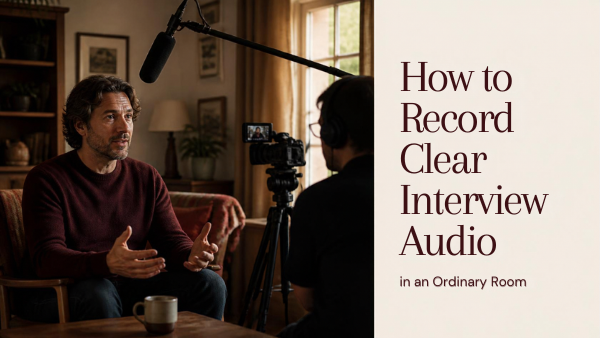
To record clear interview audio, start with the room and microphone position before adjusting software. A microphone close to the speaker in a quieter location gives you a better starting point than a distant microphone feeding a complicated effects chain.
You do not need to turn every ordinary room into a studio. You do need to listen for the problems that could interrupt speech, place a suitable microphone carefully and check the actual saved recording.
This workflow is for a small interview setup. It includes a short comparison exercise and a troubleshooting table you can use before a real take.
Table of Contents
1. Listen to the room before setting up the camera
Stand where the interviewee might sit and stay quiet for a moment. Listen for refrigeration, ventilation, traffic, music, electrical hum and conversations in nearby spaces.
Then ask someone to speak at a normal interview level. Notice whether their words remain distinct or are followed by a noticeable room tail.
Try a second position before committing to the first. A room corner with a flattering background may sound worse than a quieter position away from a window or hard reflective wall.
Make a short room checklist:
- Identify noises you can control, such as background music.
- Ask the location owner about appliances or ventilation; do not switch off essential equipment.
- Check whether the room will become busier during the interview.
- Choose a position with fewer nearby reflective surfaces where practical.
- Leave a clear, safe route for people and cables.
Furniture, curtains and other soft surfaces can help reduce reflections. They do not soundproof a room or stop noise entering through a door.
2. Choose a microphone position for the person
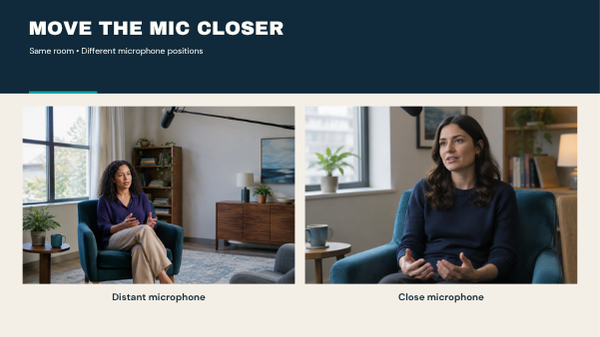
For a seated interview, a lavalier attached to clothing or a suitable microphone on a boom just outside the frame can keep the pickup close to the voice. For camera positions and eyelines when both speakers appear on screen, see our two-person conversation filming guide.
A camera-mounted microphone is convenient for some work. If the camera is far from the person, that position may capture more room sound than you want.
The RØDE interview-audio guide describes lavalier and boom placement for stationary interviews. Use the principle of useful proximity, then test your particular microphone.
| Setup | Placement to investigate | Listen for |
|---|---|---|
| Visible lavalier | Securely attached near the upper chest, following its guide | Clothing friction, cable movement and changes as the person turns |
| Boom-mounted microphone | Close to the speaker, aimed appropriately and outside the actual frame | Room sound, aiming changes and stand vibration |
| Camera-mounted microphone | As close as the framing reasonably allows | Distant voice and dominant room noise |
| Desk microphone | Near the speaker and away from distracting handling | Table knocks, plosives and off-axis speech |
Ask permission before attaching a microphone or adjusting clothing. Explain what you are doing and offer the person the option to attach it themselves.
There is no single distance that works for every microphone, voice and frame. Move carefully, listen and check the recorded result.
3. Rehearse movement, not only a still sentence
An interviewee may turn towards the interviewer, lean forward, laugh or gesture. Those movements can change the sound or cause a lavalier cable to rub against clothing.
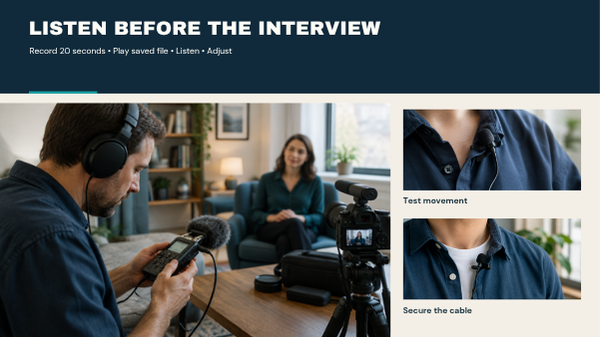
Ask them to answer a normal question and make the movements they expect during the interview. Listen while they do it.
For a lavalier, secure the cable so it does not tug the capsule. Check necklaces, jackets and fabric folds. A clean sentence while the person sits perfectly still is not enough.
For a boom, check the widest planned camera frame before recording. Keep the microphone and its shadow out of the image. Use a stable stand, secure its base appropriately and keep equipment clear of people.
4. Confirm the recording path
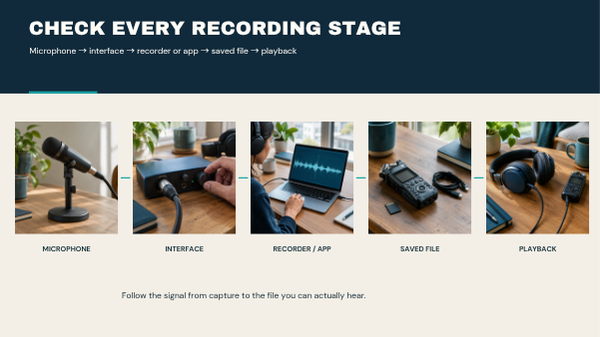
Follow the signal from microphone to saved file. Depending on your setup, the route may include a transmitter, receiver, interface, camera, recorder or computer app.
Check the actual equipment manuals for power and compatibility. A connector fitting physically does not establish that the signal and power requirements match.
On a computer, select the intended input in the recording app. A connected external microphone is not useful if the app continues recording the built-in laptop microphone.
Before the interview:
- Connect and power the intended devices.
- Confirm the selected recording input and channel.
- Check batteries or the available power supply.
- Confirm storage space.
- Make a test recording through the complete route.
- Play the saved file.
The Audacity recording manual is a useful example of checking input selection and monitoring in a computer recording workflow. Other apps have their own controls.
5. Set gain with room for louder speech
Ask the interviewee to speak normally, then say a sentence with the emphasis or laughter you might encounter. Watch the meter while listening.
For a conventional digital recording setup, peaks around −12 to −6 dBFS can be a useful starting range. This is a capture guideline, not a delivery loudness target or a universal setting for every recorder.
RØDE’s gain-staging guidance recommends leaving headroom and checking levels throughout the chain. A transmitter or preamp can overload before the final app meter looks excessive.
Start conservatively. If the voice is weak, investigate microphone distance and the appropriate gain control rather than turning every control up.
After moving the microphone, test the level again. A closer position changes what reaches the recording system.
6. Monitor with headphones and review the saved file
Meters show level; they do not tell you whether clothing is scratching the microphone or a refrigerator is masking the voice.
Wear headphones during the test and important takes where your setup allows it. Keep their level comfortable. Listen for the voice, the room, interruptions and any distortion.
Some devices offer direct monitoring before audio reaches the recording app. That can help during recording, but it does not prove that the app selected the correct input or saved a usable file.
Stop the test, open the file and listen back. Confirm that the recording starts, contains the intended speaker and continues to the end.
7. Compare two placements in the same room
This is a proposed listening exercise, not a published equipment comparison or a claim about measured improvement.
Use the same consenting speaker, microphone, recording device and short passage. Change one placement variable at a time.
Take A: record from the position you initially planned.
Take B: move the microphone closer without creating plosives, clothing noise or an unwanted appearance in the frame. Adjust gain to avoid overload.
Listen at a similar playback volume so a louder take does not automatically seem better. Write down observations rather than inventing a noise-reduction percentage.
| Question | Take A | Take B |
|---|---|---|
| Are all words easy to understand? | Write your observation | Write your observation |
| How noticeable is the room tail? | Write your observation | Write your observation |
| Do movements cause rustle or level changes? | Write your observation | Write your observation |
| Is the position practical for the full interview? | Write your observation | Write your observation |
If neither position works, try a different room position or recording time. A purchase is not the only possible next step.
8. Keep a simple interview routine
Before each take, confirm recording, give the speaker a moment to settle and leave a brief pause before the first question. At the end, leave another short pause before stopping.
If sound is recorded separately from the camera, make a visible and audible sync marker that both devices capture. Check that you can align the test files before relying on the method for the full interview.
Record a short stretch of the room’s natural sound with the setup left in place. This can help an editor maintain consistent ambience between cuts. It is not a noise-removal profile that guarantees clean dialogue.
If an interruption covers an important answer, pause and ask for that answer again. Capturing a clean repeat can save more time than trying to repair masked words.
9. Troubleshoot the actual symptom
| Symptom | First check | Practical next action |
|---|---|---|
| Voice sounds distant or hollow | Microphone position and nearby reflections | Move closer or change the seating position |
| Scratching during movement | Clothing, jewellery and cables | Remount or secure the microphone, then rehearse |
| Harsh or crunchy loud words | Overload at each recording stage | Reduce the relevant gain and repeat the loud sentence |
| Very quiet external microphone | Selected input, power and connection | Verify the complete route before adding processing |
| Voice drops as the person turns | Placement and aiming | Reposition and test normal head movement |
| Echo only in headphones | Monitoring paths | Check whether direct and delayed app monitoring are both active |
| One speaker is much quieter | Unequal distances or shared-mic placement | Reposition or use an appropriate separate-channel setup |
Keep post-production modest until you know what caused the problem. Noise reduction can introduce artifacts, and raising the volume also raises the unwanted sound already in the recording.
For the picture side of a filmed interview, see Camera Settings for YouTube Videos. For planning a small client assignment, see How to Start Freelance Videography With No Clients.
10. Run this final check before the real take
- The room remains suitable at the actual recording time.
- The microphone stays close and stable during natural movement.
- The recording device has the intended input selected.
- Loud speech leaves usable headroom.
- Headphones reveal no distracting rustle or distortion.
- The saved test file plays correctly.
- Camera and separate audio can be synchronised if needed.
- Batteries, storage and a practical backup plan are ready.
Frequently asked questions
Can I use the camera’s built-in microphone?
You can record with it, but listen to the result at the planned camera distance. If the room dominates or speech is unclear, move to a more suitable microphone position.
Will a shotgun microphone remove room echo?
No. Directionality does not erase reflections. Placement, aiming and the room still influence the recording.
Should I record as loudly as possible?
No. Leave room for louder speech and avoid overload. Adjust the finished delivery level later.
Is direct monitoring enough?
No. It helps you listen during capture, but also play the saved file to check the recording app, selected input and recorded channels.
Can noise reduction fix a bad interview?
It may reduce some unwanted sound, but it cannot reliably recover words covered by noise or fully repair distortion introduced during capture.
A useful interview test is short: record normal speech, include natural movement, play the saved file and adjust the cause of any problem. Do that before the conversation becomes difficult to repeat.