On this page
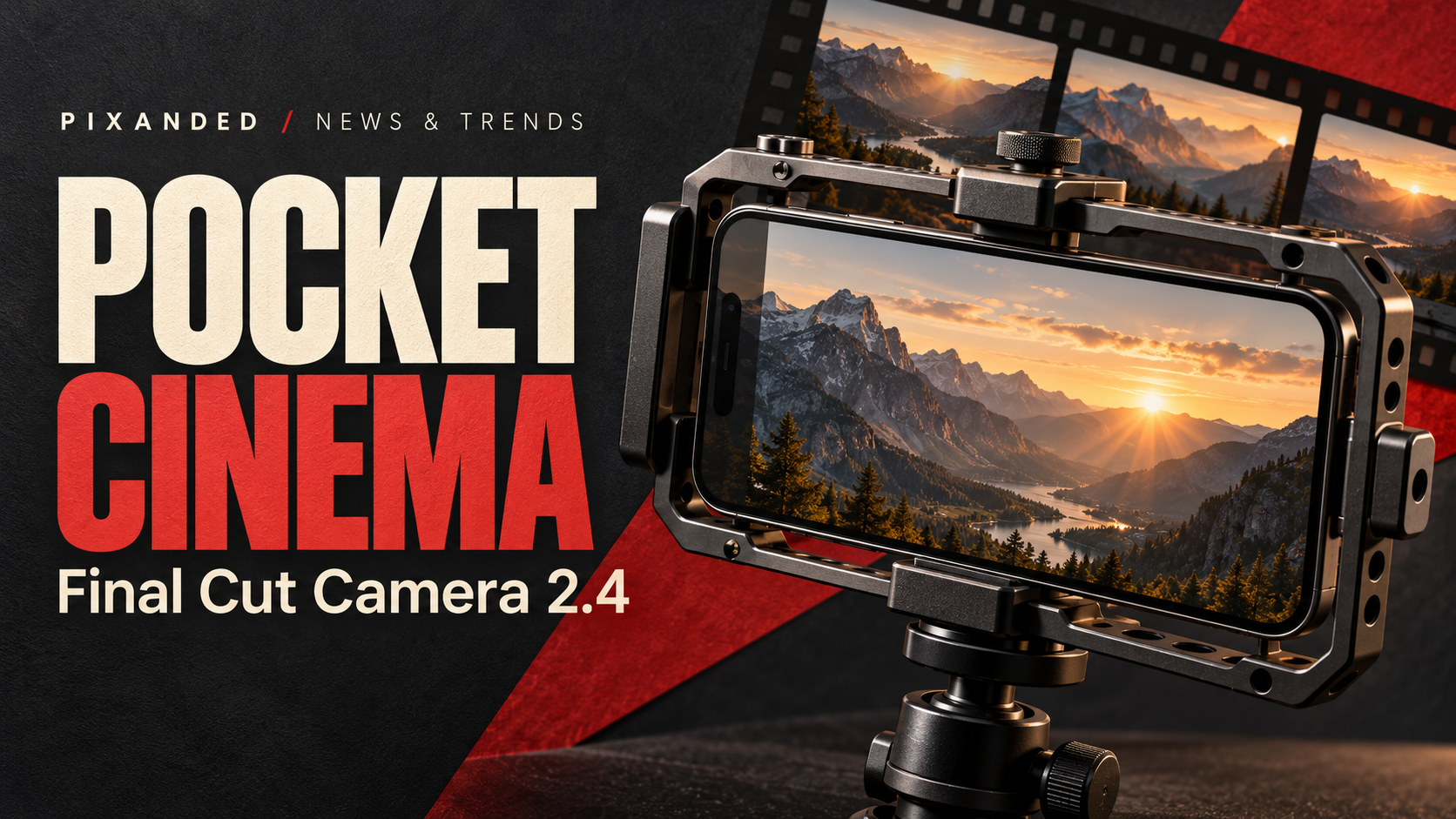
Final Cut Camera 2.4 gives iPhone filmmakers more ways to control and inspect a shot. For beginners, the biggest benefit is learning to make deliberate choices before recording: how motion looks, where attention goes and whether the face is exposed well enough to use.
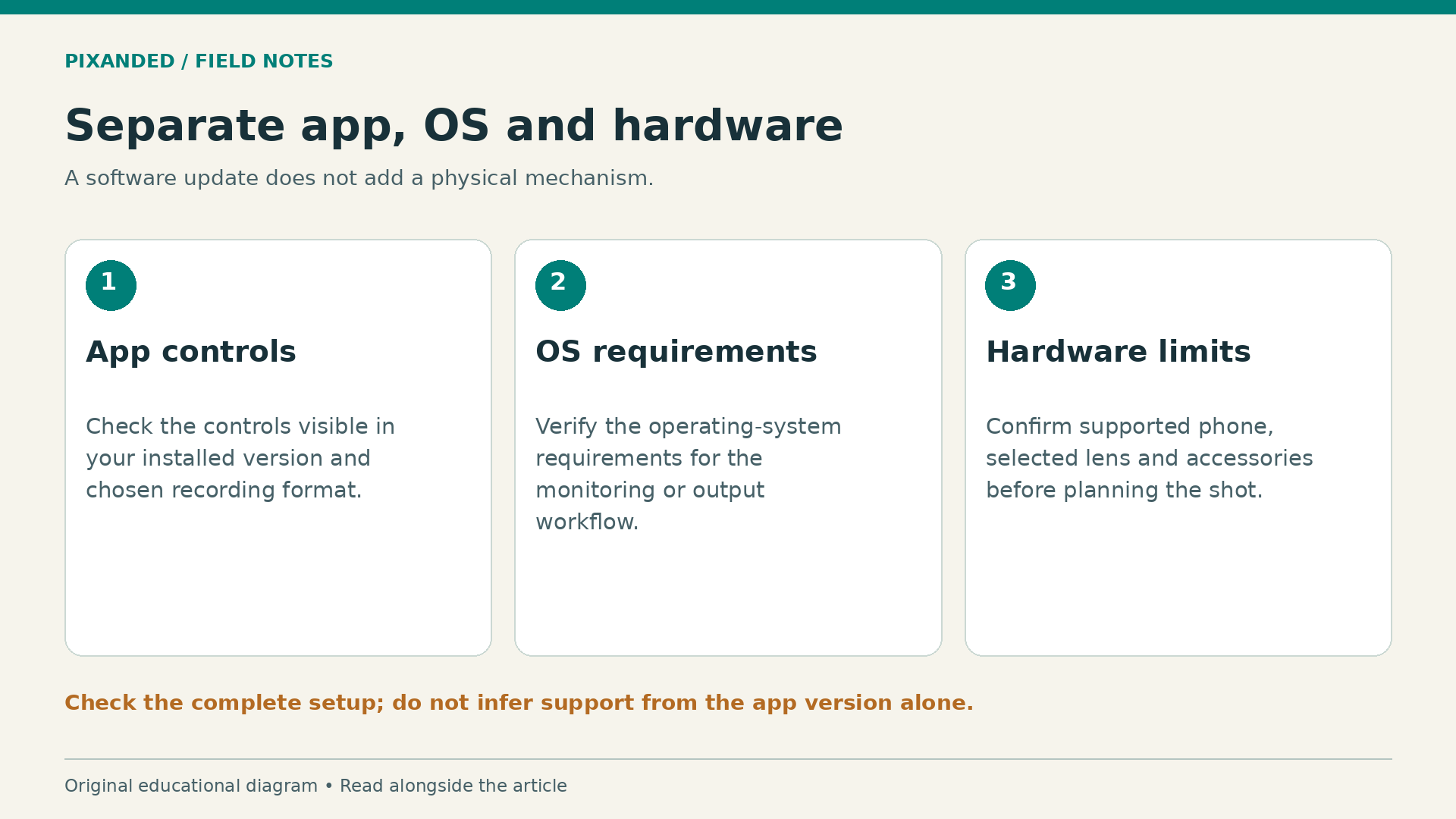
The update also includes hardware-specific options. Installing an app cannot add a physical aperture mechanism to an older phone. This guide explains the September 2026 announcement, separates those requirements and gives you a small filming exercise you can adapt to the device you already own.
What changed in version 2.4
Apple announced the free Final Cut Camera 2.4 update on 29 September 2026. It brings a redesigned interface, easier access to shutter angle, ISO and white balance, customizable exposure overlays, adjustable focus peaking, a recording tally and a two-finger gesture to clear the viewfinder.
Variable aperture control is tied to the iPhone 18 Pro Fusion Main camera, with shutter- and aperture-priority options. Apple also describes Cinematic effects for regular video, including ProRes and Apple Log footage, with editing in Final Cut Pro. With iOS 27, the announcement adds scopes, clean SDI output through a converter and genlock offset.
This is an update explainer, not a hands-on review or a measured comparison. Facts were checked against Apple’s documentation on 6 October 2026. Confirm your model, operating system, selected camera and recording format before relying on a particular control.
Start with the controls that solve your problem
More options do not mean you should turn everything on. If you are filming a short interview, your immediate priorities are a clear voice, stable framing, usable exposure and reliable focus. A broadcast output chain is unlikely to improve that first interview.
Write the problem you want to solve before changing settings. “The face keeps getting darker when the person moves” suggests an exposure decision. “The background becomes warm and cool between clips” suggests inconsistent lighting or white balance. “The demonstration is difficult to follow” may be a framing or shot-planning problem.
Work through these in an order you can understand. Position the subject and light first. Choose the framing. Set the basic recording format. Then adjust the controls needed to keep the shot consistent. This makes it easier to see what each change actually does.
Use the following table as a planning guide. It separates an editorial task from a device requirement without pretending that every combination is supported.
| Filming need | What to explore | What to confirm |
|---|---|---|
| Keep an interview consistent | Exposure and white balance controls | Settings remain stable through the take |
| Judge bright highlights | Exposure overlays or scopes | Meaning of the selected guide and display mode |
| Check a small subject’s focus | Focus peaking and playback | The actual recorded detail, not just the overlay |
| Change physical lens aperture | Supported aperture control | Correct phone and main camera selected |
| Connect to a production setup | Output and synchronization options | OS, accessories and complete workflow compatibility |
Understand shutter angle before changing it
Shutter controls affect how motion appears. A shorter exposure tends to make moving details more distinct; a longer exposure creates more motion blur. Neither is automatically better. You might want crisp action in a demonstration and a softer sense of movement in a travel sequence.
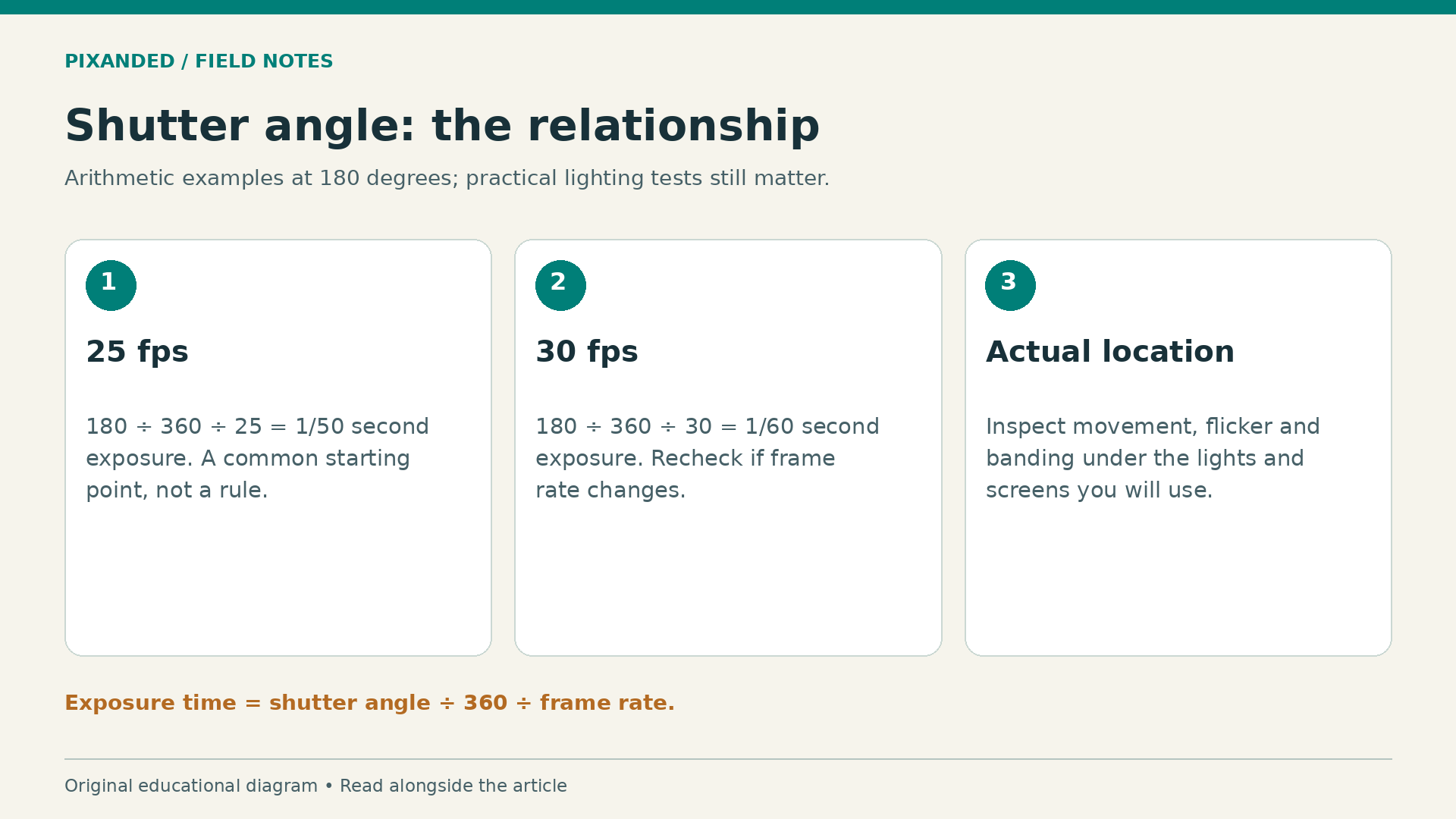
As a general filmmaking starting point, a 180-degree shutter gives an exposure time of roughly half a frame interval. At 25 frames per second that is 1/50 second; at 30 frames per second it is 1/60 second. These are arithmetic examples, not mandatory presets or guarantees against flicker.
The relationship is: exposure time in seconds equals shutter angle divided by 360 and then divided by frame rate. At the same frame rate, reducing the angle reduces the time each frame gathers light. If you change the frame rate, review the shutter setting and the visible result again.
Artificial lights and displays can complicate that choice. Film a short test under the actual lights and inspect it for flicker or banding. If you see a problem, adjust the shutter or the lighting and test again. A mathematically conventional setting is not useful if it records an unstable image in your location.
Apple’s exposure and white balance guide documents automatic and manual controls and explains the relationship between shutter settings and motion. Use that guide for current menu behavior; use your test clip to judge the look.
Treat aperture as an optical decision
On hardware that provides it, the physical aperture controls the opening through which light reaches the sensor. A lower f-number describes a wider opening; a higher number describes a narrower one. Aperture also interacts with focus distance and the appearance of depth in the scene.
Physical aperture is different from an effect that estimates depth and changes the appearance of blur. They can both influence the look of a shot, but they are different parts of the imaging process. Do not use a portrait-like effect as proof that a phone’s lens opening changed.
For a close-up of a small object, first decide which details the viewer needs to see. A soft background may isolate the subject beautifully, but too little visible depth can hide the feature you are demonstrating. Position the object so its important surfaces sit near the same focus distance, or change your shooting angle.
For two people in an interview, place them at similar distances from the camera when both need to appear sharp. This practical arrangement can matter more than chasing the widest opening. Test with the actual framing and have each person move naturally before recording the complete conversation.
Do not buy a new phone solely because a specification sounds cinematic. Identify a recurring filming limitation, then see whether the supported control solves it in the kind of scene you actually record.
Use exposure guides as evidence, not decoration
A bright phone screen can make a dim image look acceptable, while a dark screen outdoors can tempt you to overexpose. An exposure guide gives you another way to inspect the signal rather than relying only on the display’s apparent brightness.
Start with one guide at a time. Learn its scale or legend before treating a color as a universal instruction. A false-color overlay can use colors to identify brightness ranges, but the meaning depends on the implementation. Clipping indicators can warn about areas that have reached a limit; they do not tell you whether every bright area must retain detail.
For a window-lit interview, prioritize the person’s face and the important objects. The view outside a bright window may not need to remain fully detailed. If it does matter, move the subject, change the angle or add suitable light rather than simply darkening the whole frame.
A histogram describes the distribution of brightness. It does not identify which part of the image is important. A large dark background can dominate the graph even when the face is correctly exposed. Interpret the guide together with the composition and the purpose of the shot.
With color scopes, a strong difference between channels can reflect a color cast or an intentionally colored scene. A sunset is not supposed to look neutral everywhere. Use a known reference and your visual intention before making a correction. Learn one kind of evidence well before adding more overlays to the screen.
Focus peaking still needs a playback check
Focus peaking highlights edges that the application interprets as useful focus information. It helps you see where detail is concentrated, especially on a small screen. It does not certify that the important eye or label is critically sharp in the recorded file.
For a static interview, place focus on the subject and record a short test with natural movement. Check the eye detail in playback. If the person leans substantially forward and backward, decide whether your focus approach can keep up or whether you should adjust the seating and framing.
For a demonstration, check the closest and farthest positions of the object. A hand may begin in focus and then move outside the useful area. Rehearse the movement and choose a camera angle that keeps the important action visible.
If the overlay seems to outline everything, reduce visual clutter or adjust its sensitivity where available. Review the recording itself before assuming that a more colorful screen means a sharper result. The viewer receives the footage, not the monitoring overlay.
Record a repeatable three-shot exercise
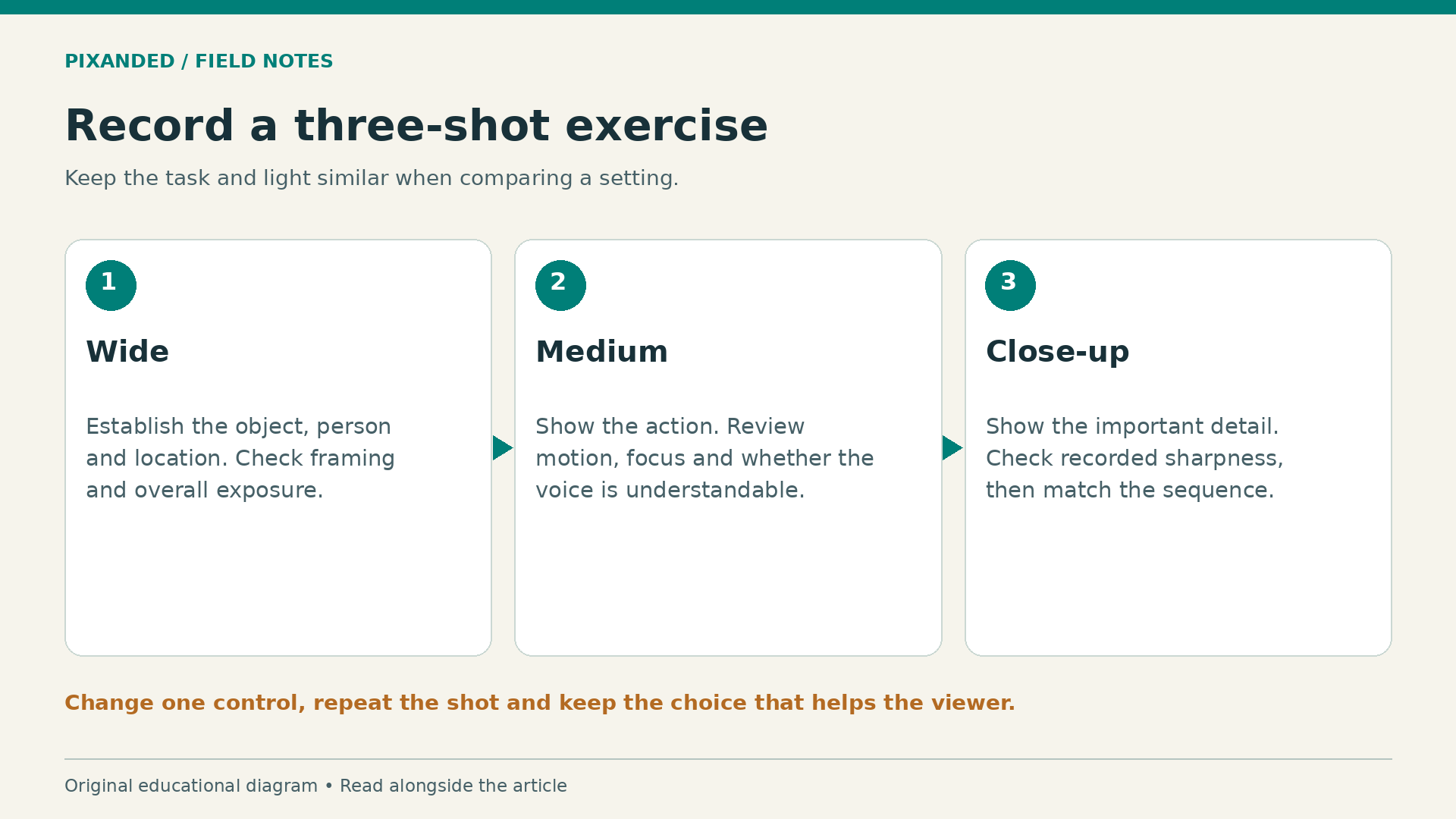
Choose a small object, such as a cup or a notebook, near a window. Capture a wide view of the setup, a medium shot of someone using the object and a close-up of its key detail. This gives you a miniature sequence with a clear purpose.
First record using a straightforward format you already know how to edit. Inspect the exposure, focus, motion and sound. Write down one weakness: perhaps a highlight distracts from the object, the close-up is soft or the movement is difficult to see.
Next change one control relevant to that weakness and repeat the shot. If you are exploring shutter behavior, keep the movement and framing similar. If you are exploring white balance, keep the same lighting. If you are exploring aperture on supported hardware, keep the subject position and compare the recorded detail.
Watch the clips in your editing application as well as on the phone. Name the useful difference in plain language. “The hand movement is easier to follow” is a stronger observation than “this looks more professional.” If you cannot identify an improvement, return to the simpler setup.
Finally, assemble the three shots into a short sequence. Match their color and exposure as well as you can. The exercise is complete when the viewer understands the action without being distracted by an inconsistent look.
Avoid adding format complexity too early
Large, demanding recording formats can require more storage, faster transfers and a suitable editing workflow. Log footage also needs an appropriate viewing and finishing approach. Extra latitude is useful only when you know how you will handle it.
Before an important shoot, record a clip in the intended format and bring it through the entire workflow: transfer, import, edit, export and playback. Check available storage and how long the process takes. A format you cannot finish reliably is a poor choice for a time-sensitive assignment.
Keep a clear audio test in that rehearsal. The update’s visual controls do not solve distant microphones, clothing noise or a loud room. See how to record clear interview audio and how to shoot smooth handheld video for practical foundations.
Frequently asked questions
Does installing 2.4 give every iPhone variable aperture?
No. The announced physical aperture control depends on supported hardware. Check the phone model and selected camera before planning a shot around it.
Do I need to use all the new professional options?
No. Begin with the control that solves a visible problem in your footage. Output and synchronization options are valuable for specific production setups, not prerequisites for a good first video.
Is 180 degrees always the correct shutter angle?
It is a common starting point, not a rule. Motion style, frame rate, lights and screens can require another choice. Test in the actual location and inspect the recorded result.
Should a beginner record everything in Log?
Use a format you can expose, transfer and finish confidently. Practice the complete Log workflow before relying on it for an important project, and keep a simpler option available.
Your next step
Record the three-shot exercise on your current device. Make one deliberate adjustment, compare the clips and keep the choice that helps the viewer. Learning to control a repeatable shot will improve your videos more reliably than enabling every option at once.