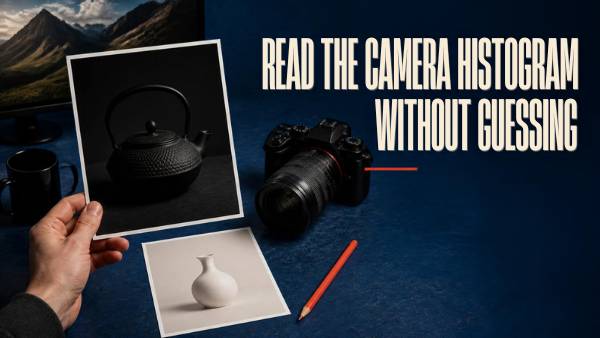
A camera histogram shows how the tones in a displayed image are distributed. It helps you check an exposure when the screen is difficult to judge, but it does not tell you whether the photograph should look bright, dark or evenly balanced.
Use it with the actual scene, highlight warnings and a close inspection of the important subject. This guide explains what to look for and gives you a comparison exercise without assuming that every good photograph has a centered graph.
Table of Contents
1. Read the axes before judging the shape
The horizontal axis runs from darker tones on the left to brighter tones on the right. The vertical axis indicates how many pixels occupy a tone range. A high peak means many pixels share similar brightness; it does not mean that part of the image is especially important.
A scene with a large dark wall can produce a strong peak on the left. A scene filled with pale paper can produce a strong peak toward the right. Both may be appropriate.
Nikon’s D7500 playback guide explains these axes and notes that camera histograms are guides that may differ from those displayed in editing software. Use your camera manual to locate its brightness, RGB and highlight displays.

2. Do not aim for a particular mountain shape
An evenly spread histogram is not a universal target. Neither is a peak in the middle. The graph describes the image; it does not know what you intended.
Before changing exposure, identify the scene’s dominant tones. Is the subject wearing dark clothing against a dark background? Is it a white product on a white surface? Is a small important face surrounded by a large bright sky?
Then inspect the area that matters. A small face can be underexposed without dominating the graph. A tiny lamp can reach the bright edge even though the rest of the image is well exposed.
| Scene | A plausible distribution | What to inspect |
|---|---|---|
| Dark jacket against a dark wall | Much of the graph toward the left | Texture and face detail, rather than a centered peak |
| White paper in a bright setting | Much of the graph toward the right | Important surface texture and bright-edge warnings |
| Person beside a bright window | Separated darker and brighter groups | Face detail and whether the outside view matters |
| Night scene with small lamps | Dark mass with a small bright component | Which light sources may deliberately lack detail |
These descriptions are illustrative. They are not measured plots from test photographs.

3. Understand what an edge warning can tell you
A graph reaching an edge deserves attention, but the graph alone does not locate the affected area. Combine it with the image and any highlight-warning display.
If important bright fabric or a product label loses visible texture, consider reducing exposure and inspecting another frame. If only a tiny specular reflection is affected, the loss may be acceptable for your intended image.
Likewise, tones near the left edge may represent intentional black areas or detail you wanted to retain. Inspect the relevant shadow rather than brightening every dark photograph automatically.
A rendered preview is not a guarantee of the exact adjustment range available in your final editing workflow. Check the file in your editor when the scene is demanding. Do not assume that every warning proves a raw file has irrecoverable detail, or that every raw file will rescue a poorly exposed subject.
4. Use RGB when color detail matters
A brightness histogram combines information into a brightness view. An RGB display separates red, green and blue channels. A colored object or strongly colored light can create a problem in one channel that is less obvious in the combined view.
For a saturated red flower, stage lighting or a colored product, inspect the RGB display as well as the photograph. Look for whether the color and texture you need remain believable. If one channel is pressed against its bright limit, test a lower exposure and compare the result.
Nikon’s ViewNX-i histogram documentation provides another example of viewing channel information in software. The controls and display scale on your camera or editor may differ.

5. Run a three-scene, three-exposure exercise
Arrange three simple stationary scenes: a dark object against a dark background, a pale object against a pale background, and a subject beside a bright window. Keep the camera and subject stable within each scene.
For each arrangement, make a baseline photograph and two exposure variations. In an automatic mode, you can use supported exposure compensation. In manual mode, change a suitable exposure setting deliberately. Record what actually changed.
Do not choose a variation because its graph looks tidier. Choose by examining the subject detail, important highlights, motion and intended appearance.
| Scene / frame | Actual exposure settings | Distribution description | Important detail | Selected result and reason |
|---|---|---|---|---|
| Dark: baseline / brighter / darker | Record shutter, aperture, ISO | Left-heavy, spread or other observation | Texture and intended darkness | Write the visual reason |
| Pale: baseline / brighter / darker | Record each change | Position of pale-tone group | Surface texture and intended brightness | Write the visual reason |
| Window: baseline / brighter / darker | Record each change | Separated tones or other observation | Face and important background | Record the compromise |
Review the same files in your editor. Note differences between the camera display and the editor’s rendering instead of treating one histogram as a permanent description of every possible edit.
6. When the graph cannot solve the scene
If the face needs more light while the window must retain detail, lowering or raising the whole exposure may only move the problem. The histogram helps reveal the conflict; it does not change the lighting.
Move the subject, redirect available light, add suitable fill or change the composition. For an unmoving scene, a carefully planned multi-exposure workflow may be relevant, but it is a separate capture and editing decision. It is not a default repair for a moving person.
If the subject is blurred, a favorable histogram does not make the photograph usable. Check shutter speed and focus alongside exposure.
7. A practical review sequence
- Decide how the scene should look.
- Inspect the main subject at a useful magnification.
- Check the brightness distribution.
- Locate warnings in important highlights.
- Check RGB when strong colors matter.
- Make one purposeful change and compare.
- Keep the frame that serves the photograph, not the prettiest graph.
Some cameras update a histogram when playback is zoomed into a region; others do not. Confirm your model’s behavior before using a cropped display as a local exposure check.
For related practice, see RAW and JPEG comparison and A repeatable photo-editing workflow.
FAQs
Should a histogram always peak in the middle?
No. Dark and bright scenes can appropriately produce different distributions. Scene intent and important detail determine the useful exposure.
Does touching the right edge always ruin a photograph?
No. Check which area is affected and whether it matters. Important texture and a small deliberate reflection are different cases.
Why is my camera histogram different from my editor’s?
The displays can use different rendering and processing. Treat the camera display as guidance and inspect your actual files in the intended workflow.
Why check RGB rather than brightness alone?
Separate channels can reveal a strong-color issue that a combined view makes less obvious. Inspect the image as well as the graph.
Can a histogram tell me whether the face is sharp?
No. It describes tones, not focus or motion. Inspect the face itself and check your capture settings.
Use this workflow as a comparison method, not a promise that all files can recover missing detail. Camera displays and available playback tools vary by model.