
Flickering video lights may produce pulsing brightness, traveling bands or uneven color. A room that looks steady to your eyes can still record badly. The useful response is a short diagnostic test with the actual light, camera settings and recording mode.
Do that test before the interview or performance starts. A shutter setting that helped in one room is a starting point, not a guarantee for every LED fixture or dimmer.
Table of Contents
1. Identify what is changing
Watch a recorded clip rather than only the live camera display. Look for repeated whole-frame brightness changes, horizontal bands moving through the picture, or color variation. Also distinguish these from ordinary exposure automation reacting to movement.
Set exposure and white balance deliberately for the test so automatic adjustments do not obscure the cause. Use the final intended frame rate and recording mode. Include a static wall or neutral surface and a brief example of the movement you expect to film.
Sony’s flicker guidance distinguishes conventional anti-flicker functions from variable-shutter functions. Support depends on the camera, and a still-photography anti-flicker setting is not automatically a solution for movies.
2. Why artificial lights can cause trouble
Artificial lights can vary in output over time. The camera samples that changing light during exposures, and different combinations can produce visible variation. Some LEDs use control frequencies that differ from the familiar mains-related pattern.
Frame rate and shutter time play different roles. Frame rate determines the number of frames recorded each second. Shutter time determines the exposure interval for a frame. Changing one does not automatically solve a mismatch involving the other.
Do not assume every light in a room behaves identically. Ceiling lights, a practical lamp, a sign and your filming light can create different problems, especially when dimmed.
3. Separate a starting setting from a verified fix
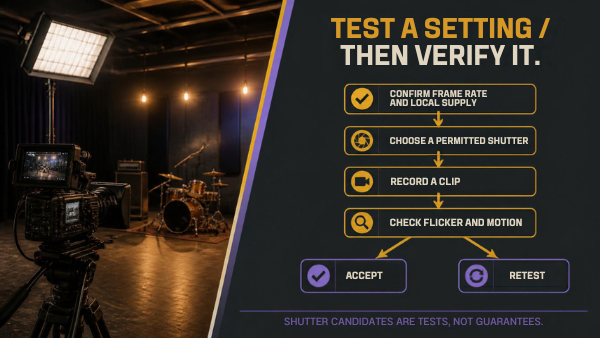
In a 50 Hz environment, 1/50 or 1/100 second can be useful initial tests when your frame rate permits them. In a 60 Hz environment, 1/60 or 1/120 second can be useful initial tests. Confirm the local supply and venue rather than inferring it from a video tutorial.
These are candidates to test, not universal cures. LED drivers, dimming and screens can behave differently. A required shutter time must also be compatible with the recording frame rate; your camera may not offer every combination.
Changing shutter time changes exposure and motion rendering. After identifying a promising setting, restore appropriate exposure and check the subject’s actual movement. Do not judge a setting as “better” merely because the image became darker.
| Control | What it changes | What to verify |
|---|---|---|
| Frame rate | Frames recorded per second | Delivery requirement and permitted shutter choices |
| Shutter time | Exposure interval and motion rendering | Flicker, exposure and movement |
| Light brightness / dimming | Fixture output and sometimes its modulation | Every brightness level you intend to use |
| Variable shutter, if supported | Finer shutter adjustment | Your exact model’s movie support and a recorded test |
| Light selection | Which sources reach the scene | Whether the offending source can be removed or replaced |
4. Isolate the light before changing everything
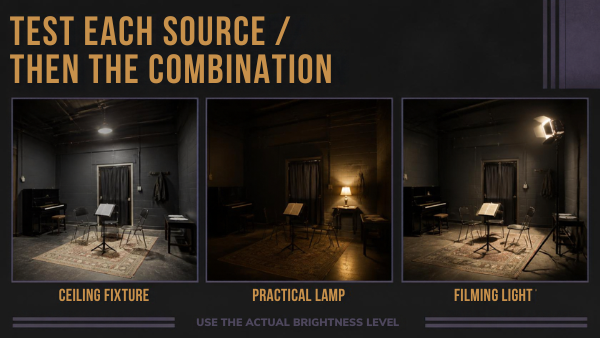
Turn sources on separately when the venue permits it. Test the ceiling fixture, practical lamp and production light individually. Then test the combination you need.
If the problem appears only when a particular fixture is dimmed, record that condition. A fixture that behaves acceptably at one output is not automatically acceptable at another. Avoid changing its brightness after the test without checking again.
If a screen is in shot, test the actual screen content and brightness. Replacing a ceiling light will not necessarily solve a display-related problem.
Keep the camera position and other settings consistent while identifying the cause. Otherwise you cannot tell whether a different shutter, dimmer level or angle produced the improvement.
5. Run this four-clip diagnostic
The following is a proposed production check, not a measured test of a particular product.
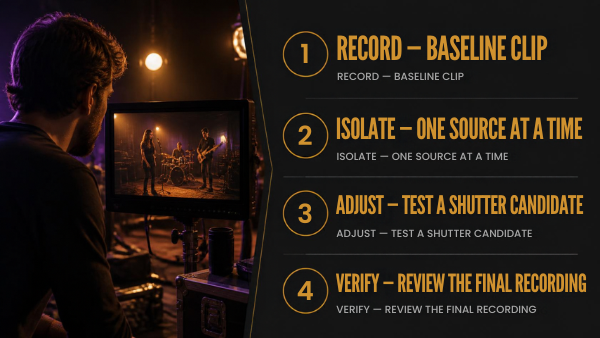
- Baseline: record the final composition with your planned frame rate, shutter and lights.
- Isolated source: record the suspected light alone, with the camera settings unchanged.
- Candidate shutter: test a suitable alternative shutter or supported fine adjustment with the same source.
- Final combination: restore the needed lights and exposure, then record the expected subject movement.
If clip two still has several possible sources, repeat the isolation step instead of treating the four clips as a fixed limit. Record enough seconds to see repeated behavior and review at normal speed as well as individual frames.
| Clip | Lights / dimmer levels | Frame rate and shutter | Observed artifact | Next decision |
|---|---|---|---|---|
| Baseline | Record all active sources | Record exact settings | Pulsing, bands, color or none | Identify suspects |
| Isolation | One source at a time | Keep baseline settings | Which source produces the issue? | Remove or test that source |
| Candidate | Same source and level | Record each adjustment | Artifact improved, unchanged or worse | Choose a usable candidate |
| Final | Actual combination and exposure | Chosen production settings | Check movement and final recording | Approve or change the lighting |
Review the file on the playback device or editing system you will use. A clean live view alone is insufficient evidence.
6. Use supported fine adjustment carefully
Some cameras offer fine or variable shutter adjustment to match troublesome lighting more closely. Sony’s α1 help guide documents model-specific support and advises checking captured images because the preview can differ.
Read your own model’s instructions. Confirm availability in the selected movie mode, adjust in small steps and record a new test. Do not copy another camera’s menu name or assume its still-image anti-flicker setting applies to your footage.
If no acceptable shutter setting works with the required movement and frame rate, change the source, remove the source from the composition or revise the production plan.
7. Know when to stop trying camera settings
A practical decision is better than endless adjustment during a client’s session. If the fixture remains problematic, explain the limitation and use a lighting arrangement you can verify.
Do not promise that post-production will repair every clip. Severe bands, changing color and mixed sources can be difficult to correct cleanly. Preserve the original files, but prioritize a usable capture.
Repeat the check whenever the venue changes a dimmer, switches fixtures or adds a display. Record the accepted combination in your production notes so the crew can maintain it.
For related practice, see Frame-rate motion test and Camera settings to test before recording.
FAQs
Does a 180-degree shutter setting prevent all flicker?
No. It is a motion-rendering convention, not a guarantee that every light’s timing will match the camera.
Can I use my still-photo anti-flicker setting for video?
Only if your camera documentation explicitly supports the relevant movie function. Still and movie features can differ.
Why does an LED flicker only when dimmed?
The fixture’s output behavior can change with dimming. Test the exact brightness level rather than relying on a full-output check.
Should I change frame rate first?
Start with the intended delivery requirement and isolate the source. Change frame rate only if the production can accept the resulting change.
Can editing remove the problem afterward?
Sometimes a tool may reduce an artifact, but correction is not assured. A verified clean recording is preferable to an untested repair plan.
What proves the fix worked?
A recorded clip made with the final lights, levels, exposure, frame rate and expected movement, reviewed in your actual playback workflow.
Camera functions and fixture behavior vary. Use these steps to test a combination rather than treating a shutter value as a universal guarantee.