
On this page
Lightroom Prompt to Edit gives photographers a new way to describe an image change in words. The useful question is whether that change makes your photograph better while preserving what matters. A cleaner background is helpful; a cleaner background that also rewrites the product you photographed is a failed edit.
This guide explains the September 2026 update, then walks through a careful first experiment. The examples are suggested exercises, not results from a hands-on product test. You will learn how to choose a suitable photograph, write a specific request and review the output before sharing it.
What Adobe has confirmed
Adobe’s Prompt to Edit documentation, updated 29 September 2026, describes an early access feature in Lightroom desktop. That does not establish availability in Lightroom Classic, mobile or every account.
Open a photo in Detail view and choose Prompt to Edit from the left panel or View menu. You can customize an example or write your own instruction. Adobe lists Nano Banana 2 output options at 2K and 4K. The generated result is saved as a DNG beside the original or in a stack; stacking is currently supported in the Cloud. The panel also shows your remaining credits.
Those are the documented facts as checked on 6 October 2026. Check the controls and allowance in your own account before planning a client workflow. Do not assume that a DNG generated through this feature is equivalent to an untouched camera raw file.
Decide whether the photo needs generation
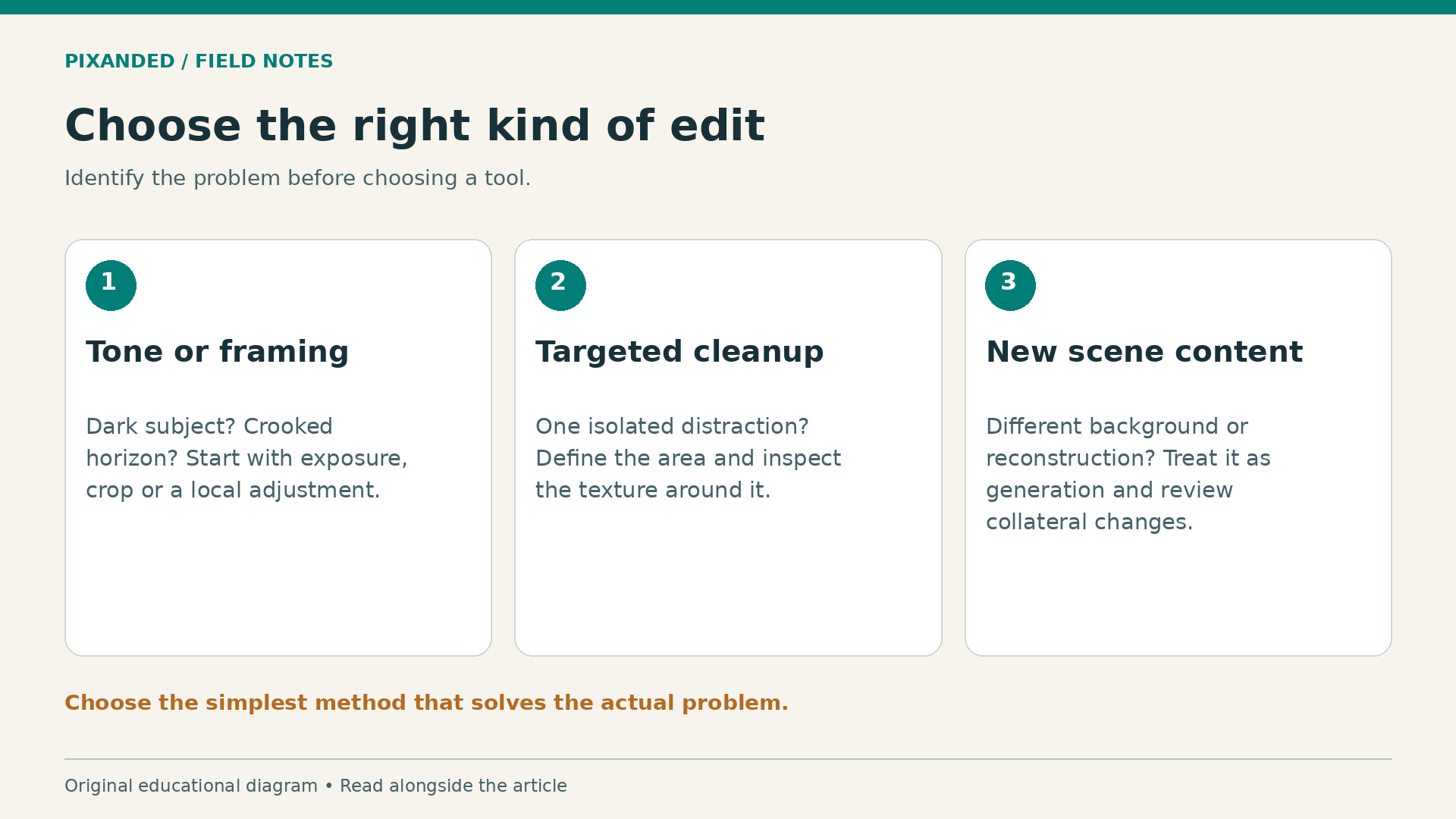
A beginner’s first instinct may be to ask for a complete makeover. Start by identifying one visible problem. Is the subject too dark? Does a bright object pull attention from the face? Is the image crooked? Does the background need a change that would require rebuilding part of the scene?
Exposure, framing and color decisions are often easier to control with familiar editing tools. If you can solve the problem with a crop or a local brightness adjustment, you can compare the result directly with your intention. A generated edit requires an additional question: what else changed?
Consider a photograph of a handmade ceramic cup. A slightly dark handle is a tonal problem. A price sticker stuck behind the cup is a cleanup problem. Turning the cup into a different glaze is a change to the product itself. These requests may all sound like “improving the image,” but they have very different consequences.
Use this decision table before spending credits. The recommendations describe an editing approach; they are not claims that a particular prompt always succeeds.
| Your goal | Sensible starting point | What to check |
|---|---|---|
| Improve a dark face | Local exposure adjustment | Skin tone and highlight detail |
| Straighten a horizon | Crop and rotation | Important edges remain inside the frame |
| Remove an isolated distraction | A targeted cleanup tool | Repeated texture and surrounding edges |
| Explore a different background | A clearly defined generative request | Subject shape, lighting and scene credibility |
| Restore a damaged family picture | Work on a preserved copy | Identity and details that cannot be verified |
For a broader foundation, read how to edit photos like a professional. Knowing what a good edit should achieve makes your request easier to write.
Write a prompt that names the change and the boundaries
A useful instruction has three parts: the object or area, the requested action and the details that must remain consistent. “Make it professional” gives no meaningful way to judge success. “Remove the small paper scrap on the table behind the cup; preserve the cup’s shape, glaze, handle and existing shadows” gives you a clear review task.
Treat those boundaries as requests, not guarantees. A model can still alter a detail you told it to preserve. Your instruction helps define the intended result; your comparison determines whether the result is acceptable.
For a personal portrait experiment, you could try: “Remove the bright empty bag in the background. Keep the person’s facial features, clothing, hair and pose unchanged. Preserve the direction of the existing window light.” Avoid combining that with skin smoothing, a new hairstyle and a different setting in the same attempt.
For a creative still life, try: “Replace the plain background with a muted warm gray wall. Preserve the bowl, fruit, table surface and object arrangement. Keep the light coming from the left.” This is appropriate for an explicitly creative exercise. It would need a different approval standard if the photograph documented a real location or a commercial product.
Start with ordinary language. Describe the change as you would to another photographer, including where it belongs in the image. If the instruction needs a paragraph of competing requests, split the task. One change makes both successful results and failures easier to diagnose.
Run a controlled first experiment
Choose an image you own, preferably a simple still life with clear edges and no important lettering. Keep a preserved original outside your experiment. A straightforward subject makes it easier to spot an unexpected change than a busy street scene with dozens of people and signs.
Write down the problem before opening the feature. For example: “The bright scrap behind the cup draws attention away from the handle.” Then define success: “The scrap is gone, the cup is unchanged and the table still looks continuous.” This small note prevents you from accepting a dramatic result merely because it is attractive.
Make a normal edited reference first if possible. Correct the framing and basic brightness without inventing content. You now have a baseline that shows how much improvement ordinary editing can deliver.
Run one limited generative request. Record the prompt, output setting and any visible change in your credit balance. Review that result before trying again. If it fails, identify the failure in plain language rather than writing a longer version of the same vague request.
Suppose the background becomes smooth but the handle changes shape. The next attempt should narrow the target and emphasize the boundary, or you should switch methods. Repeating “preserve everything” without changing the approach is unlikely to make the review easier.
Finish with two candidates: your conventional reference and your best acceptable generated version. Compare them at the intended viewing size. A technically interesting output is not automatically the stronger photograph.

Review details at two viewing sizes
First inspect the photograph as someone would actually encounter it: a website image, a phone screen or a print. Does your eye find the subject? Do the colors feel coherent? Has the edit made the scene harder to understand? This checks the overall communication.
Next zoom in and compare important areas with the original. Inspect edges, texture transitions and the details that establish identity. A face can appear plausible at thumbnail size while the shape of an eye or a distinctive mark has changed. A product can look elegant while its label or stitching is no longer accurate.
Use a systematic path across the image rather than looking only at the edited area. Start with the subject, move to the boundary of the change, then inspect the background and frame edges. This catches collateral changes that a quick before-and-after glance may miss.
Keep this review checklist beside you:
- Identity: facial features, distinguishing marks and personal details still match.
- Geometry: straight lines, handles, fingers and repeated shapes remain plausible.
- Texture: fabric, skin, wood and ceramic surfaces do not acquire unnatural repetition.
- Lighting: shadows and reflections agree with the light in the rest of the frame.
- Information: lettering, logos and product details remain accurate where they matter.
- Purpose: the edit is appropriate for the image’s intended use.
Reject a result when an important detail is uncertain. You do not need to prove that every pixel changed before deciding that an image is unsuitable for delivery. The useful standard is whether you can stand behind the photograph you are sharing.
Restoration needs a different standard
Restoring an old family photograph can be emotionally valuable. It also involves details you may no longer be able to verify. A convincing reconstruction of an eye, a uniform badge or a building sign can introduce information that was never visible in the surviving photograph.
Keep the damaged original and label the restored copy clearly. Ask relatives whether they recognize the person’s appearance, but remember that recognition is not proof of every reconstructed detail. When possible, compare with other photographs from the same period.
Separate removing visible damage from inventing missing content. If a crease crosses a plain wall, a repair may be easy to assess. If damage removes part of a face, the uncertainty is much greater. A restrained repair that leaves some imperfection can be more respectful than a flawless reconstruction presented as fact.
Plan credits, exports and disclosure
Set a small experimentation budget before you begin. Count attempts as part of editing time and record the allowance shown in your account. Avoid committing to a large batch until you know how often your chosen subject requires retries. A workflow that looks fast on one easy image may become expensive on twenty difficult ones.
Export a review copy and check it outside the editing application. Confirm dimensions, color appearance, sharpness and any text at the actual delivery size. Keep the original, chosen result and prompt note together so you can explain what changed later.
Adobe’s Content Credentials guide describes export options for attaching information about attribution and editing history. These can provide useful context; they do not replace a clear explanation to a client or family member. Check the exported file and its credentials rather than assuming metadata survives every later transfer.
For commercial work, agree on acceptable changes before editing. A simple statement such as “background cleanup permitted; product appearance must remain accurate” is easier to follow than a broad request to make the image look premium. For documentary work, use the relevant editorial standard and preserve evidence of the original scene.

Common beginner mistakes
The first mistake is asking for several unrelated improvements at once. You lose the ability to identify which request caused a problem. The second is judging only at thumbnail size. The third is letting a beautiful result override the original brief.
Another mistake is using generation to avoid learning light and exposure. If your photographs repeatedly have muddy shadows or clipped highlights, improve capture and conventional editing first. Reading the camera histogram can help you recognize exposure problems before they become editing problems.
Finally, do not build a production promise around an early access control without checking your own setup. Create a fallback method for essential work. The feature should expand your options while you keep responsibility for the finished image.
Frequently asked questions
Is Prompt to Edit available in Lightroom Classic?
The documentation checked for this guide identifies Lightroom desktop early access. Do not infer Classic availability from that announcement; check the specific application and account you use.
Should I use it for every photo?
No. Begin with a defined problem. If a crop, exposure adjustment or targeted conventional edit solves it cleanly, generation adds a review burden without necessarily improving the result.
Can a generated restoration recover the true missing detail?
Treat missing information as uncertain. A plausible reconstruction is not evidence of what the original scene contained. Keep the source image and identify the restored version clearly.
What is the best first exercise?
Choose a simple image you own and request one small background change. Compare the result with the original and a conventional edit, then explain in one sentence why you accepted or rejected it.
Your next step
Try one limited edit, keep the original and complete the review checklist before exporting. The skill worth building is the ability to describe a useful change and judge whether the finished photograph still serves its purpose.